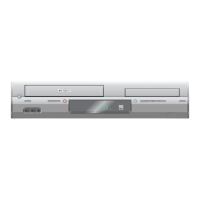
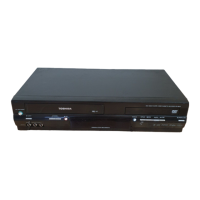
1-35
Playing a DVD or Video CD
Playback Setup
1. Turn on the TV and select the video input source
connected to the DVD+VCR.
2. Turn on the audio system (if applicable) and
select the input source connected to the
DVD+VCR.
3. Press OPEN/CLOSE (U) to open the disc tray
and load your chosen disc in the tray, with the
playback side down.
4. Press OPEN/CLOSE (U) to close the tray.
Playback starts automatically. If playback does not
start, press PLAY (
G).
In some cases, the disc menu might appear
instead.
5. To stop the playback, press STOP
■.
The unit records the stopped point, depending on the
disc. “II
■” appears on the screen briefly. Press PLAY
to resume playback (from the scene point). If you press
STOP
■ again or unload the disc (“■” appears on the
screen.), the unit will clear the stopped point.
Press
OPEN/CLOSE
U to remove the disc.
Press OPEN/CLOSE
U to close disc tray or press I/
, the disc tray closes automatically and unit turns off.
If a menu screen is displayed
The menu screen may be displayed first after loading
a DVD or Video CD which offer a menu.
Use the
FG v V buttons to select the
title/chapter you want to view, then press
ENTER/OK to start. Press TOP MENU or MENU
to return to the menu screen.
Use the
FG v V buttons to select an option
you want, then press ENTER/OK to view the
option.
Use the number buttons to select the track you
want to view and press RETURN to return to the
menu screen. Menu settings and operating proce-
dures may differ. Follow the instructions on each
menu screen. You also may set PBC to Off (See
“PBC” on page 23).
Notes:
• If parental control is set and the disc is not within
the rating settings you must input the password.
(See “LOCK” on page 24.)
• DVDs may have a region code.Your player will not
play discs that have a region code different from
your player. The region code for this player is 2
(two).
General Features
Notes:
Unless stated otherwise, all operations described use
the remote control. Some features may also be avail-
able on the Setup menu.
Moving to another TITLE/GROUP
When a disc has more than one title/group, you can
move to another title/group. Press DISPLAY, then the
appropriate number (0-9) or use
b / B to move
to another title/group.
Moving to another CHAPTER/TRACK
When a title on a disc has more than one chapter or
a disc has more than one track, you can move to
another chapter/track as follows:
• Press SKIP F or B briefly during playback
to select the next chapter/track or to return to the
beginning of the current chapter/track.
• Press SKIP B twice in quick successions to
step back to the previous chapter/track.
• To go directly to any chapter during DVD play-
back, press DISPLAY and press
v / V to select
the chapter/track icon. Then, input the
chapter/track number or use
F / G.
Search
1. Press REW
b or FWD f during playback.
2. Press REW
b or FWD f repeatedly to select
the required speed.
DVD, DivX disc; X2, X4, X16 or X100
Video CD; X2, X4 or X8
3. To exit SEARCH mode, press PLAY (
G).
Note:
When using a DVD audio disc that includes pictures,
this operation may be permitted in some picture
segments.
Changing the Audio Channel
Press AUDIO repeatedly during playback to hear a
different audio channel (STEREO, LEFT or RIGHT).
VCD
DivX
VCD
DVD-ADVD-V
DivXVCD
DVD-ADVD-V
DVD-ADVD-V
VCD
DVD-A
DVD-V



 To Next Page
 Loading...