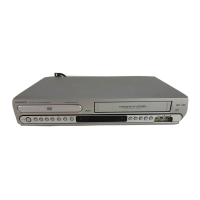
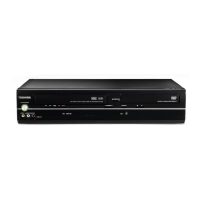
How to change the display language on Toshiba DVD VCR Combo?
- KKevin KramerSep 16, 2025
If the display on your Toshiba DVD VCR Combo is not shown in your preferred language, you can select the correct language in the menu options.
How to change the display language on Toshiba DVD VCR Combo?
If the display on your Toshiba DVD VCR Combo is not shown in your preferred language, you can select the correct language in the menu options.
Why is there no picture on my Toshiba DVD VCR Combo?
If your Toshiba DVD VCR Combo is not displaying a picture, ensure that the antenna connection is correct. Also, make sure your TV is set to video channel 3 or 4, or that the video input selector on the TV is set to VIDEO (or equivalent). Finally, ensure the channel is not set to external mode; if it is, switch it.
How to fix a Toshiba DVD VCR Combo that does not operate?
If your Toshiba DVD VCR Combo does not operate, ensure the power cord is correctly plugged in and try a different AC outlet. If the issue persists, unplug the unit and then plug it back in. Also, make sure to select either DVD or VCR mode before attempting to use it.
Why is there no sound coming from my Toshiba DVD VCR Combo?
If you're not getting any sound from your Toshiba DVD VCR Combo, first, verify that the unit is connected correctly. Also, check that the input selector on your amplifier is set properly. Be aware that the unit may be in a Special playback mode, which could affect sound output.
What to do if playback doesn’t start on my Toshiba SD-KV550SU DVD VCR Combo?
If playback doesn't start on your Toshiba DVD VCR Combo, first ensure that a disc is inserted into the unit. If a disc is inserted, check if it is dirty and clean it if necessary. Also, confirm that the unit is capable of playing the type of disc you are using; it cannot play DVD-ROMs, etc.
What to do if there is no subtitle on my Toshiba SD-KV550SU DVD VCR Combo?
Some discs have no subtitles. If subtitles are cleared, press the SUBTITLE button on your Toshiba DVD VCR Combo.
How to troubleshoot a Toshiba SD-KV550SU DVD VCR Combo that does not operate?
If your Toshiba DVD VCR Combo does not operate, ensure the power cord is properly plugged into an AC outlet. If it's plugged in, try using a different AC outlet. As a next step, try unplugging the unit, waiting a few moments, and then plugging it back in. Finally, make sure you have selected either the DVD or VCR mode before attempting to use the device.
What to do if there is no picture on my Toshiba SD-KV550SU DVD VCR Combo?
If you're getting no picture on your Toshiba DVD VCR Combo, start by checking the antenna connection to ensure it's correctly connected. Next, verify that your TV is set to video channel 3 or 4. Also, confirm that the unit is connected correctly to the TV. Ensure the video input selector on your TV is set to VIDEO (or the equivalent setting). Lastly, check that the channel is set to internal mode and not external mode.
How to enable on-screen display on Toshiba SD-KV550SU DVD VCR Combo?
If there is no on-screen display on your Toshiba DVD VCR Combo, select Display to 'On' in the settings.
How to change the display language on a Toshiba SD-KV550SU DVD VCR Combo?
If the display on your Toshiba DVD VCR Combo isn't shown in your language, select the proper language in the menu options.
Essential safety guidelines and warnings for operating the device.
Critical safety instructions and warnings for user protection and device longevity.
General advice on handling, locating, cleaning, and preventing device issues.
Guidelines for handling, cleaning, and storing discs for optimal playback.
Diagrams and descriptions of front panel and rear panel controls and connections.
Instructions for inserting batteries and basic operation of the remote control.
Instructions for connecting various antenna types to the DVD/VCR unit.
Diagrams and steps for connecting the DVD/VCR to a television set.
Methods for connecting the DVD/VCR to a cable TV system, including descrambler boxes.
Basic procedures for connecting the DVD/VCR to a television for viewing.
Guidance on connecting to amplifiers or audio systems for enhanced sound.
How to set the correct video channel for VCR playback and TV tuning.
Procedure to select the desired on-screen display language (English, French, Spanish).
Instructions for setting the device's internal clock, including auto and manual methods.
Steps to program channels into the VCR's memory for easy channel selection.
How to insert and remove VHS tapes from the VCR.
Step-by-step guide to play prerecorded VHS tapes.
Explains features like slow motion, frame-by-frame, and picture search.
Describes features like Repeat Playback and Zero Return.
How to use the index search system to locate recorded segments.
Instructions for recording a TV program while viewing another.
Simple method for setting a timed recording without complex programming.
Detailed guide for programming automatic recordings for specific dates and times.
How to record and play back MTS Stereo TV broadcasts.
Guide to switching to a second audio program for multi-language broadcasts.
Instructions for copying VHS tapes to another VCR or camcorder.
How to record audio or video content from discs onto a video tape.
Fundamental steps for inserting and playing DVD or CD discs.
How to zoom into video frames and navigate to specific scenes.
Function to save specific points in a disc for quick return playback.
How to set playback to repeat entire tracks/titles or specific segments.
Features for arranging playback order or playing tracks randomly.
Ways to change camera angles, select titles, and navigate DVD menus.
How to select different audio tracks and enable surround sound effects.
Instructions for selecting subtitle languages or turning off Playback Control.
Information on playing audio and image files from CDs.
Specific playback options for Audio CDs like repeat, random, and A-B repeat.
Overview of how to adjust various performance settings for the DVD player.
Explains specific settings like Menu language, TV screen size, and picture modes.
How to set parental level restrictions and change the password.
Procedure to temporarily bypass disc rating restrictions.
Reference table for language codes used in menu, subtitle, and audio settings.
Common problems and their solutions for DVD/VCR operation.
Technical details and features of the DVD/VCR unit.
Information regarding the product's warranty terms and conditions.
Essential safety guidelines and warnings for operating the device.
Critical safety instructions and warnings for user protection and device longevity.
General advice on handling, locating, cleaning, and preventing device issues.
Guidelines for handling, cleaning, and storing discs for optimal playback.
Diagrams and descriptions of front panel and rear panel controls and connections.
Instructions for inserting batteries and basic operation of the remote control.
Instructions for connecting various antenna types to the DVD/VCR unit.
Diagrams and steps for connecting the DVD/VCR to a television set.
Methods for connecting the DVD/VCR to a cable TV system, including descrambler boxes.
Basic procedures for connecting the DVD/VCR to a television for viewing.
Guidance on connecting to amplifiers or audio systems for enhanced sound.
How to set the correct video channel for VCR playback and TV tuning.
Procedure to select the desired on-screen display language (English, French, Spanish).
Instructions for setting the device's internal clock, including auto and manual methods.
Steps to program channels into the VCR's memory for easy channel selection.
How to insert and remove VHS tapes from the VCR.
Step-by-step guide to play prerecorded VHS tapes.
Explains features like slow motion, frame-by-frame, and picture search.
Describes features like Repeat Playback and Zero Return.
How to use the index search system to locate recorded segments.
Instructions for recording a TV program while viewing another.
Simple method for setting a timed recording without complex programming.
Detailed guide for programming automatic recordings for specific dates and times.
How to record and play back MTS Stereo TV broadcasts.
Guide to switching to a second audio program for multi-language broadcasts.
Instructions for copying VHS tapes to another VCR or camcorder.
How to record audio or video content from discs onto a video tape.
Fundamental steps for inserting and playing DVD or CD discs.
How to zoom into video frames and navigate to specific scenes.
Function to save specific points in a disc for quick return playback.
How to set playback to repeat entire tracks/titles or specific segments.
Features for arranging playback order or playing tracks randomly.
Ways to change camera angles, select titles, and navigate DVD menus.
How to select different audio tracks and enable surround sound effects.
Instructions for selecting subtitle languages or turning off Playback Control.
Information on playing audio and image files from CDs.
Specific playback options for Audio CDs like repeat, random, and A-B repeat.
Overview of how to adjust various performance settings for the DVD player.
Explains specific settings like Menu language, TV screen size, and picture modes.
How to set parental level restrictions and change the password.
Procedure to temporarily bypass disc rating restrictions.
Reference table for language codes used in menu, subtitle, and audio settings.
Common problems and their solutions for DVD/VCR operation.
Technical details and features of the DVD/VCR unit.
Information regarding the product's warranty terms and conditions.
| Type | DVD VCR Combo |
|---|---|
| Brand | Toshiba |
| Model | SD-KV550SU |
| DVD Player | Yes |
| VCR Player | Yes |
| VHS Playback | Yes |
| Video Output | Composite Video, S-Video |
| Remote Control | Yes |
| Number of Discs | 1 |
| Video Output System | NTSC |
| Progressive Scan | No |
| Remote Control Type | Standard |
| Tuner | Yes |
| Number of VCR Heads | 4 |
| DVD Formats | DVD-R, DVD-RW |
| Video Formats Supported | MPEG2 |
| Audio Formats Supported | Dolby Digital |
| Connections | Composite, S-Video |
| Playable Formats | DVD, VHS |
| Connectors | Composite, S-Video |
| Audio Output | Stereo |
| Recordable Formats | DVD-R, DVD-RW |
Loading...