English - 15 -
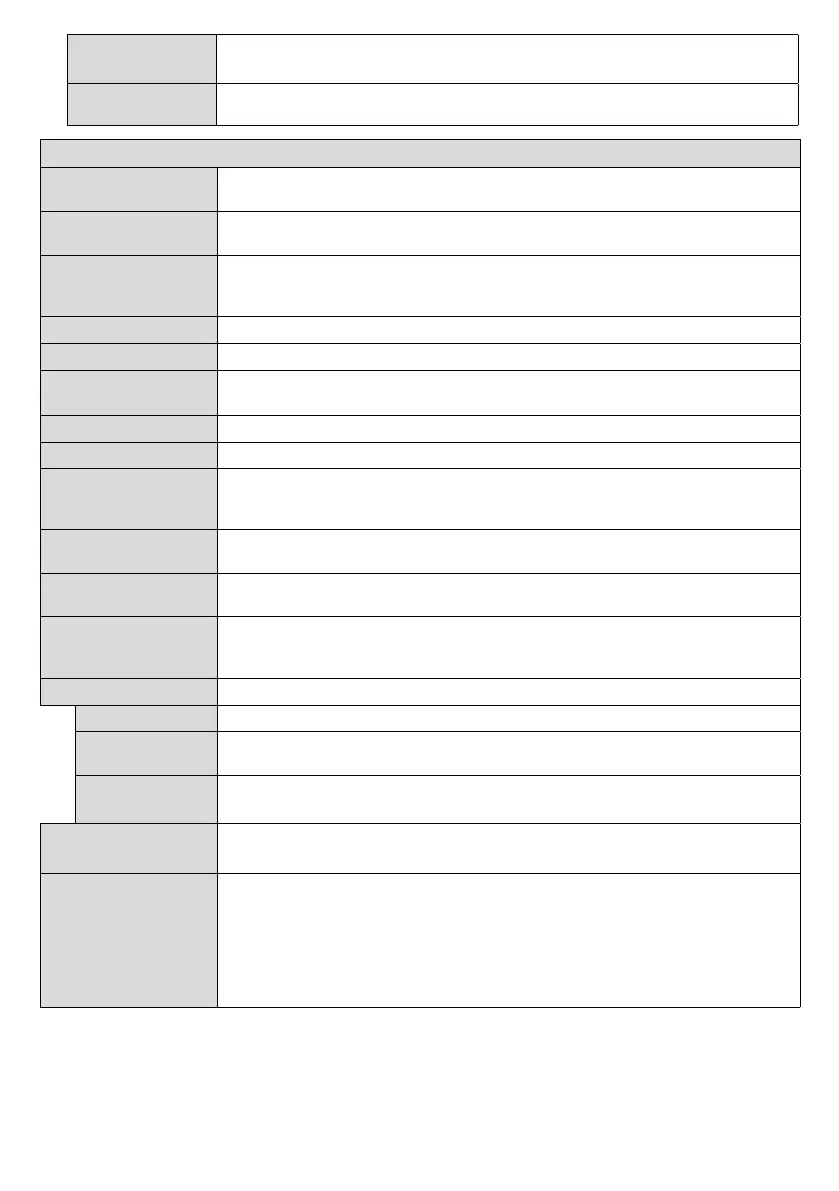
DP Stream
Setting (*)
Sets the DisplayPort stream type. MST and SST options are available.
(*) This menu item appears only when the input source is set to DP.
Quickstandby
port is possible. Enable if you wish to use the scheduler function.
Signage Settings Menu Contents
Set ID
Sets the device ID. You can select a value between 0-100 using the numeric buttons
on the remote in order to identify your Display.
OSD Orientation
Sets the OSD (On Screen Display) rotation of your Display. Landscape and Portrait
options are available.
Software upgrade
Displays current software version. Press OK to see the Upgrade options menu. You
can use these options to start a manual search for software updates and set your
automatic scan preference.
Serial number
Displays serial number of the unit. (Cannot be changed by user)
Model name
Displays model name of the unit. (Cannot be changed by user)
Save model
information
Copies the model information data of the unit to a connected USB device. This
information will be required if you contact Toshiba about your monitor
Internal USB
operations
Note: This feature may not be available depending on the model of your unit. Only available when internal
USB device is connected
Video Wall Settings
Press OK to open the Video Wall Settings menu screen. Row Count, Column Count,
and
options are available.
Power Up Mode
Last state, Always on and Standby
options are available.
Quick Standy
Ethernet port is possible. Enable if you wish to use the scheduler function.
OPS Settings
Press OK to open the OPS Settings menu screen. Three sub-menu options are available.
OPS Information
OPS Status
Displays whether the OPS module is on or off. Allows the change of status via soft
PSON signal (0.5s)
Powerdown
Turns the OPS off via hard PSON signal (5s)
Note: This menu will not be available if OPS is not supported or not connected to the unit.
Copy app cache from
USB
Copies app cache data from a connected USB device to the unit.
Note: This feature may not be available depending on the model of your unit.
Scheduler Settings
Press OK to open the Scheduler Settings menu screen. Set the Scheduler option
as On by using the Left/Right directional buttons. Using the sub-menu options you
setting. It can also be set to turn off . If the Source option is set as Last
stateSource option is set
as USB
as explained in the section entitled ‘USB Auto Play Feature.


 To Next Page