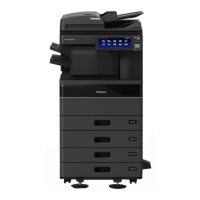
This document serves as a manual for Toshiba's Multifunctional Digital Color Systems and Multifunctional Digital Systems, specifically covering the e-STUDIO6525AC Series (e-STUDIO2020AC, e-STUDIO2520AC, e-STUDIO2525AC, e-STUDIO3025AC, e-STUDIO3525AC, e-STUDIO4525AC, e-STUDIO5525AC, e-STUDIO6525AC) and the e-STUDIO6528A Series (e-STUDIO2528A, e-STUDIO3028A, e-STUDIO3528A, e-STUDIO4528A, e-STUDIO5528A, e-STUDIO6528A). The manual focuses on the template functions of these devices, designed to streamline frequently used operations.
Function Description
The Toshiba e-STUDIO series devices are multifunctional digital systems capable of copying, scanning, and faxing. The core functionality highlighted in this manual revolves around "Template Functions," which allow users to save specific job settings as templates. These templates can then be recalled and applied with ease, eliminating the need to reconfigure complex settings for repetitive tasks.
Templates can be registered as icons on either a shared home screen (accessible to multiple users) or a user-specific home screen (for limited access). This flexibility allows for tailored workflows depending on user roles and security requirements. For shared home screen registration, administrator permission in TopAccess's Home Setting is required.
The devices also support "Meta Scan" functionality, which enables the attachment of metadata (XML files) to scanned images. These images can then be emailed or saved to a public folder on the equipment. The meta scan function requires an optional meta scan kit and specific configurations within TopAccess.
Important Technical Specifications
While the manual does not delve into detailed hardware specifications, it implicitly covers several operational aspects:
- Paper Handling: The devices support A/B format paper, with illustrations in the manual reflecting this. It also mentions that the display or button order may differ if LT format paper is used. The [Paper Size] and [Paper Type] functions for bypass copying are not configurable when setting up templates.
- Document Feeding: The manual refers to "Dual Scan Document Feeder" (DSDF) and "Reversing Automatic Document Feeder" (RADF) collectively as "Automatic Document Feeder" (ADF). This indicates the presence of advanced document feeding capabilities for efficient scanning and copying of multi-page documents.
- Scanning Capacity: The device can handle a significant volume of scans, with a warning indicating that "The number of originals exceeds the limit" if more than 1000 pages are scanned in a single job.
- Internal Storage: The equipment features internal storage for temporary workspace. A warning is issued if this workspace becomes full, potentially canceling jobs. The available workspace can be monitored via TopAccess. There's also a limit of 20 jobs waiting to store scans in the internal storage device.
- Fax Functionality: Fax functions are available only when an optional FAX Unit is installed, indicating modularity in the device's capabilities.
- Scanning/Printing Function: For some models, the scanning/printing function is an option, suggesting that base models might be copy-only or require upgrades for full functionality.
Usage Features
- Template Creation and Recall: Users can register job settings (copying, scanning, faxing) as icons on the home screen. These templates can be recalled with a single press, applying the pre-configured settings.
- Automatic Start Function: Templates can be configured with an "automatic start function," indicated by a specific icon. When enabled, pressing the template button immediately initiates the operation without further user input.
- Folder Organization: The home screen supports the creation of folders, allowing users to organize templates logically. This enhances usability, especially when a large number of templates are registered.
- Job History Registration: Job settings from past operations, stored in the job history, can be registered as new templates, providing a convenient way to save frequently repeated tasks.
- User Authentication for Scan to E-mail: When SMTP is selected for user authentication for Scan to E-mail, users may need to enter their username and password before the scan operation begins, ensuring secure access.
- Preview Functionality: Users can preview scans before finalizing the job, allowing for adjustments and error correction.
- Job Status Monitoring: The device provides a "Job Status" screen to monitor ongoing operations and manage queued jobs.
Maintenance Features
- Data Management: The manual outlines procedures for changing folder names, template names, and the automatic start function settings. This allows for easy modification and updating of saved workflows.
- Deletion of Unused Data: Users can delete folders or templates that are no longer needed. Deleting a folder automatically removes all templates contained within it, helping to keep the home screen organized and free of clutter.
- Administrator Control: Administrators have control over general user permissions, such as allowing general users to change settings on the shared home screen, which is crucial for maintaining system integrity and security.
- TopAccess Integration: TopAccess is a key administrative tool mentioned throughout the manual. It is used for managing template settings, meta scan configurations, and monitoring device status, including available internal storage workspace. This indicates a centralized management interface for the device.

 Need help?
 General


 To Next Page