GB
18
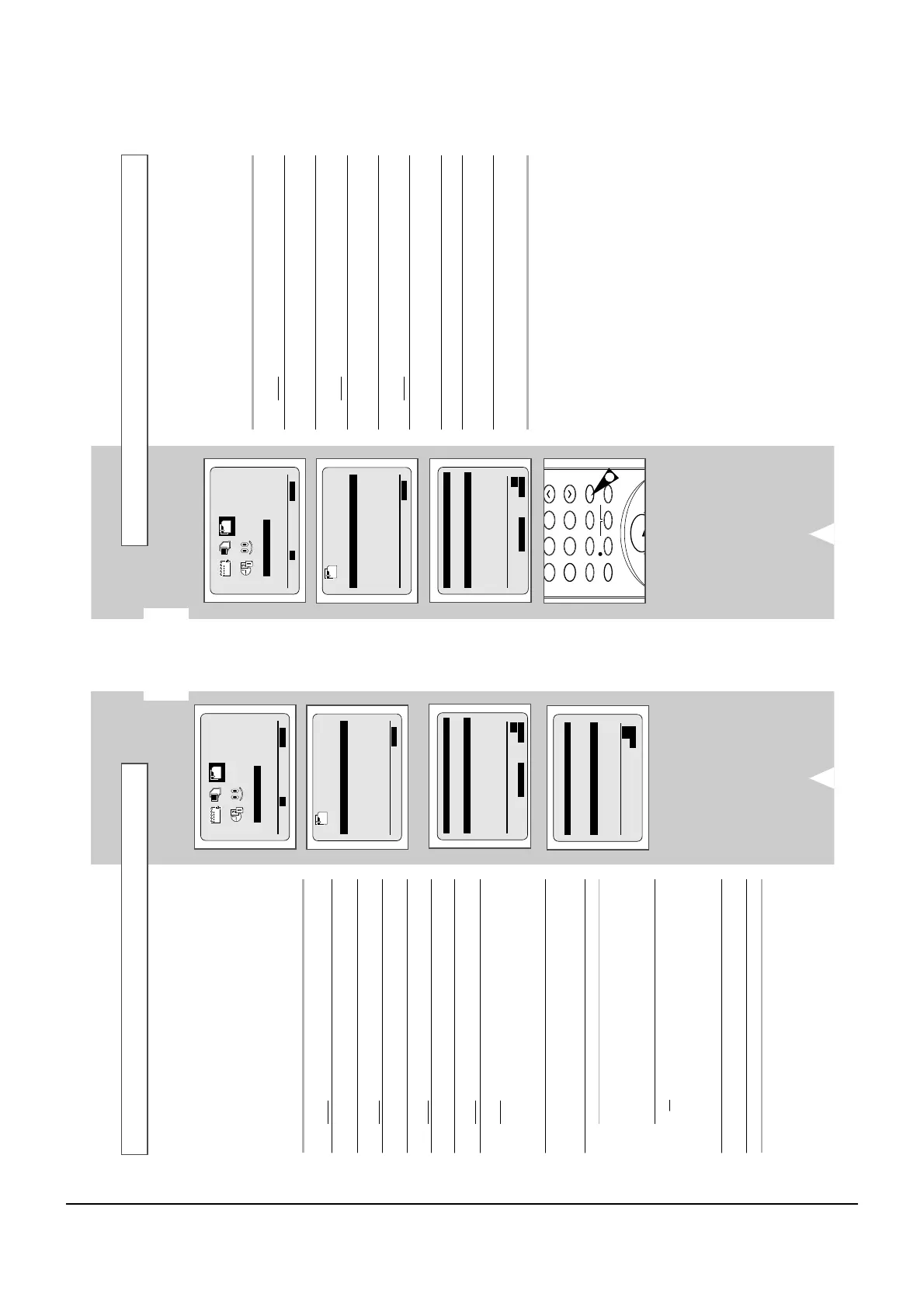
If you have stored a TV station:
◆ That you do not require
◆ At the wrong programme position
you can cancel it.
1 Press the MENU button on the remote control.
Result
: The programming menu is displayed.
2 Press the corresponding
,
or
¥
,
buttons to select the
INSTALLATION option.
3 Press the OK button to select this option.
Result
: The INSTALLATION menu is displayed.
4 Press the corresponding
or
buttons, until the MANUAL SET
UP option is selected.
5 Press the
button to select this option.
Result
: The TV STATION TABLE menu is displayed.
6 Press the corresponding
or
buttons, until the required preset
TV station (PR) is selected.
7 Press the CLR/RST button.
8 Repeat the same procedure from Step 6 onwards until all the
required stations have been cleared.
9 On completion, press the MENU button three times to exit the
menu.
Clearing a Preset Station
INSTALLATION
¥
OK END:MENU
Your VCR contains a built-in tuner used to receive television
broadcasts.
You must preset the stations received through the tuner. This can
be done:
◆ Plug & Auto Set up (see page 11)
◆ Automatically (see page 16)
◆ Manually
You can store up to 80 stations.
☛ You do not need to preset the stations manually if you
have already set them automatically.
1 Press the MENU button on the remote control.
Result
: The programming menu is displayed.
2 Press the corresponding
,
or
¥
,
buttons to select the
INSTALLATION option.
3 Press the OK button to select this option.
Result
: The
INSTALLATION menu is displayed.
4 Press the corresponding
or
buttons, until the MANUAL SET
UP option is selected.
5 Press the
button to select MANUAL SET UP option.
Result
: The TV STATION TABLE menu is displayed.
6 Press the
or
buttons to select a programme number as
required.
7 Press the
button to preset the station.
Result
: The
MANUAL TUNING menu is displayed.
8 Press the
¥
or
buttons to start scanning.
Result
: The frequency band is scanned and the first station
found is displayed.
If you know the number of the channel you want, press the
numeric buttons on the remote control for example, for channel
04, first press “0” and then press “0”, “4” (see page 39).
9 Press the corresponding
or
buttons until NAME is selected.
Press the
buttons until the cursor blinking and select the
carracter by using
or
buttons.
10 If you... Then...
Wish to store the
◆
Press the corresponding
or
buttons,
station displayed until the
MFT is selected.
◆
Press the
¥
or
buttons to adjust the
picture, if necessary.
◆
Press OK to store the station .
Do not wish to
◆
Press the corresponding
or
buttons,
store the station until the
CH is selected.
displayed
◆
Press the
¥
or
buttons to go on
scanning the frequency band and display
the next station
◆
Go back to the beginning of Step 9
11 Repeat this procedure from Step 6 onwards, until all the required
stations have been stored.
12
On completion, press the MENU button three times to exit the menu.



 To Next Page