11 of 12
Step 16: Configure Bill Acceptors
Note: Do this procedure if you have an optional second
bill acceptor installed in Playdium.
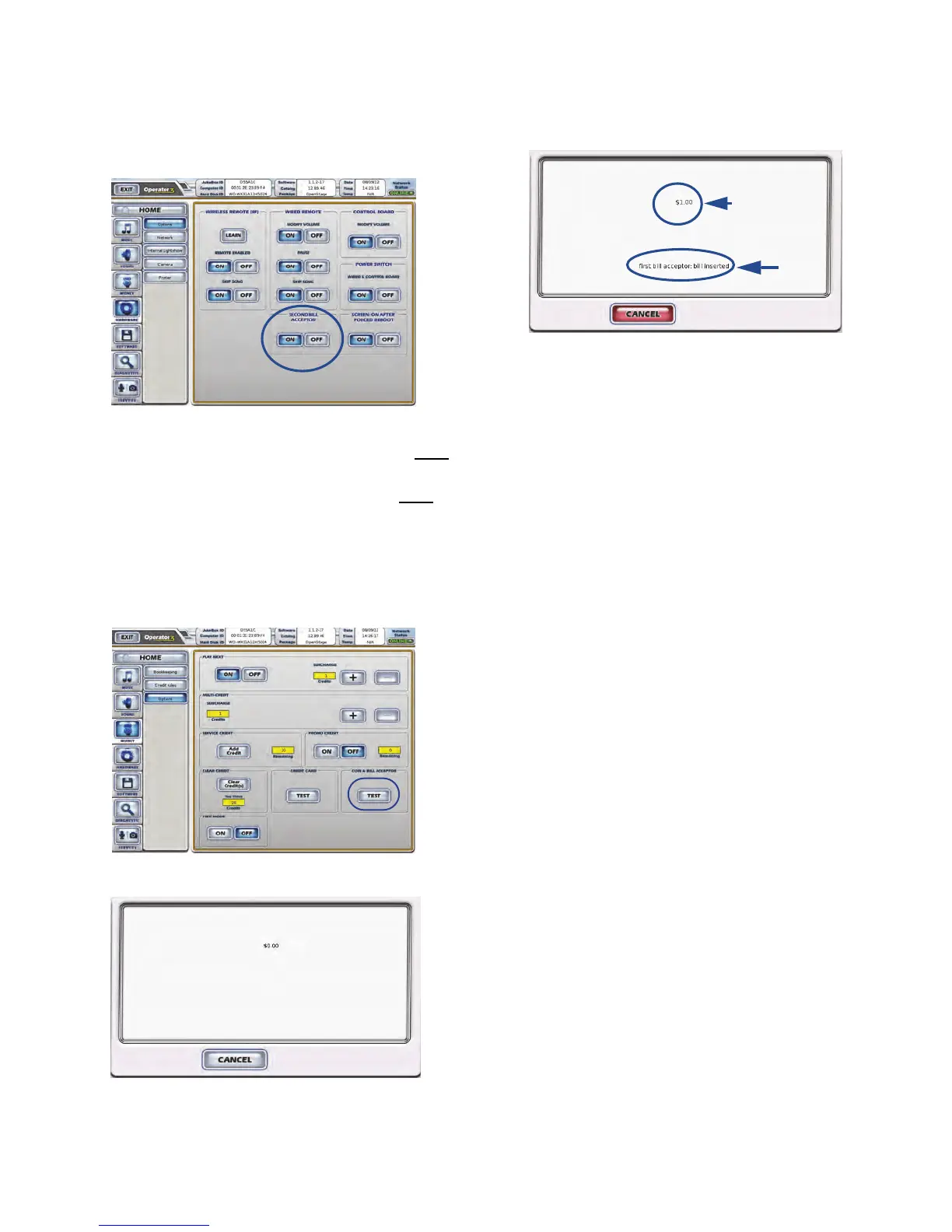
1. On the Operator Interface, open the Hardware
Options screen.
From this menu, you can configure Playdium to use two
bill acceptors or one. By default, this option is ON.
• If your Playdium has a single bill acceptor, you must
turn this option OFF.
• If your Playdium has dual bill acceptors, you must
ensure that this option is turned ON.
Step 17: Test Payment Acceptors
To test the bill and coin acceptors
1. On the Operator Interface, open the Money >
Options screen.
2. In the COIN & BILL ACCEPTOR area, press the
TEST button.
3. Insert a bill into the bill acceptor.
The screen refreshes, showing the denomination of
the bill that was inserted, and the origin of the bill (first
or second bill acceptor).
4. For the Canadian model only, insert a coin into the
coin acceptor.
The screen refreshes, and shows the value of the
coin.
Step 18: Reapply Filters and Credit Rules
If you are replacing a previous TouchTunes jukebox with a
Playdium jukebox, music filters and credit rules for the old
jukebox must be reapplied to Playdium.
• To configure music filters, select the Music Operator
menu, and press the Filters button.
• To configure credit rules, select the Money Operator
menu, and press the Credit rules button.
Configure your settings as required.
Denomination
Source


 To Next Page