84
Chapter 13
Manage the Router
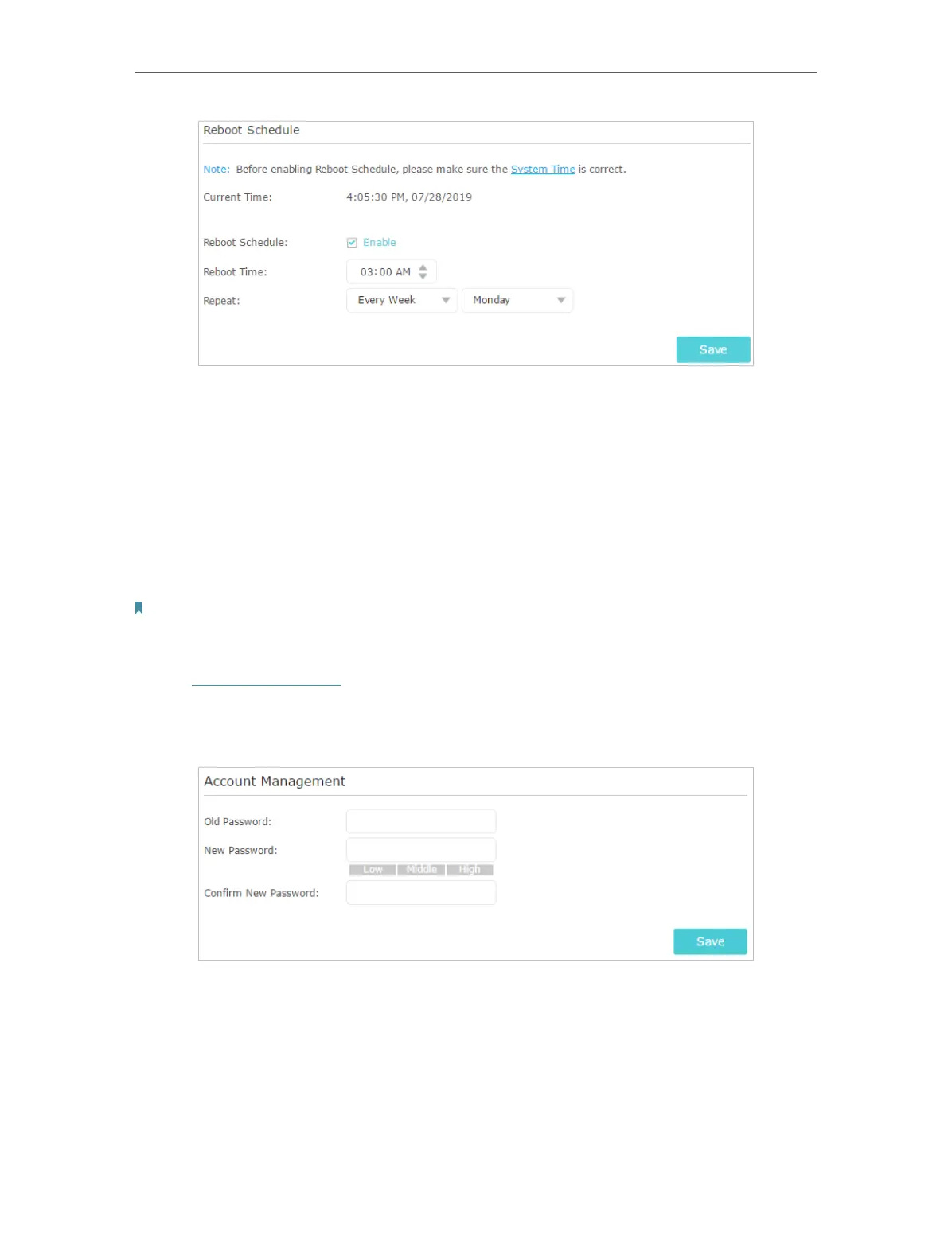
4. Specify the Reboot Time when the router reboots and Repeat to decide how often it
reboots.
5. Click Save.
13. 7. Change the Administrator Account
The account management feature allows you to change your login password of the web
management page.
Note:
If you are using a TP-Link ID to log in to the web management page, the account management feature will be disabled.
To manage the TP-Link ID, go to Basic > TP-Link Cloud.
1. Visit http://tplinkwifi.net, and log in with the password you set for the router.
2. Go to Advanced > System Tools > Administration and focus on the Account
Management section.
3. Enter the old password, then a new password twice (both case-sensitive). Click Save.
4. Use the new password for future logins.
13. 8. Password Recovery
This feature allows you to recover the login password you set for you router in case you
forget it.






 To Next Page