22
Chapter 5
TP-Link Cloud Service
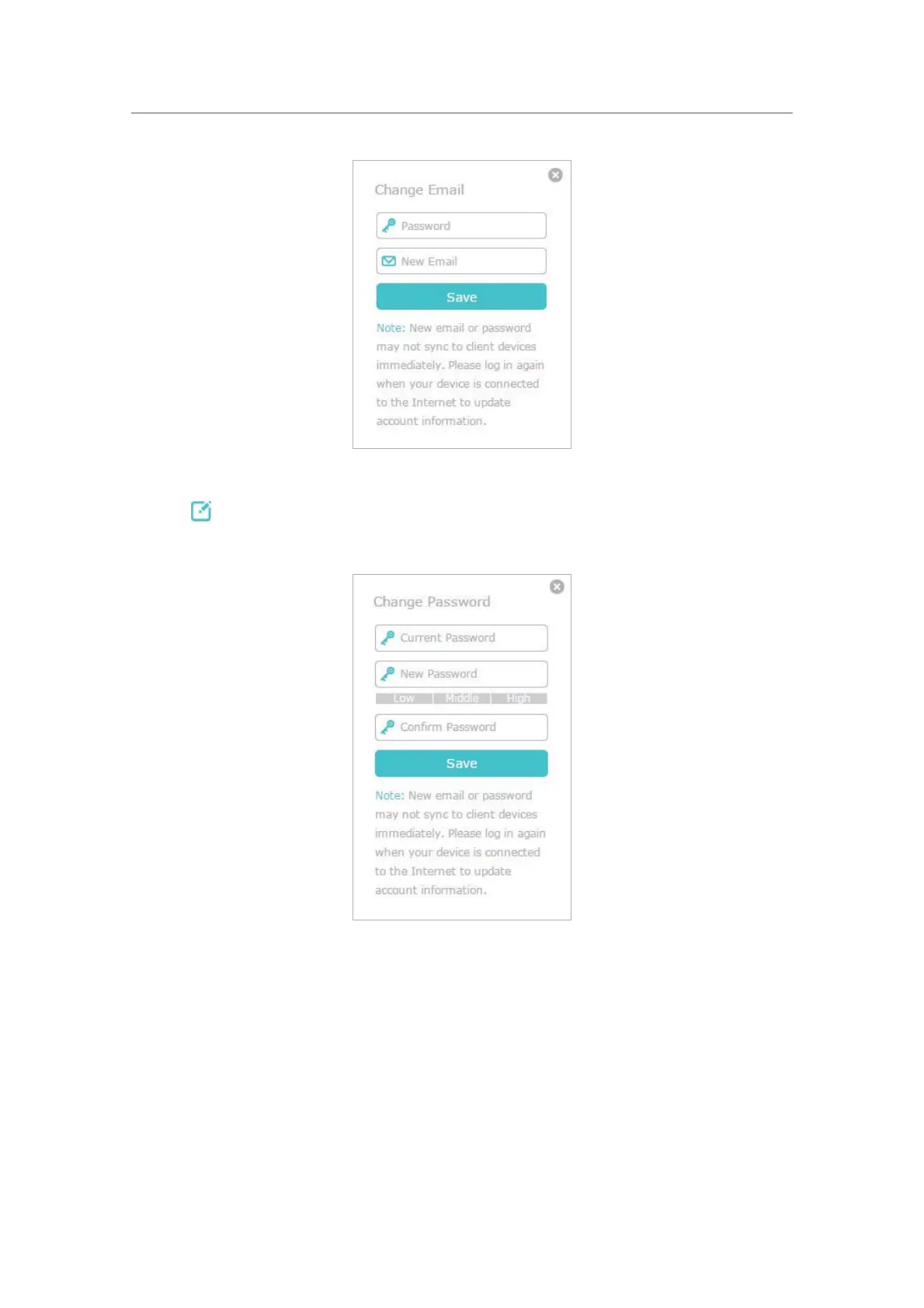
¾ To change your password:
1. Click
behind the Password.
2. Enter the current password, then a new password twice. And click
Save.
5. 3. Manage the User TP-Link IDs
The first TP-Link ID used to log in to the router for the first time will be automatically
bound as the
Admin account. An admin account can add or remove other TP-Link IDs
to or from the same router as
Users. All accounts can monitor and manage the router
locally or remotely, but user accounts cannot:
• Reset the router to its factory default settings either on the web management page
or in the Tether app.









 To Next Page