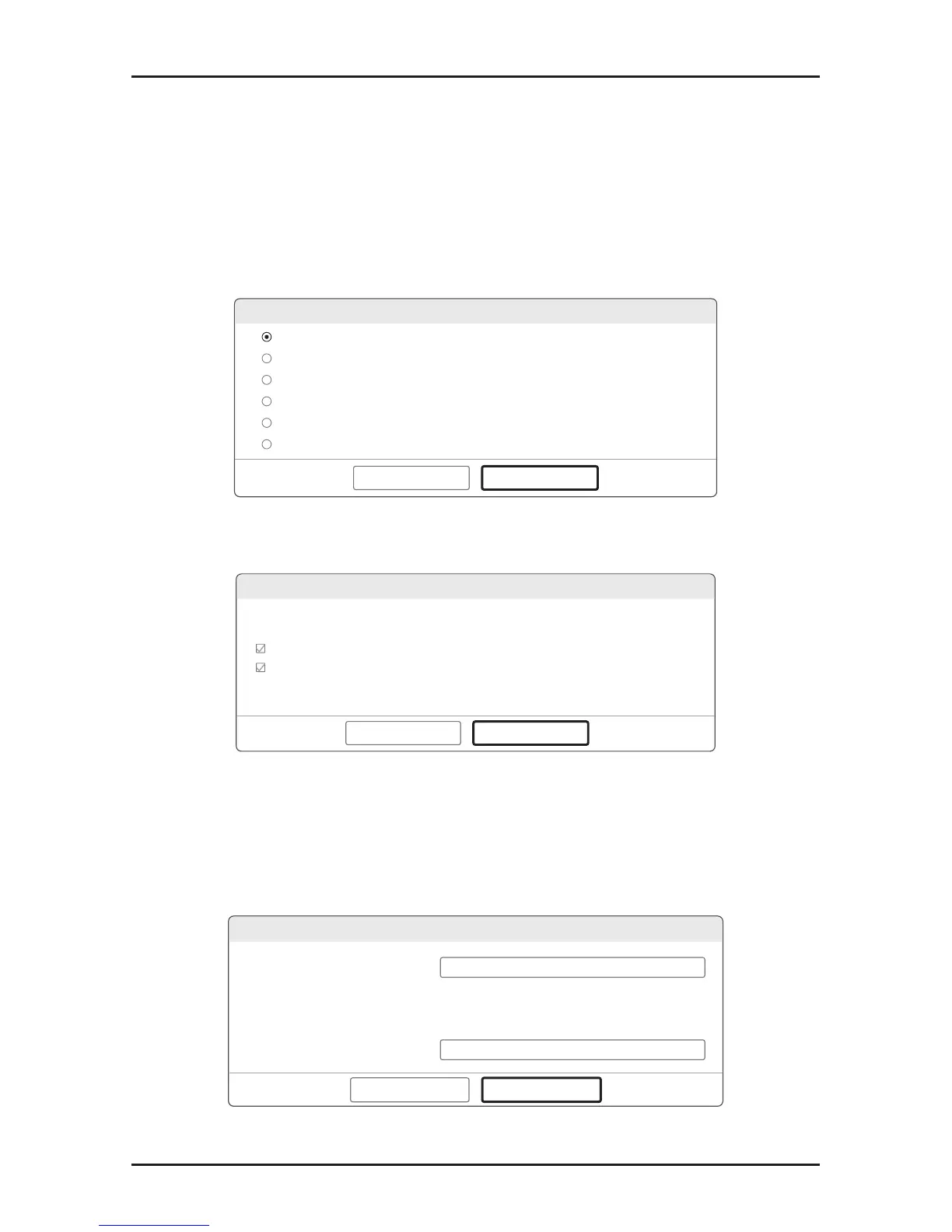
c. Click Status and choose your language.Then click Quick
Setup and follow the wizard.
d. Select your WAN Connection Type, or click Auto-Detect
if you are unsure what your connection type is. Click Next
and follow the instructions to continue.
Note: If an Internet connection is already established, the Quick
Setup wizard will bypass Step d and go to Step e.
Auto-Detect
Dynamic IP (Most Common Cases)
Static IP
PPPoE/Russian PPPoE
L2TP/Russian L2TP
PPTP/Russian PPTP
Back
Next
Quick Setup-WAN Connection Type
e. Choose the frequency you prefer and then click Next.
Back
Next
2.4GHz
5GHz
f. Verify or change the wireless network settings, and click
Next.
Note: You may customize your 2.4GHz/5GHz wireless network
name and password. Once done, the wireless connection will
disconnect automatically, and you must then use the new wireless
network name/password to regain access to the Internet.
Wireless Network Name:
Wireless Password:
TP-LINK_XXXX / TP-LINK_XXXX_5G
XXXXXXXX
Quick Setup-Wireless 2.4GHz & 5GHz
Back
Next
Security:









 To Next Page