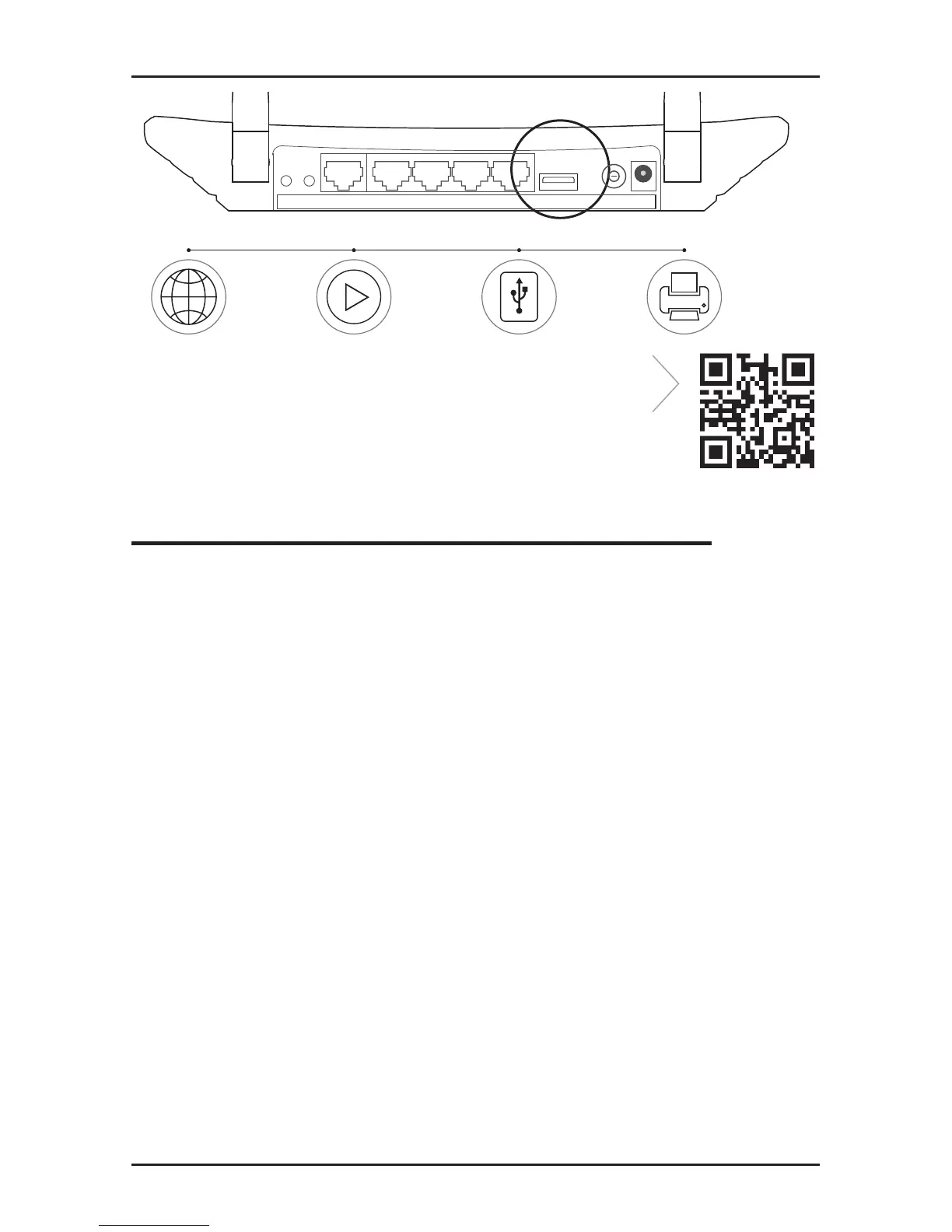
USB sharing port
Remote
Access via
FTP Server
Media
Sharing
Local
Storage
Sharing
Printer
Sharing
WPS/
Reset
Power
On/Off
PowerInternet Ethernet1 2 3 4 USB
Wireless
On/Off
To learn more about the USB features, please
visit http://www.tp-link.com/app/usb, or
simply scan the QR code with your smart
devices.
Frequently Asked Questions (FAQ)
Q1. What can I do if the login window does not appear?
A1. If the computer is set to a static or xed IP address, change it to obtain
an IP address automatically.
A2. Verify that http://tplinkwi.net is correctly entered in the web browser.
Alternatively, enter http://192.168.0.1 or http://192.168.1.1 in the web
browser and press Enter.
A3. Use another web browser and try again.
A4. Reboot your router and try again.
A5. Disable the network adapter used currently and then enable it again.
Q2. What can I do if I cannot access the Internet?
A1. Check if the Internet is working properly by connecting a computer
directly to the modem via Ethernet cable. If not, contact your Internet
Service Provider.
A2. Open a web browser, enter http://tplinkwifi.net and try to set up
again.
A3. Reboot your router and try again.
Note: For cable modem users, reboot the modem rst. If the problem still
exists, go to Network > MAC Clone, then click Clone MAC Address and









 To Next Page