Save
WAN MAC Address:
Your PC’s MAC Address:
Restore Factory MAC
Clone MAC Address
Q3. How do I restore the router to its factory default
settings?
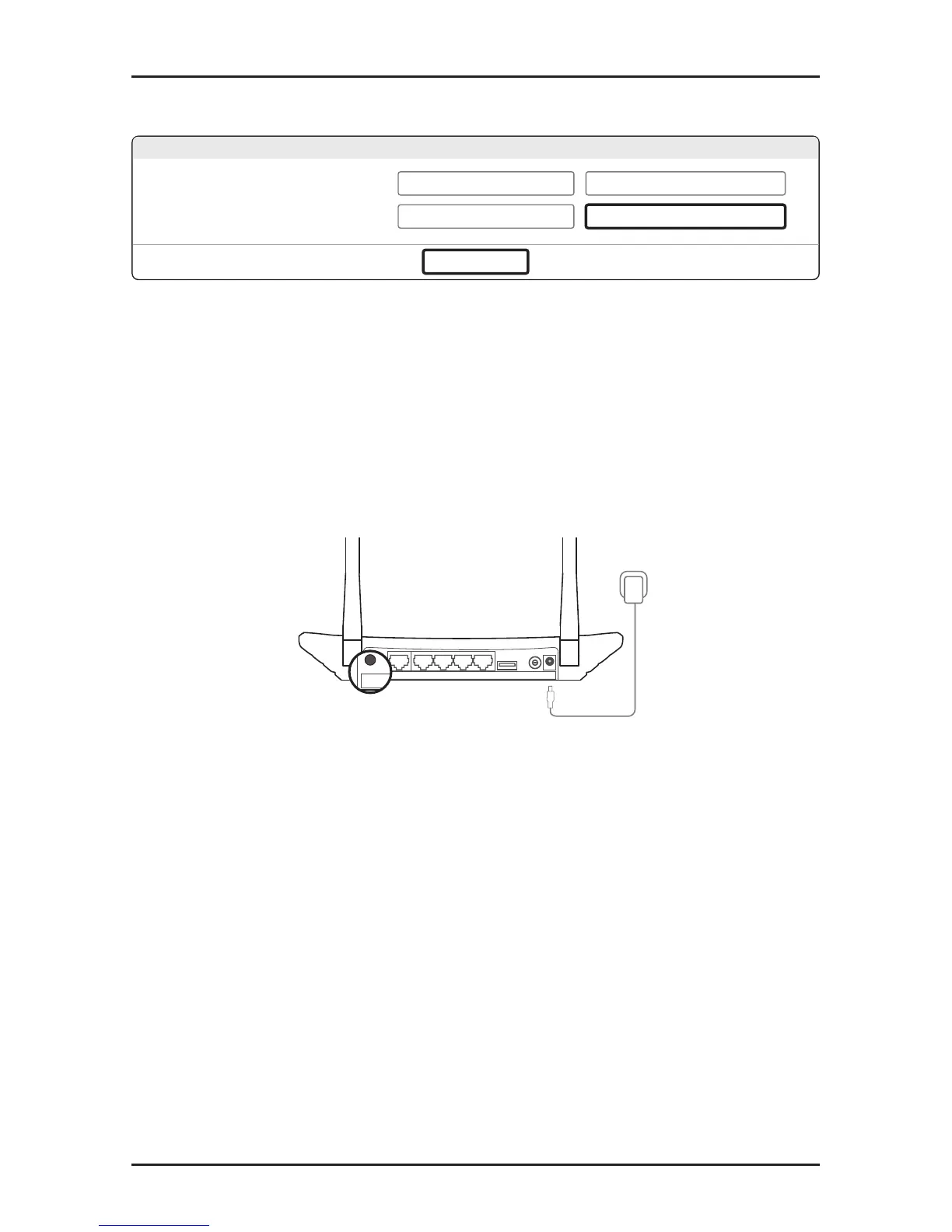
A1. With the router powered on, press and hold the WPS/Reset button on
the rear panel of the router until all LEDs turn on momently.
A2. Log in to the Web Management page of the router, and go to System
tools > Factory Defaults, click Restore, then wait until the progress
bar loading nishes.
WPS/Reset Button
Q4. What can I do if I forget my password?
• Web Management page password:
A. Restore the router to its factory default settings and then use the
default Username ‘admin’ and Password ‘admin’ to log in.
• Wireless Network password:
A1. The factory default password can be found on the product label printed
on the bottom of the router.
A2. If you have changed your password, log in to the router’s Web
Management page, and go to Wireless > Wireless Security to obtain
or reset your password.
Note: If your questions are not answered here, please refer to http://www.
tp-link.com/en/support/faq and click Contact Technical Support for further
assistance.


 To Next Page
 Loading...