English
02
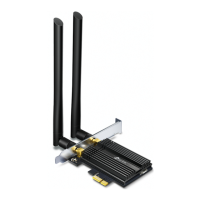
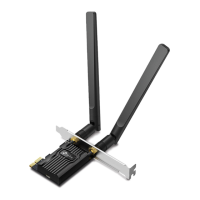
e. Connecttheantenna(s)totheadapter.
Note:
Tomaximizeperformance,makesurethepathbetweenthe
antenna(s)andyourrouterisclear.
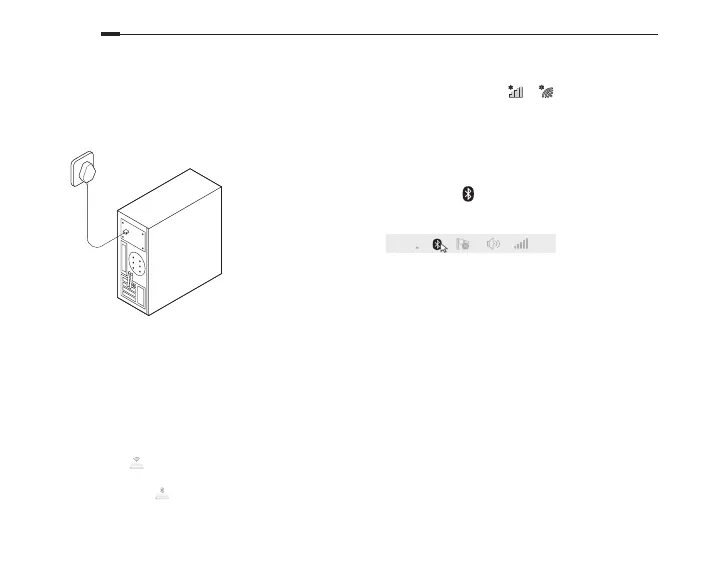
f. Replacethecasepanel,pluginthepowercable
andturnonyourcomputer.
2 Install Drivers
a. InserttheCDandruntheAutorun.exe.
Note:
Youcanalsocheckthenewreleaseanddownloadthedriver
athttps://www.tp-link.com/support/download/
b. InstalltheWi-FiandBluetoothdrivers.
• Wi-Fi:Click
andfollowtheonscreeninstructions
tocompletetheWi-Fiinstallation.
• Bluetooth:Click
andfollowtheonscreen
instructionstocompletetheBluetoothinstallation.
3 Join a Wireless Network
a. Clickthenetworkicon( or )onthetaskbar.
b. SelectyourWi-Finetwork,clickConnect,andenter
thepasswordwhenprompted.
4 Pair With Bluetooth Devices
a. Rightclickthe (Bluetooth)icononthetaskbar.
Ifit'snotdisplayed,turnonBluetoothinyourPC
settingsrst.
b. SelectAdd a Bluetooth Device or Add a Deviceto
scanforavailabledevices.
c. SelectyourBluetoothdevicefromthelistand
followtheonscreeninstructionstocomplete
pairing.
Note:
Makesureyourdevice’sBluetoothisenabledand
discoverable.




 To Next Page