- 38 -
Disable Security - If you do not want to use wireless security, check this radio button. But it’s
strongly recommended to choose one of the following modes to enable security.
WPA/WPA2-Personal - It’s the WPA/WPA2 authentication type based on pre-shared
passphrase. The Router is configured by this security type by default.
• Version - you can choose the version of the WPA-PSK security on the drop-down list. The
default setting is Automatic, which can select
WPA-PSK (Pre-shared key of WPA) or
WPA2-PSK (Pre-shared key of WPA) automatically based on the wireless station's
capability and request.
• Encryption - When WPA-PSK or WPA is set as the Authentication Type, you can select
either Automatic, or TKIP or AES as Encryption.
Note:
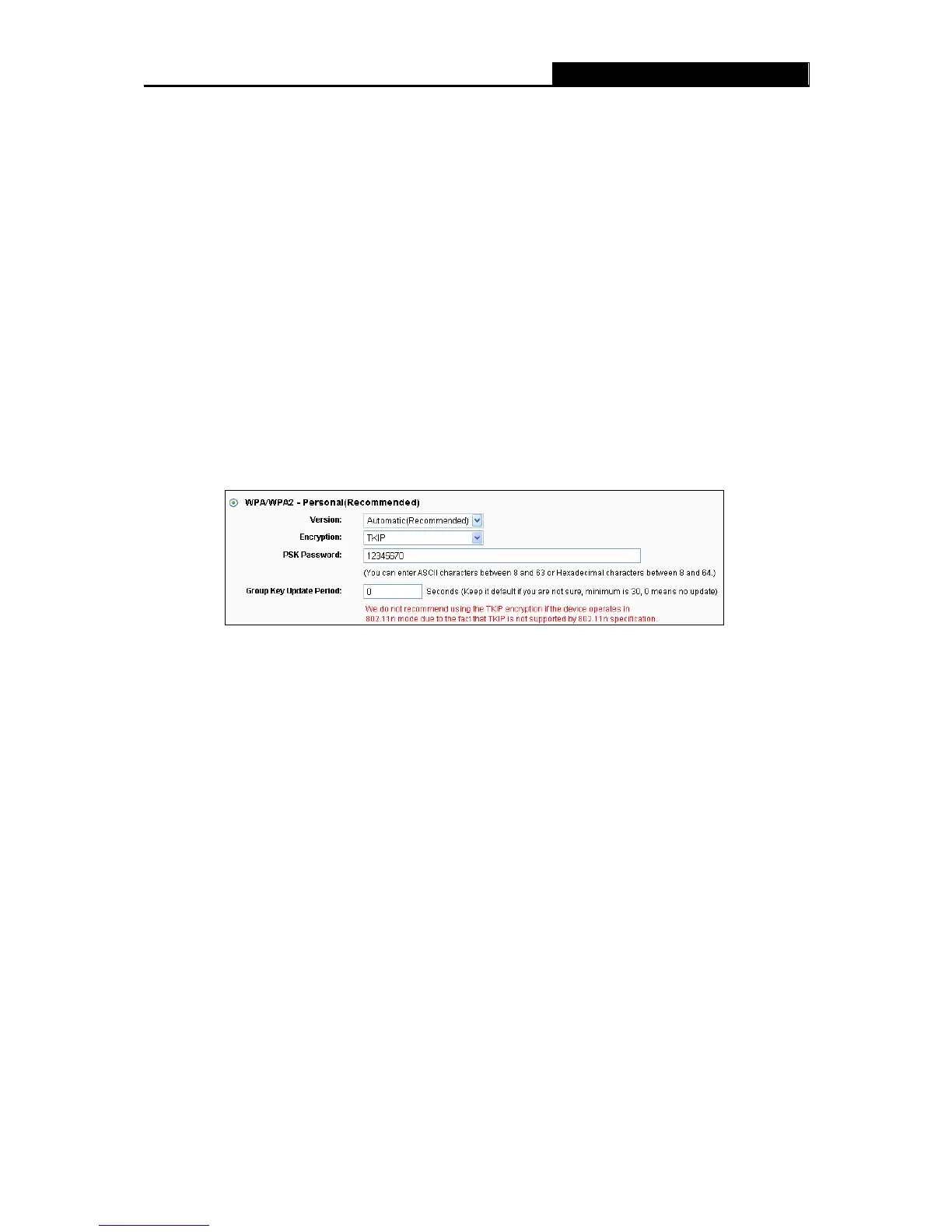
If you check the WPA/WPA2-Personal radio button and choose TKIP encryption, you will
find a notice in red as shown in Figure 4-21.
Figure 4-21 WPA/WPA2 – Personal
• PSK Password - You can enter ASCII characters between 8 and 63 characters or 8 to 64
Hexadecimal characters. The default password is the same with the default PIN code,
which is labeled on the bottom of the Router or can be found in Figure 4-16.
• Group Key Update Period - Specify the group key update interval in seconds. The value
should be 30 or above. Enter 0 to disable the update.
WPA/WPA2- Enterprise - It’s based on Radius Server.
• Version - you can choose the version of the WPA security on the drop-down list. The
default setting is Automatic, which can select
WPA (Wi-Fi Protected Access) or WPA2
(WPA version 2) automatically based on the wireless station's capability and request.
• Encryption - You can select either Automatic, or TKIP or AES.
Note:
If you check the WPA/WPA2-Enterprise radio button and choose TKIP encryption, you will
find a notice in red as shown in Figure 4-22.





 To Next Page