EN
9
4) Formatting the hard disk
a
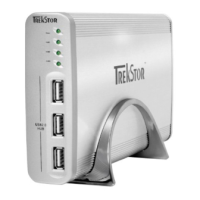
Your DataStation has been preformatted with the high-performance file system NTFS.
This file system is optimized for use with Microsoft® Windows® operating systems from
Windows® XP and also works great with modern Linux® operating systems.
If you use Mac® OS X, it is necessary that you use a different file system. You can easily
reformat your DataStation with a different file system using the "Disc Utility" of Mac®
OS X. You have the choice between the file system "HFS+" ("Mac OS Extended"), which
is optimized for use with Mac® OS X, and the file system "FAT32", which permits the
exchange of data with Windows® operating systems.
a
Important: Back up all the data on your hard disk before formatting it.
a
Note: ALL the data on the disk will be deleted when you format it.
i
Please note that only files with a maximum file size of up to 4 GB are supported for a
hard disk formatted with FAT32. If you want to store larger files, we recommend the use
of the file systems NTFS (Windows®) or HFS+ (Mac® OS X).
Windows® 7/Vista™/XP
The DataStation can be formatted like any other hard disk in Windows®.
• Under "
my computer"/"computer", right-click on the local disk "trekStor".
• Select "
FormAt…" from the context menu that appears.
• Left-click on the "
StArt" button, and confirm that you want to format by clicking
the "ok" button.
Mac® OS X from 10.4
To format the DataStation in Mac® OS X, please proceed as follows:
• Select "
FinDer" + "progrAmS" + "utilitieS" and open "DiSk utility".
• Click on the DataStation to select it. It is listed under its model number.
• In the right side of the window, select "
pArtition".
• Use the drop-down list under "
volume ScHeme" to select the number of partitions
you want to create.


 To Next Page