EasyManua.ls Logo

TRENDnet TE100-P1U - User Manual

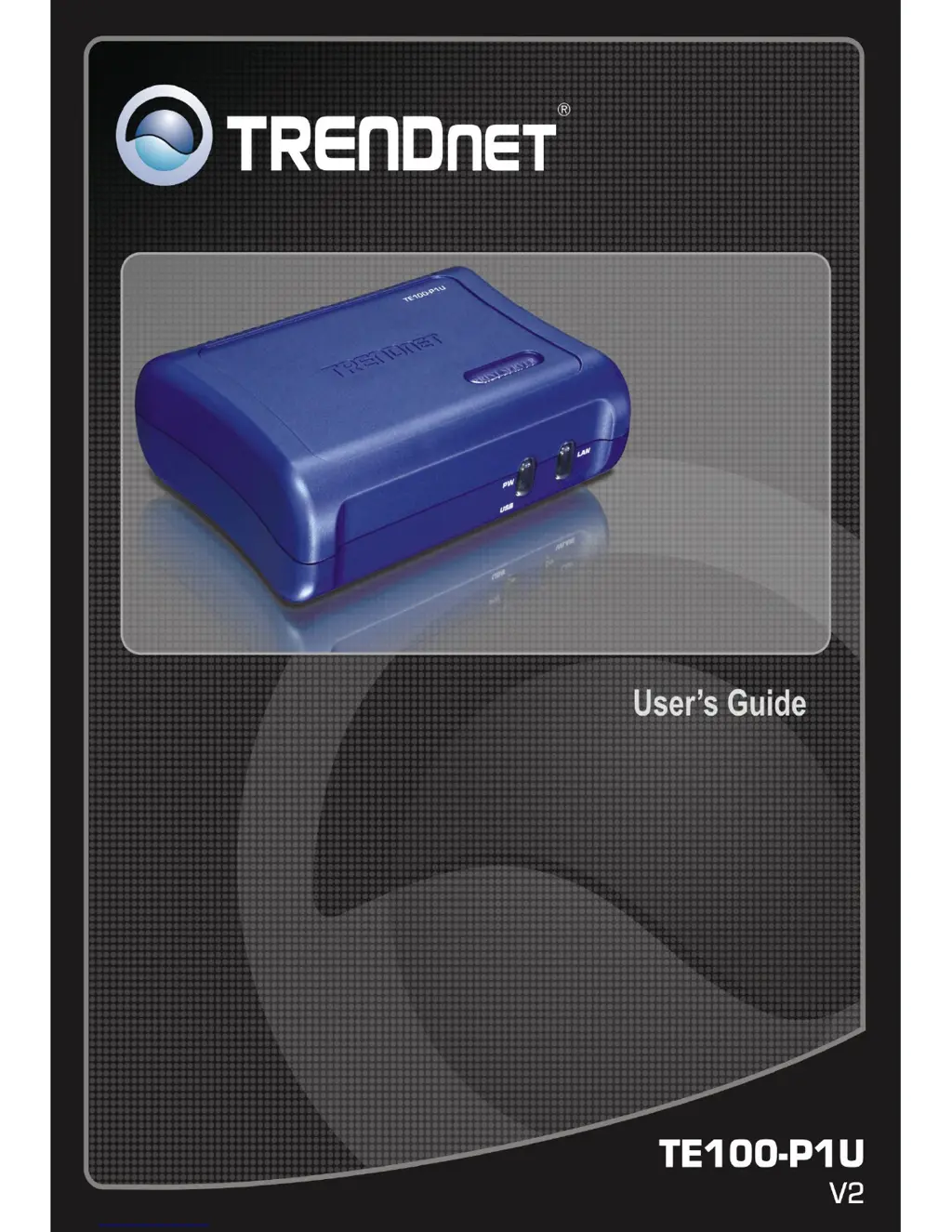
TRENDnet TE100-P1U
113 pages
Print Icon
To Next Page IconTo Next Page
Loading...

Other manuals for TRENDnet TE100-P1U

Questions and Answers

  • A
    Alicia BradshawSep 7, 2025
    What to do if TRENDnet TE100-P1U Print Server device is not recognized?
    • J
      Jennifer VincentSep 7, 2025
      If the TRENDnet Print Server device is not recognized, check the following: the network cable is OK, there are no routers between the Print Server and the UNIX host during IP address assignment, there are no NetWare File Servers without TCP/IP support between the Print Server and the UNIX host, you have used the correct hardware address (as shown on a sticker on the base of the device). Use the ping command to see if the Print Server is a valid device on the network.
  • B
    Brent FloresAug 22, 2025
    How to reset TRENDnet TE100-P1U Print Server IP address?
    • A
      adrianjimenezAug 22, 2025
      If the TRENDnet Print Server’s IP address is forgotten, use the "Reset" button to restore the factory default settings, then configure as for a new device. Turn the Print Server OFF. Press and hold the diagnostic button. While pressing the button, switch the Print Server ON. If you continue pressing the button for 10 seconds, a diagnostic page will be printed, showing the new (default) settings.
  • C
    Cory DavisSep 4, 2025
    Why do I get an incorrect printout from TRENDnet TE100-P1U Print Server?
    • S
      staceyserranoSep 4, 2025
      If you are getting an incorrect printout from TRENDnet Print Server, you may have chosen Binary encoding to print the file. Try using ASCII encoding. Also, some of the fonts in your print file may not be supported by the printer; try selecting LaserWriter 7 instead of LaserWriter 8.
  • M
    Michele WardSep 3, 2025
    Why the colors on my printed output do not match the colors on my computer screen using TRENDnet TE100-P1U Print Server?
    • W
      wmaySep 3, 2025
      If the colors on your printed output do not match the colors on your computer screen when using the TRENDnet Print Server, the printer may not be matching the colors closely. To alleviate this problem, choose "Calibrated Color/Grayscale" in the Print pop-up menu in the Print Options dialog box. Also, check your monitor to make sure all settings (for example, brightness) are adjusted correctly.
  • K
    Karl PhillipsSep 2, 2025
    What to do if my old printer cannot print or prints garbage with TRENDnet Print Server?
    • S
      Scott McgeeSep 2, 2025
      If your old printer cannot print or prints garbage with TRENDnet Print Server, and it is an old model with low speed, try the following steps: Open the BiAdmin Utility, click the Printer Status icon, change the Printer Type setting to Low Speed, or set the Handshake Signal setting to Ack & Busy.
  • J
    John GrimesAug 31, 2025
    Why does TRENDnet TE100-P1U take a long time and print incorrectly from Power Point?
    • R
      rebecca85Aug 31, 2025
      If printing from software applications such as Power Point takes a long time and the print out is incorrect, the printer may be configured to start printing after the first page is spooled. To change this setting, go to Control Panel - Printers and click on your printer. Then select File - Properties - Details. When the Details screen appears, click the Spool Settings button. When the Spool Settings dialogue box appears, choose Start printing after last page is spooled and click OK.
  • R
    Rachel RichardsonAug 30, 2025
    What to do if I get an error when installing TRENDnet TE100-P1U Print Server Peer-to-Peer printing software?
    • A
      anthonysamuelAug 30, 2025
      If you tried to install the Printing software for Peer-to-Peer printing and received an error message, it may be caused by an existing installation of the printer port software. Before attempting another installation, remove the existing installation and restart your PC. To remove an existing printer port installation, open Start - Settings - Control Panel - Add/Remove Programs, look for an entry with a name like "Shared Port", "Shared Printer Port", " Print Server Driver" or " Print Server Port", select this item, click "Add/Remove", and confirm the deletion.
  • J
    Jennifer LeeAug 28, 2025
    Why I can't print using LPD with TRENDnet Print Server in Windows 2000/XP?
    • M
      Michele JonesAug 29, 2025
      If you are using Windows 2000/XP and installed the printer using LPD as recommended, but you can't print, check that the correct Printer driver is being used. You can also try disabling the Bidirectional printing support by opening the Printers folder, right-clicking on the Printer, selecting Properties, selecting the Ports tab, and unchecking the Enable bidirectional support checkbox.
  • M
    Mike WallaceAug 27, 2025
    What to do if my document didn't print to the right printer using TRENDnet TE100-P1U Print Server?
    • M
      Michael RobertsonAug 27, 2025
      If your document didn't print to the right printer, another TRENDnet Print Server with the same name may have received your print job. Use the PSTOOL to reconfigure your Print Server name, ensuring all Print Servers have unique names. Also, make sure your application output encode is set to ASCII; if not, change it to ASCII.
  • O
    orozcosarahAug 26, 2025
    Why do I get a PostScript Command error or no print out from TRENDnet TE100-P1U?
    • Y
      ywalkerAug 27, 2025
      If you get a PostScript Command error or no print out when sending a print job, check the communication protocols. The computer, TRENDnet Print Server, and printer must all be configured to use the same communication protocol (either Binary or ASCII). Configure your system by choosing a protocol, setting your printer to it, configuring your computer's Print submenu, and configuring the Print Server to use the same protocol.

Summary

About This Guide

Introduction

Package Contents

Lists the items included in the product package for user verification.

System Requirements

Specifies the operating systems and software prerequisites for using the print server.

General Features

Highlights the key functionalities and technical specifications of the print server.

Product View

Describes the physical components, ports, and LEDs of the print server.

Hardware Installation

Networking Application

Illustrates how the print server is integrated and used within a network environment.

Installing the Print Server

Provides step-by-step instructions for physically connecting and installing the print server.

Using the Utilities

Auto-Run Installation

Explains the process of launching the installation software from the CD-ROM.

PS-Utility

Details the installation and usage of the PS-Utility software for print server configuration.

PS Wizard

Guides on using the PS Wizard utility for setting up printer port connections.

Web Configuration

Web Configuration Utility

Instructions for accessing and using the print server's web-based management interface.

Home

Describes the Home screen, displaying basic system and network information of the print server.

Setup Wizard

Details the step-by-step wizard for configuring the print server's core settings.

Change IP Address

Procedure for modifying the print server's network IP address.

Printer Information

How to view detailed information about the connected printer, such as manufacturer and model.

Factory Reset

Steps to restore the print server to its original factory default settings.

Firmware Upgrade

Instructions for updating the print server's firmware to the latest version.

Printing in Windows 98 SE;ME

Installing the LPR for TCP;IP Printing Client

Guide to installing the necessary LPR client software for Windows 98SE/ME.

Adding LPR Printer Ports

Steps to add LPR printer ports required for network printing on Windows.

Printing from Windows 98 SE;ME

How to successfully send print jobs to the network printer.

Setting TCP;IP Printing Settings

Adjusting LPR client settings for optimal TCP/IP network printing.

Printing in Windows 7;Vista;XP;2000

Setting Up Windows 7; Vista TCP;IP Printing

Instructions for setting up TCP/IP LPR printing on Windows 7 and Vista systems.

Setting Up Windows XP TCP;IP Printing

Guide for configuring TCP/IP LPR printing on Windows XP operating systems.

Setting Up Windows 2000 TCP;IP Printing

Steps to configure TCP/IP LPR printing for Windows 2000 operating systems.

Printing in Mac OS

MAC 10.6 SNOW LEOPARD USER

Instructions for setting up printing on Mac OS X Snow Leopard (10.6).

MAC 10.5 LEOPARD USER

Guide for setting up printing on Mac OS X Leopard (10.5).

MAC OS 10.4 TIGER USER

Steps for setting up printing on Mac OS X Tiger (10.4).

MAC OS 10.3 PANTHER USER

Instructions for setting up printing on Mac OS X Panther (10.3).

Rendezvous Uses in MAC OS 10.2

How to use Rendezvous for printer discovery and setup in Mac OS X 10.2.

Limited Warranty

TRENDnet TE100-P1U Specifications

General IconGeneral
Network connection typeEthernet LAN
InterfaceRJ-45 10/100Mbps
Power supply type5V DC 1A
Dimensions (WxDxH)115 x 85 x 30 mm
Supported protocolsTCP/IP
Compatible operating systemsWindows 95/98(SE)/NT/ME/2000/XP/2003 Netware 5.x NDPS LPR Remote Printing (TCP/IP) Unixware, Linux Mac OS X (IP Printing)
Supported data transfer rates10/100Mbps
Supported network protocolsDHCP, IPP, LPR, HTTP
Ethernet LAN (RJ-45) ports1
Storage temperature (T-T)-25 - 55 °C
Operating temperature (T-T)0 - 50 °C
CertificationCE, FCC
Weight and Dimensions IconWeight and Dimensions
Weight128 g

Related product manuals