1700 81 6584 | www.digitallock.com.my
TRIDENT - SMART DIGITAL DOOR LOCK
3.Operation
3.1.Registration
3.2. Connect lock t o the phone
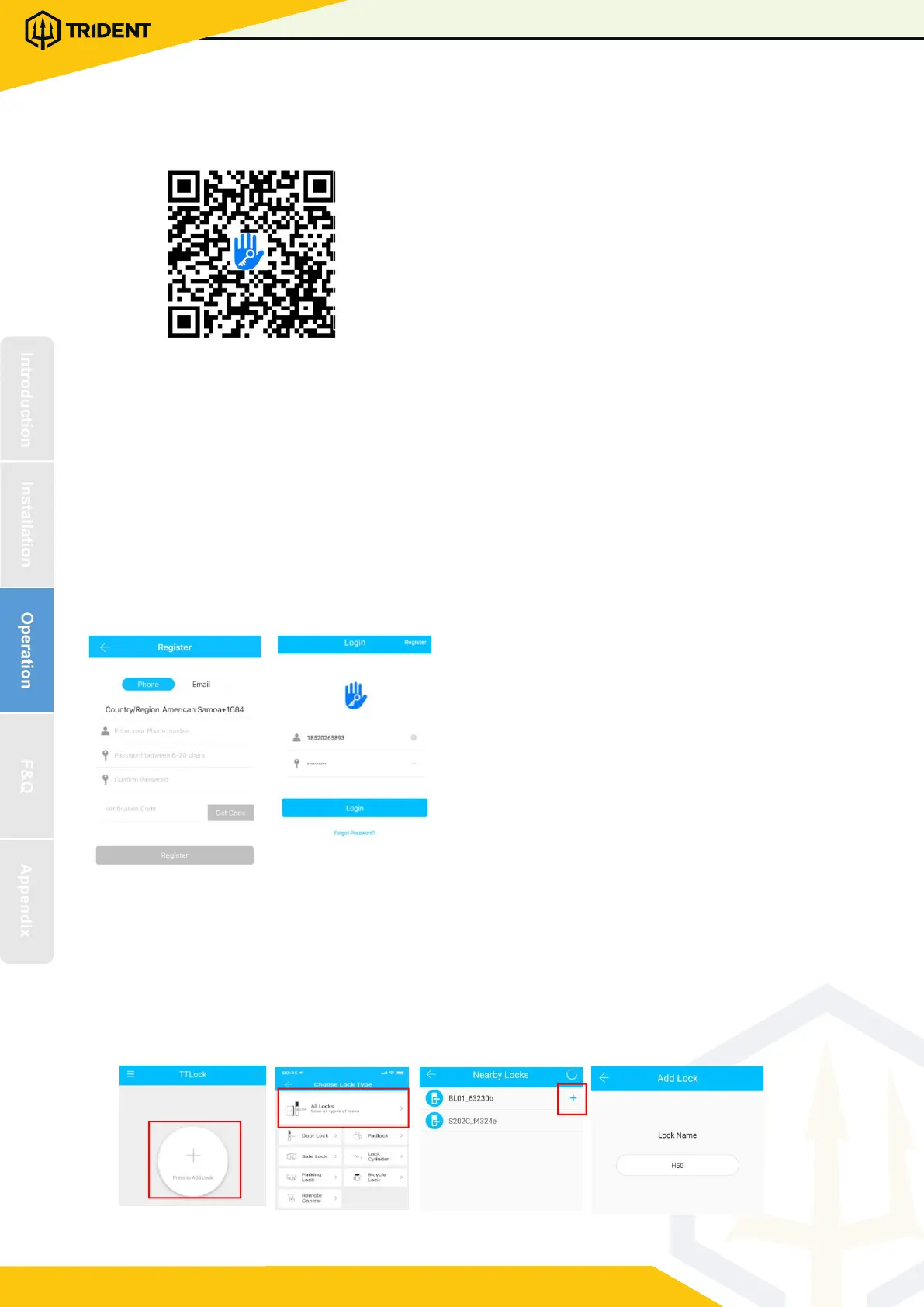
1) please scan the QR code to download the app
2) You can also search for TTLock in the APP store(Google Play)to dow nload
4) Register a new ac count (phone numbe r or email) or login with an existing
account.
5) Touch the lock screen to light, click "+ Add Lock”
6) The lock nearby will appear on t he phone screen, Click "+"
7) Re-name the lock
8) The lock added successfully
3.3.Add locks
TTLock supports multiple types of lock d evices. The lock needs to be added by
the app after entering the add mode. Generally, a lock that has not been added, as
long as the lock keyboard is touched, it will enter the add mode. The default
password is 1 23456 if not added by the phone
The software (iOS version) can be
downloaded from the app sto r e, and the Android
version can be downloaded from the application
store of Goo gle play, Yingyongbao, Baidu, Ali ,
360, Huawei, and Xiaomi.
TTlock users can register the account by
mobile phone and Email which currently
support 200 countries and regions on the
world. The ver ification code will be sent
to user’s mob ile phone or email, and the
registration will be succ essful after the
verification.


 To Next Page