The Pattern Type screen appears.
Step 2. Selecting a pattern
Note: You automatically create a new field when you select a pattern.
On the Pattern Type screen, press or until you have selected the type of pattern that you want to
create. For a detailed description of each guidance pattern, see Guidance Patterns.
1.
Press .2.
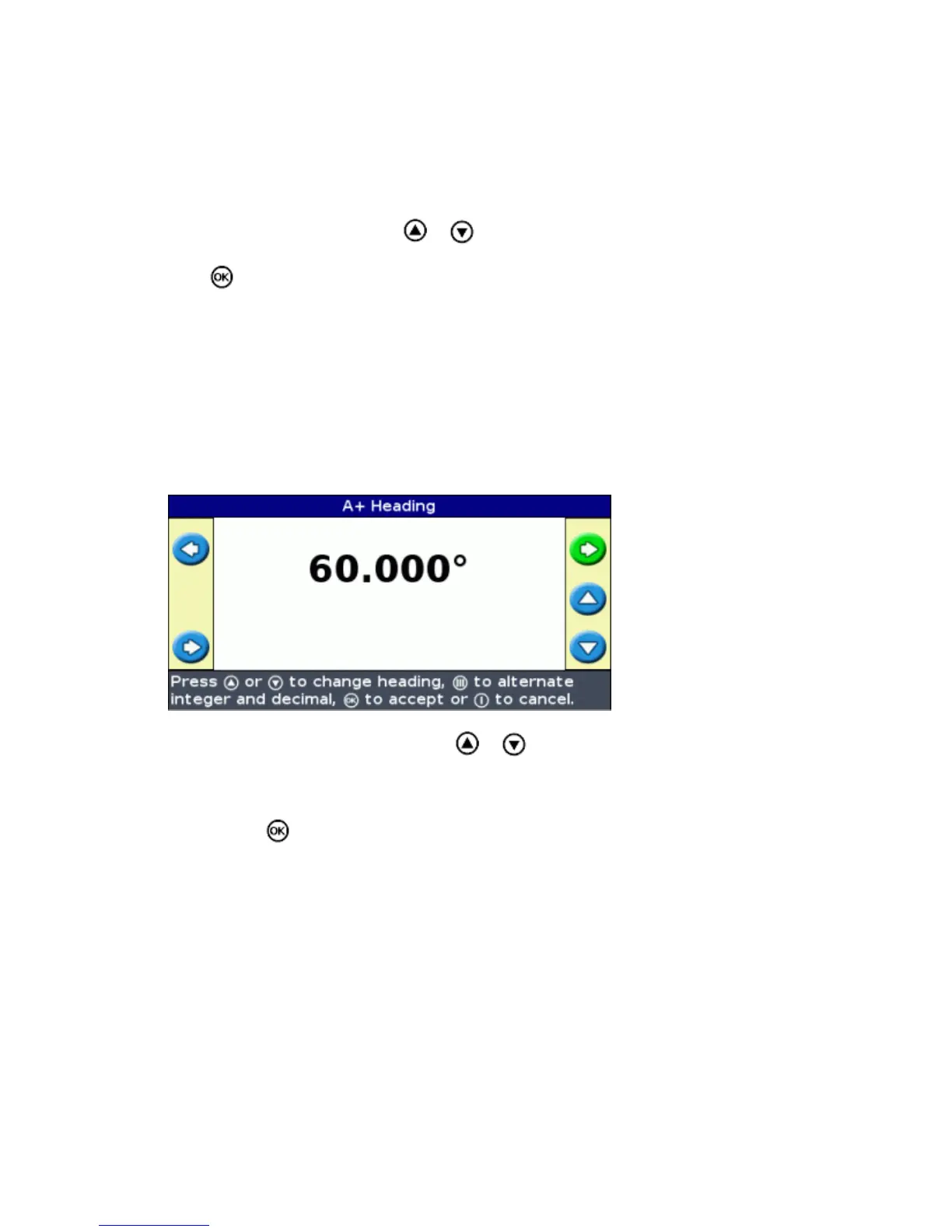
If you selected A+, the A+ Heading screen appears. See Step 3.♦
If you selected Headland, the Headlands Circuits screen appears. See Step 3.♦
If you selected Straight AB, Identical Curve, Adaptive Curve, FreeForm, or Pivot, the main
guidance screen appears. To begin driving, see Step 4.
♦
Step 3. Setting any additional line information (if necessary)
Setting the A+ line heading
When you create an A+ line, you need to specify the heading of the line:
On the A+ Heading screen, press or until the screen displays the required heading.1.
Note: The default heading is the heading of the previous AB Line.
Press . The main guidance screen appears.2.
Defining the number of headland circuits
When you create a headland, you need to specify the number of circuits.
This is the number of headland circuits that will be generated after you have driven the first headland
circuit.
32



 To Next Page