6 Job Manager
70 Trimble M3 Total Station User Guide
6.1 Opening an existing job
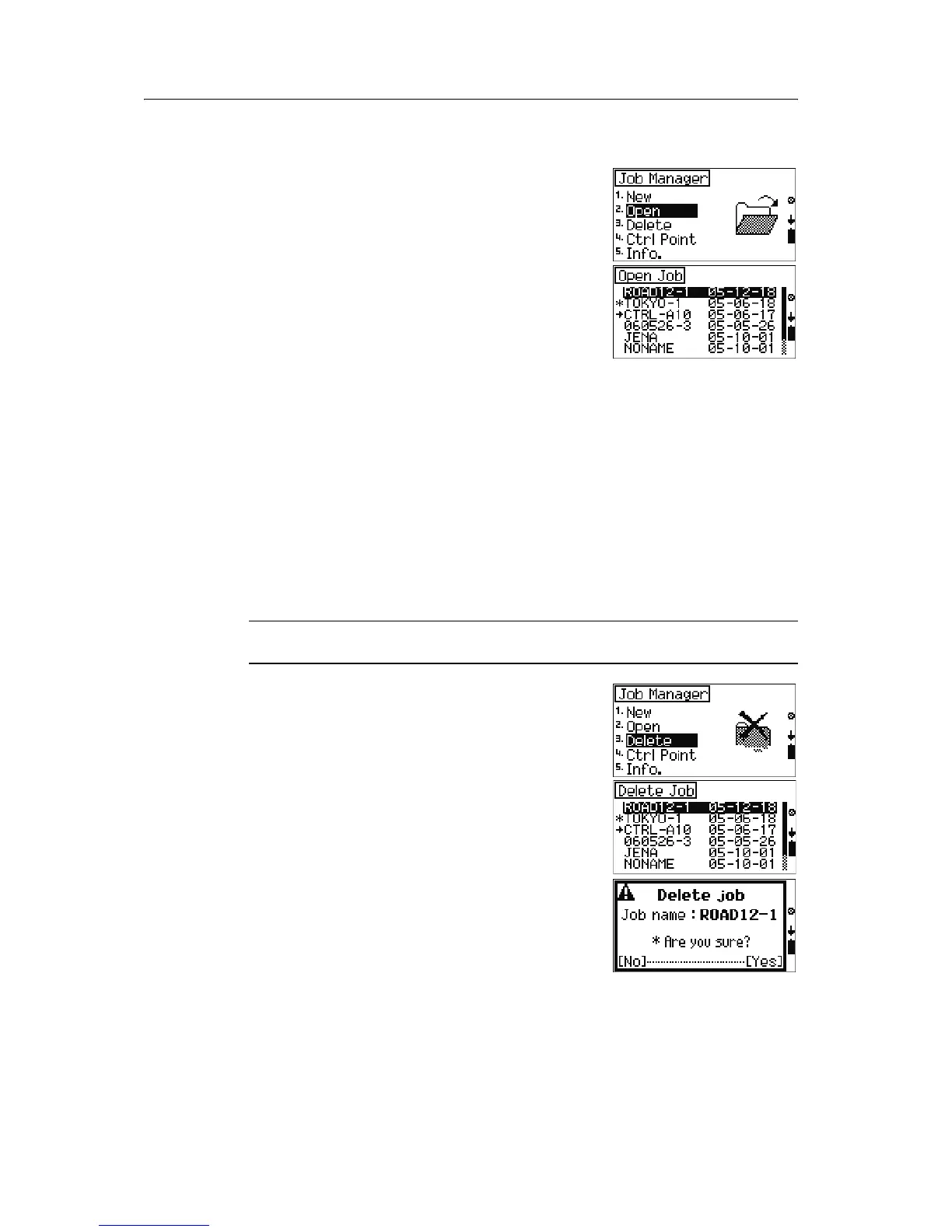
1. From the Job Manager menu, select [2] Open.
A list of all jobs stored in the internal memory
appears in descending date order.
A star (*) appears next to the job that is currently
open.
An arrow indicates the control-point job (if
specified).
Note – For more information on control point jobs, see
Setting the Control Point job, page 71.
2. Press
[^] or [v] to select a job from the job list and
then press
[MEAS/ENT] to open the highlighted job.
Note – When you open a job, all job settings are
automatically imported to the instrument.
6.1 Deleting a job
C
CAUTION – There is no undelete function in the Job Manager. Before you press [F4] Yes on
this screen, make sure that the selected job is the one that you want to delete.
1. From the Job Manager menu, select [3]
Delete.
A list of all jobs stored in the internal memory
appears in descending date order.
2. Press
[^] or [v] to select the job that you want to
delete and then press
[MEAS/ENT].
3. A confirmation message appears. Press
[F4] Yes
to delete the selected job.



 To Next Page