Vehicle Setup
To congure a vehicle:
1. From the Home screen, tap the Vehicle tile:
2. Tap New to launch the vehicle creation wizard. From here, you
can select a vehicle type, the vehicle make and model, and a
variety of available guidance options.
3. When you have completed the vehicle conguration, tap
the Save icon to save your vehicle and return to the Vehicle
selection screen.
4. Tap Home or the Android Back button to return to the Home
screen.
Implement Setup
To congure an implement:
1. From the Home screen, tap the Implement tile:
2. Tap New to launch the implement creation wizard. From here,
you can select from a variety of implement types.
3. Tap an implement icon to select an implement.
4. Some implements (Planting, Seeding, Spraying), apply
materials (seed, fertilizer, pesticide, etc.). For these implements,
tap Next to set the Application Control type and number of
channels.
5. When you have completed the implement conguration,
tap the Save icon to save your implement and return to the
Implement Selection screen.
6. Tap Home or the Android Back button to return to the Home
screen.
Material Setup
To congure a material:
1. From the Home screen, tap
the Material tile:
2. Tap New to launch the material creation wizard.
3. Complete the form for the material:
• Create a unique name for the material.
• Select a category (Anhydrous, Granular Seed, etc.).
• Depending on the category, select the material type
associated with the category. For example, if you select
Granular Seed as the category, then select a seed type,
such as Barley, Corn, Oats, Peanuts, etc.
• Select the distribution type for the material. For example,
the amount of a material (pound, liters, gallons) per area
(acre, hectare).
• Set values for the distribution rates.
• (Optional) Tap Material Details to enter values for the
material's product number and manufacture.
4. Tap the Save icon to complete the material creation and return
to the Materials screen.
5. Tap Home or the Android Back button to return to the Home
screen.
Note - Any material you create must correspond to the
appropriate implement. A material will only be available for
selection only for those implements that can apply it.
Field Setup
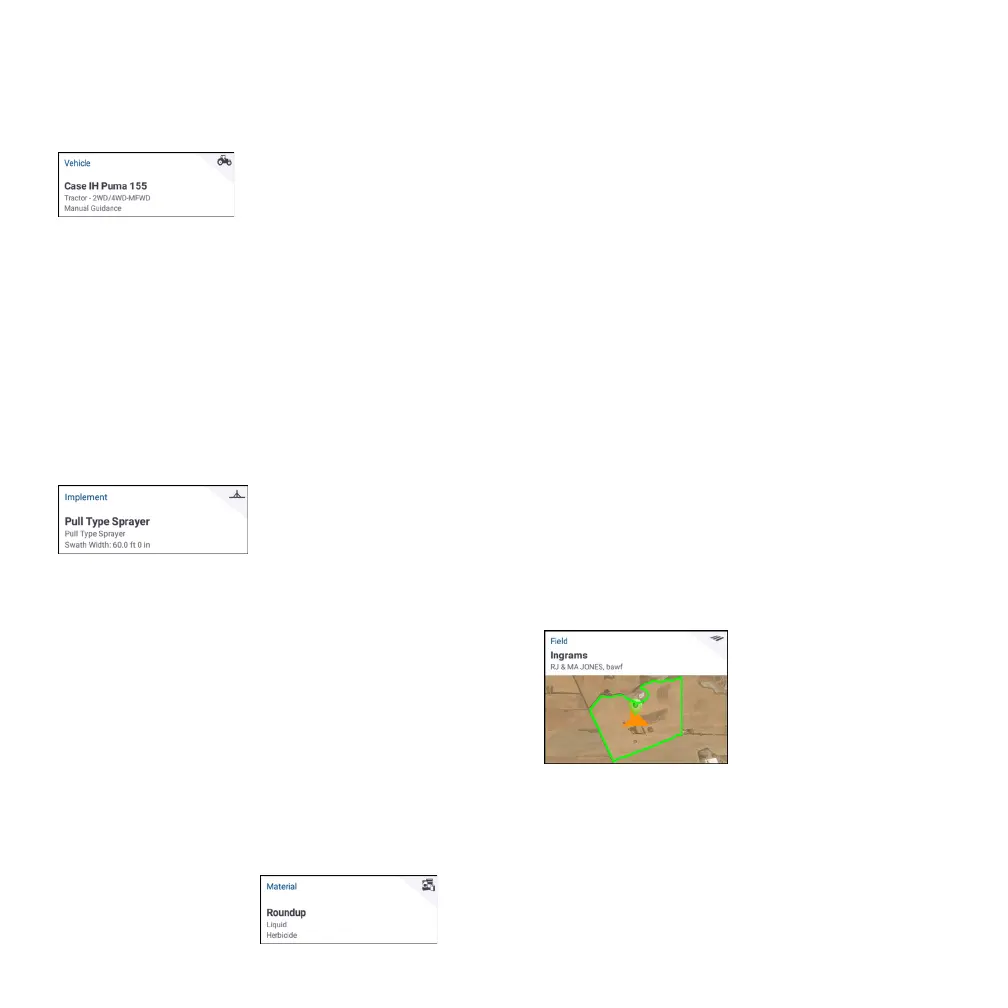
To create a eld:
1. From the Home screen, tap the Field tile:
2. Tap New.
3. In the Create New Field pop-up window, enter a unique Field
Name. From the Android keyboard, tap Done.
4. Verify that the eld name is correct, and tap OK.
Alternatively, you can transfer existing eld data les directly to the
XCN-1050 display:
1. Insert a USB drive into the USB port of the XCN-1050 display.
2



 To Next Page
 Loading...