8
ADVANCED SETTINGS: VEHICLE AUTO
GUIDANCE
With the appropriate licenses unlocked and installed, you can
congure a vehicle to use an auto guidance system. When you
set up a vehicle, Manual Guidance is selected by default. On the
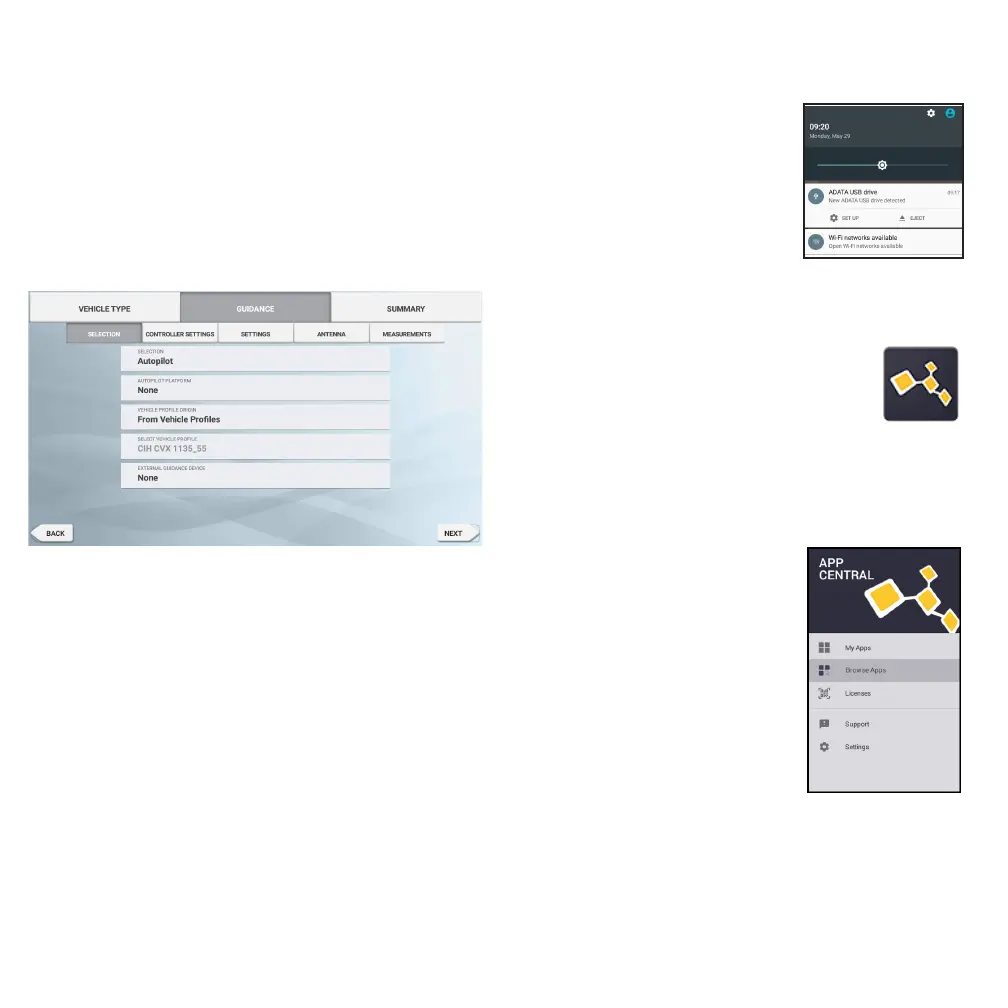
Guidance step of the vehicle setup, tap the Selection eld, then
tap Autopilot in the Selection pop-up window.
The Guidance screen will update for you to congure the Autopilot
details:
Tap the appropriate eld to change or enter the guidance value.
Tap Next to complete each Guidance option.
Note - These guidance options will vary depending on the auto
guidance license you have installed.
If you need to change the auto guidance options, tap Vehicles on
the Home screen, tap the vehicle you want to update, and then
tap Edit. Tap Guidance and update the necessary auto guidance
values.
QUICK ACCESS
Swipe down from the top of the screen
for notications, warnings, available
updates, etc., as well as:
• Brightness
• Wi-Fi status
• USB status
• Android settings
USING APP CENTRAL
From the Launcher screen, tap the App Central
icon to open the App Central Marketplace:
From here, you can browse available applications
and updates, check licenses, and check for
automatic software updates or manually update software.
On the App Central screen, tap the menu icon in the upper left-
hand corner to display the App Central menu, where you can:
1. Tap My Apps to view your installed
apps and to congure update
notications.
2. Tap Browse Apps to view all
available apps that you can install.
3. Tap Licenses for a list of active
licenses for the XCN-1050 display.
Tap the NAV-900 button for a list
of active licenses for the NAV-900
module.
4. Tap Support to retrieve log les to
save to a USB drive. You can also
send feedback to your support
service and include current system
information.



 To Next Page