7
8. Back on the BlueSoleil main window, right
click on the XR3000 symbol, select
Connect>Bluetooth Serial Port Service
>Bluetooth Serial Port Service A.
The following dialogue box appears:
9. Click Yes.
10. Click X to close the BlueSoleil main window.
Note: Next time you launch Tru-Test Pinnacle, the computer will automatically connect to the Bluetooth
XR3000 indicator using the settings you have configured.
Configuring a Bluetooth EID stick reader for use with the Bluetooth XR3000
indicator
The following installation and configuration instructions apply to both Tru-Test and Allflex Bluetooth EID
Stick Readers. If you have a different brand of Bluetooth EID Stick Reader, please follow the instructions
supplied by the manufacturer of your stick reader.
You will need the Allflex installation CD supplied with your Tru-Test or Allflex Bluetooth EID Stick Reader.
To install the Bluetooth EID Stick Reader’s Configurator program:
1. Insert the Allflex Installation CD into the computer’s CD drive.
2. Double-click on My Computer.
3. Double-click on the CD Drive to open the CD and view the contents.
4. Double-click on tech to open the folder.
5. Double-click on RS320 Yellow Stick Configurator to open the folder.
6. Double-click on Configurator Installer (v2.19).EXE to launch the installation file.
7. Follow the on-screen instructions to complete the installation process.
To configure the Bluetooth EID Stick Reader’s Bluetooth settings:
1. Remove the Bluetooth End Cap off the Stick Reader.
2. Attach the Serial End Cap.
3. Connect the Stick Reader to your computer using the curly serial cable.
4. Turn on the Stick Reader.
5. On the computer, select Start/Programs/Allflex/Stick Reader Configurator/Allflex Stick reader
Configurator to launch the newly installed Configurator application.
6. Click on the Wireless Technologies tab to display the Wireless Technologies screen.
7. Some fields in this screen may be populated already, but ensure that these fields are set as specified:
Set Power Module: to On
Set Connection Mode: to Master
Set Device Pairing: to On.
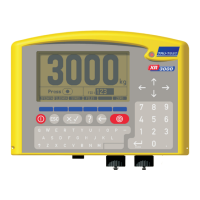
8. In the Pairing - Slave ID: field, enter the indicator’s Bluetooth address setting, viewable in the
Bluetooth Setup screen (
, , , ). The code number will be
in a similar format to the following number: 00:A0:96:14:9F:DF.


 To Next Page
 Loading...