EasyManua.ls Logo

Trust EASY SCROLL SILVERLINE - User Manual

Trust EASY SCROLL SILVERLINE
10 pages
Print Icon
To Next Page IconTo Next Page
Loading...
EASY SCROLL SILVERLINE KEYBOARD
1
UK
Method when using for the first time Chapter
1. Uninstalling old drivers and devices (3.1)
2. Connecting (3.2)
3. Software Installation in Windows (3.3)
4. Checking after the installation (4.0)
1 Introduction
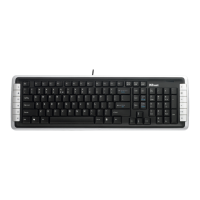
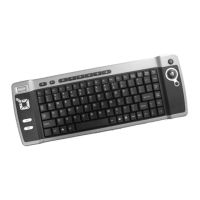
This instruction manual is for users of the TRUST EASY SCROLL SILVERLINE
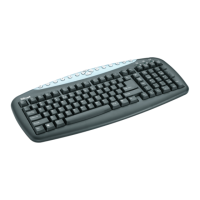
KEYBOARD. The TRUST EASY SCROLL SILVERLINE KEYBOARD has 33
multifunctional buttons and has been developed to provide greater efficiency and
productivity when working with a PC. Now you have more hot keys which makes
working with the PC easier and programs (like Office ) are quickly accessible by a
simple press of a key. The Trust navigation wheel lets you scroll up & down any
(Internet) page. With a simple click and scroll on the integrated wheel you have quick
access to your frequently used text, task or application.
2 Safety
Carefully read the following instructions before use:
- The TRUST EASY SCROLL SILVERLINE KEYBOARD does not require any
special maintenance. Use a slightly damp, soft cloth to clean the set.
- Do not use aggressive substances, such as petrol or white spirit, to clean the
device. These may harm the material.
- Do not submerge the device in liquid. This may be dangerous and will damage
the device. Do not use this device near water.
- Make sure nothing is placed on the cable. Do not use this device in an area
where the cable can become worn or damaged as a result of people walking
over it.
- Do not repair this device yourself.
3 Installation
3.1 Uninstalling old drivers and devices
The most common cause of faults during installation is the presence of a driver for a
similar, old product. The best solution is to first remove all drivers related to old
devices before installing the new driver.
1. Enter the Windows ‘Safe Mode’ (press F8 before starting Windows and then
select ‘Safe Mode’ from the menu which is displayed).
2. Go to ‘Start – Settings – Control Panel’ and double-click on the ‘Add/Remove
Programs’ icon.
3. Find all the programs for similar, old devices and remove these by clicking on
the ‘Add/Remove’ button. When in the ‘Safe Mode’, it is possible for some
programs to appear twice. In that case, remove all the programs that appear
twice.
4. Restart the computer.
3.2 Connecting
1. Connect the keyboards purple plug to the PS/2 keyboard connection on your
computer. Read the manual of the pc/mainboard how to do this.
2. Turn the computer on.
3. The keyboard will be installed automatically as a standard PS/2 keyboard.
4. Hardware installation is finished, now continue with the software to use the
extra multifunctional buttons.

!

Questions and Answers

Summary

Introduction to Trust Easy Scroll Keyboard

Safety Precautions

Keyboard Installation

Uninstalling Old Drivers

Steps to remove previous drivers before installing new ones to prevent conflicts.

Connecting the Keyboard

Instructions for physically connecting the keyboard to the computer via PS/2 port.

Software Installation

Installation Verification

Keyboard Usage Overview

Keyboard Button Functions

Overview of standard and multimedia buttons, including the Office Lock key for function switching.

Multimedia Software Configuration

Special Keys Usage

Instructions on using special function keys activated by the office button.

Scroll Wheel Functionality

How to use the scroll wheel for navigation menus and custom shortcuts.

Euro Sign Key Functionality

Software Uninstallation

Troubleshooting

Software and Installation Issues

Addresses problems where the software doesn't work properly or other software fails to install.

Shortcut and Hot Key Conflicts

Explains issues with Microsoft Windows shortcut keys and hot key conflicts.

Program Assignment Errors

Details problems with specific hot keys like Word, Excel, PowerPoint not working.

Troubleshooting Specific Functions

Log Off Key and Office Keys

Resolves issues with the Log Off key and the functionality of office keys not working.

Target Item Selection

Addresses issues with marking and unmarking target items, and mouse/keyboard software conflicts.

Multimedia and Scroll Functionality

Troubleshoots multimedia buttons, scroll function, and error messages for the keyboard.

Advanced Troubleshooting

Num Lock and Euro Sign Issues

Resolves problems with the Num Lock key and the Euro sign not functioning correctly.

Summary

Introduction to Trust Easy Scroll Keyboard

Safety Precautions

Keyboard Installation

Uninstalling Old Drivers

Steps to remove previous drivers before installing new ones to prevent conflicts.

Connecting the Keyboard

Instructions for physically connecting the keyboard to the computer via PS/2 port.

Software Installation

Installation Verification

Keyboard Usage Overview

Keyboard Button Functions

Overview of standard and multimedia buttons, including the Office Lock key for function switching.

Multimedia Software Configuration

Special Keys Usage

Instructions on using special function keys activated by the office button.

Scroll Wheel Functionality

How to use the scroll wheel for navigation menus and custom shortcuts.

Euro Sign Key Functionality

Software Uninstallation

Troubleshooting

Software and Installation Issues

Addresses problems where the software doesn't work properly or other software fails to install.

Shortcut and Hot Key Conflicts

Explains issues with Microsoft Windows shortcut keys and hot key conflicts.

Program Assignment Errors

Details problems with specific hot keys like Word, Excel, PowerPoint not working.

Troubleshooting Specific Functions

Log Off Key and Office Keys

Resolves issues with the Log Off key and the functionality of office keys not working.

Target Item Selection

Addresses issues with marking and unmarking target items, and mouse/keyboard software conflicts.

Multimedia and Scroll Functionality

Troubleshoots multimedia buttons, scroll function, and error messages for the keyboard.

Advanced Troubleshooting

Num Lock and Euro Sign Issues

Resolves problems with the Num Lock key and the Euro sign not functioning correctly.

Trust EASY SCROLL SILVERLINE Specifications

General IconGeneral
BrandTrust
ModelEASY SCROLL SILVERLINE
CategoryKeyboard
LanguageEnglish

Related product manuals