EasyManua.ls Logo

Trust Nado - User Manual

Trust Nado
4 pages
Print Icon
To Next Page IconTo Next Page
Loading...
Skip to content
Manuals+
User Manuals Simplified.
Home » Trust » Trust Nado Bluetooth Wireless Keyboard FAQ
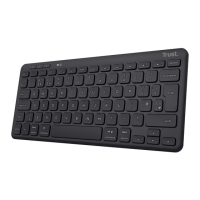
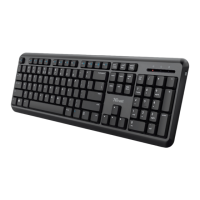
Trust Nado Bluetooth Wireless Keyboard FAQ
23746_leaflet_simple_en_1-0 [pdf]
23746_leaflet_extended_en_1-0 [pdf]
23746_usermanuals_va_1-0[pdf]
Contents [ hide
1 Frequently Asked Questions
1.1 Usage
1.2 Other
2 Warranty
2.1 Warranty conditions
3 Related Manuals:
Frequently Asked Questions
Installation and configuration
How to install the keyboard?
Switch the keyboard ON.
Press the Connect button for 3 seconds.
The blue LED on the keyboard will start blinking. The pairing mode is now activated.
Open the Bluetooth settings on your device and search for new devices.
When the Trust Bluetooth Keyboard has been found, select Pair
Your device will show you a Passcode.
Enter this code using the keyboard and press the Enter button on the keyboard.
Wait until the connection is established. When the LED on the keyboard goes OFF, the connection
is made.
The keyboard is ready to be used!
Usage
I want to use the FN-keys (F1, F2, etc.) without pressing FN. How can I do this?
Unfortunately it is not possible to reverse the functions of the top keys (F1, F2, etc.), so that you can
the F1/F2/etc keys without using the FN-key at the same time.
How can I type the less than < and greater than > characters on my Windows or Android device?
This keyboard is universal and these symbols are only available for devices that work with iOS and
MacOS, not for devices that use Windows or Android.
You can write the symbols in Windows 10 via the On-screen keyboard (Start > Settings > Ease of

Question and Answer IconNeed help?

Do you have a question about the Trust Nado and is the answer not in the manual?

Summary

Frequently Asked Questions

Installation and configuration

Steps for installing and configuring the Trust Nado Bluetooth Wireless Keyboard.

Usage

Information on using FN-keys and typing specific symbols like '<' and '>'.

Solving problems

Incorrect characters or symbols

Troubleshooting incorrect letters or symbols when typing.

Windows pincode issues

Guidance on what to do if Windows doesn't show a pincode for pairing.

Compatibility

PS4 compatibility

Information regarding the keyboard's compatibility with PS4.

Other

Euro-symbols on keyboard

Explanation for the presence of two Euro-symbols (€) on the keyboard.

Warranty

Warranty conditions

Details on the warranty terms, period, and exclusions for the product.

Summary

Frequently Asked Questions

Installation and configuration

Steps for installing and configuring the Trust Nado Bluetooth Wireless Keyboard.

Usage

Information on using FN-keys and typing specific symbols like '<' and '>'.

Solving problems

Incorrect characters or symbols

Troubleshooting incorrect letters or symbols when typing.

Windows pincode issues

Guidance on what to do if Windows doesn't show a pincode for pairing.

Compatibility

PS4 compatibility

Information regarding the keyboard's compatibility with PS4.

Other

Euro-symbols on keyboard

Explanation for the presence of two Euro-symbols (€) on the keyboard.

Warranty

Warranty conditions

Details on the warranty terms, period, and exclusions for the product.

Trust Nado Specifications

General IconGeneral
Device TypeKeyboard
ConnectivityWireless
InterfaceUSB
Keyboard LayoutQWERTY
Battery TypeAAA

Related product manuals