GXT 31 Gaming Mouse - USER’S MANUAL
2
Mouse layout
a
b
c
d
e
f
g
h
i
j
k
l
m
n
o
p
q
- Button 1 (left mouse button)
- Scroll wheel
Button 3 default function = middle click
Button 8 default function = tilt left
Button 9 default function = tilt right
Button 10 default function = scroll up
Button 11 default function = scroll down
- Button 2 (default function = right mouse click)
- Multipurpose LED indicator - battery status
- DPI setting
- scroll acceleration
- DPI LED indicator
- Button 4 (default function = page forward)
- Button 5 (default function = page backward)
- DPI switch
- Button 6 (default function = none)
- Button 7 (default function = none)
- Function button (see ‘advanced configuration’ for explanation)
- Mode button (click to switch between ‘Profile-1,2,3,4 and 5’)
- Cable release button
- USB connection
- Link button
- on/off switch
- Battery compartment
Installation
a. - Insert the Trust CD-ROM into your CD drive.
b. - Click “Run Setup.exe – Published by Trust International BV”.
- Click “Install driver”.
c. - Click ‘close’ when the installation is completed.
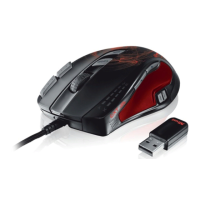
a. - Connect the USB cable to the mouse and power on the mouse.
b. - Connect the USB dongle to the USB port of the PC.
- Connect the mouse to the USB port of the PC.
c. - Wait until the message ‘Your device is ready to use’ appears.
- Start the mouse configuration software (located in the taskbar).
- You can now start to configure the mouse.
- After configuring the mouse, keep the USB cable connected to fully charge the battery.
The mouse needs to be charged for 4 hours before you can use it wirelessly.


 To Next Page