PRECAUTIONSSETUP
VCR FUNCTIONSDVD FUNCTIONS
Español INFORMATION
INSTRUCCIONES EN ESPAÑOL INCLUIDAS.
Supplied Accessories
AC
outlets
from TV
from the unit
rear of the unit
rear of TV
connect
1
plug in
2
Please refer to “Connections” on page 6.
3
DIGITAL
AUDIO OUT
COAXIAL
AUDIO
OUT
DVD VCR
DVD/VCR
S-VIDEO
OUT
COMPONENT
VIDEO OUT
VIDEO IN
AUDIO OUT
VIDEO OUT
L
L
AUDIO IN
Y
R
R
C
B
/
P
B
C
R
/
P
R
VCRDVD/VCR
AUDIO OUT
L
VIDEO OUT
R
AUDIO OUT
VIDEO OUT
R
L
AUDIO IN
VIDEO IN
Basic TV Connection
If you need additional operating assistance
after reading this owner’s manual, please call
TOLL FREE : 1-800-844-5001
Contents
remote control
(NB606UD /
NB656UD)
RCA audio/video cables
(WPZ0102TM015 /
WPZ0102LTE01)
batteries
(AA x 2)
owner’s manual
(1VMN23390)
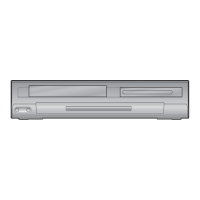
DVD/CD Player with Video Cassette Recorder
DV220TT8
Owner’s Manual
Please read before using this unit.
PRECAUTIONS
Laser Safety .................................................................................................................2
Important Safeguards .............................................................................3
Location and Handling ...........................................................................................4
Avoid the Hazards of Electrical Shock and Fire ............................................. 4
Moisture Condensation Warning .......................................................................4
About Copyright ....................................................................................................... 4
Notice for Progressive Scan Outputs ................................................................4
Symbols Used in this Manual ...............................................................................4
Maintenance ..............................................................................................................4
About Cassette Tapes and Discs .............................................................5
Playable Media ..........................................................................................................5
Unplayable Discs ...................................................................................................... 5
SETUP
Connections .............................................................................................6
Connection to a TV ..................................................................................................6
Connection to an Audio System .........................................................................7
Connection to a Cable/Satellite Box .................................................................7
Preparation for Use .................................................................................8
Turning on Unit for the First Time .....................................................................8
Clock Setting ..............................................................................................................8
Function Overview ..................................................................................9
Front Panel Indicator Lights .................................................................................9
Selecting DVD or VCR Operation ........................................................................9
Front & Rear Terminals ...........................................................................................9
Remote Control ........................................................................................................10
Installing the Batteries for the Remote Control ...........................................10
VCR FUNCTIONS
Playback .................................................................................................11
Other Operations ....................................................................................11
Index Search ..............................................................................................................11
Time Search ...............................................................................................................11
Auto Repeat ...............................................................................................................12
Recording ................................................................................................ 12
Recording & One-touch Timer Recording (OTR)..........................................12
Timer Recording ......................................................................................................12
Notes for Timer Recording & One-touch Timer Recording (OTR) .........13
Satellite Link ..............................................................................................................14
Copying a Cassette Tape ......................................................................................14
DVD FUNCTIONS
Playback .................................................................................................15
MP3 Playback .........................................................................................16
On-Screen Display ..................................................................................16
Search Functions ....................................................................................17
Using Track Search ..................................................................................................17
Using Title / Chapter Search ................................................................................17
Using Time Search ..................................................................................................17
Marker Setting ..........................................................................................................17
Repeat / Random / Programmed Playback ...........................................18
Repeat Playback .......................................................................................................18
Repeat A-B Playback ..............................................................................................18
Random Playback ....................................................................................................18
Programmed Playback ..........................................................................................18
Special Settings ......................................................................................19
Subtitle Language ...................................................................................................19
Audio Language ......................................................................................................19
Camera Angles .........................................................................................................19
Black Level Setting ..................................................................................................19
Stereo Sound Mode ................................................................................................19
Virtual Surround.......................................................................................................19
DVD Setting ............................................................................................20
LANGUAGE Setting .................................................................................................20
DISPLAY Setting .......................................................................................................21
AUDIO Setting ..........................................................................................................21
PARENTAL Setting ...................................................................................................22
OTHERS Setting ........................................................................................................22
Reset to the Default Setting (Except for PARENTAL Setting) ..................23
INFORMATION
Troubleshooting Guide ..........................................................................23
Specifications .........................................................................................24
Language Code List ................................................................................24
LIMITED WARRANTY ...............................................................................24
Español ...................................................................................................25
Quick Use Guide......................................................................................27
Owner’s Manual
E8E70UD.indd1E8E70UD.indd1 2006/11/3010:44:372006/11/3010:44:37


 To Next Page
 General