LED Display
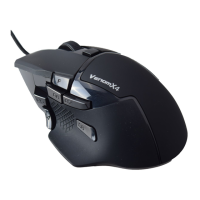
Venom-X Mouse LEDs
Wheel Light :
Red – Current mouse DPI is at high preset value
Orange – Current DPI is at medium preset value
Green – Current DPI is at low preset value
Note: DPI value is pre-set by the Setup software
LED slow flashing – The wireless connection is lost; Trying to locate and connect to a matched
Transceiver Box.
LED fast flashing – In pair mode and waiting for matching
LED double flashing – Low Battery
Logo Light:
Effect: Solid, Breath, Heartbeat
Color scheme: Gradient, Fixed
Logo lighting can be switched On or off by press the mouse top “▲” and “
▼” at the same time.
Color scheme can be configured by software in the Mouse Setup window.
Transceiver Box LEDs
Profile selection LED:
Red – game 1 Profile in used
Blue – game 2 Profile in used
Green – game 3 Profile in used
Power/Multi-function LED:
Solid On – Power On
Burst Blinking – Data transmitting or receiving
Fast Flashing – In pair mode and waiting for matching.
Keyboard/Non -
V
enom
X
TM
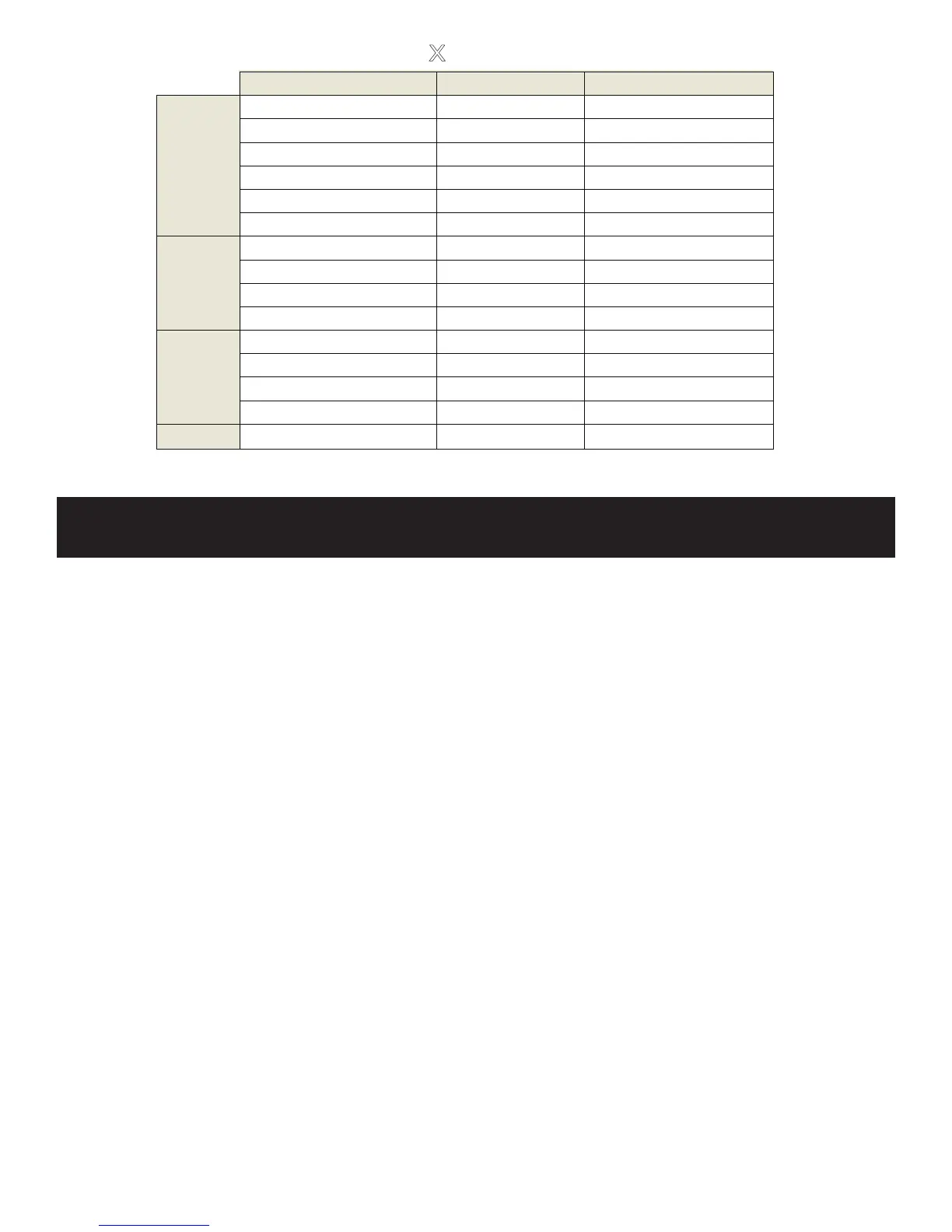
mouse On the Fly Setup Command
Function Operation Result
Increase Deadzone F12 + Wheel-Up
16-100
Decrease Deadzone F12 + Wheel-Down
16-100
Increase ADS Deadzone F11 + Wheel-Up
16-100
Decrease ADS Deadzone F11 + Wheel-Down
16-100
Deadzone Square F12 + S
Square selected
Deadzone Circular F12 + C
Circle selected
Mouse speed increase F12 + ↑
0.2x/step increment
Mouse speed decrease F12 + ↓
0.2x/step decrease
ADS Mouse speed increase
F11 + ↑
0.2x/step incr
ement
ADS Mouse speed decrease
F11 + ↓
0.2x/step decrease
Auto Firing On/Off F12 + Mouse-left click
Toggle Auto firing on/off
Auto firing tap select increase F12 + →
Burst 2->3->4->continue
Auto firing tap select decrease F12 + ←
Continue-> 4->3->2 burst
Aim Down Sigh Lock On/Off F11 + L Toggle ADS Lock on/off
Swap
Swap Left stick and mouse F11 + W
Swap Enable/Disable toggle
Deadzone
Mouse
Speed
Firing
option
Note:
↑, ↓, → and ← are the arrow keys on keyboard.



 To Next Page