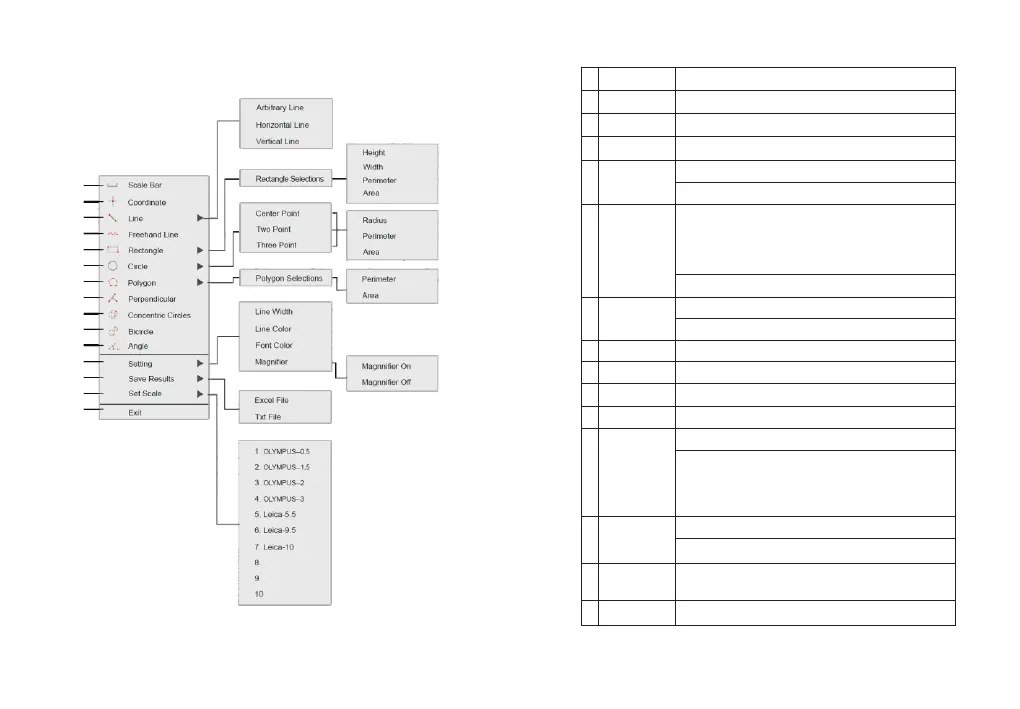
4. Right-click to enter the calibration and measurement module.
(1)
(2)
(3)
(4)
(5)
(6)
(7)
(8)
(9)
(10)
(11)
(12)
(13)
(14)
(15)
-16--15-
1 Scale Bar On/off the scale bar on the picture.
2 Coordinate Get the coordinates of the selected points.
3 Line Arbitrary, horizontal and vertical line measurement.
4 Freehand Line Get a freehand line length.
Measure rectangle perimeter and area.
Selectable to have the data of height, width, perimeter or area.
1) Center Point: Use center point and point on the circle
2) Two Point: Draw a circle according to the diameter;
3) Three Point: Use 3 points on the circle to draw a circle.
Selectable to have the data of radius, perimeter or area.
Measure polygon perimeter and area.
Selectable to have the data of perimeter or area.
8 Perpendicular Measure the perpendicular length.
9
Concentric circles
Get the diameters of the two concentric circles.
10 Bicircle Get the distance between two circles’ center points.
11 Angle Measure the angle.
1) Set the measurement line width, color and font color.
2) Magnifier On/off: Switch on/off the magnifier.
(When the magnifier is switched on, the cursor located area
will be zoomed in and placed at the corner to help accurately
Select to export the measurement results to an excel or text file.
The exported results will be saved in the SD card\MEASURE folder.
14 Set Scale
It allows to create 10 groups calibration files in calibration table,
and the .user can select 10 groups files to do measurement
15 Exit Exit the measurement.
12 Setting
13 Save Results
5 Rectangle
6 Circle
7 Polygon
to draw a circle;
locate the measurement point.)


 To Next Page