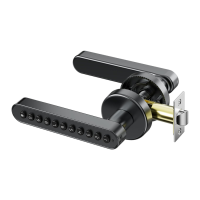
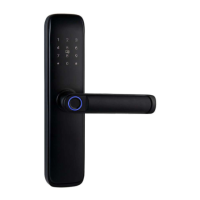
1. Click the "Add Device" icon on the APP homepage.
2. . Wait for the mobile phone to scanPress the digital keyboard to wake up the device
the device and click "Next" to complete the device added.
III. Bluetooth Door Lock Panel- Home Page
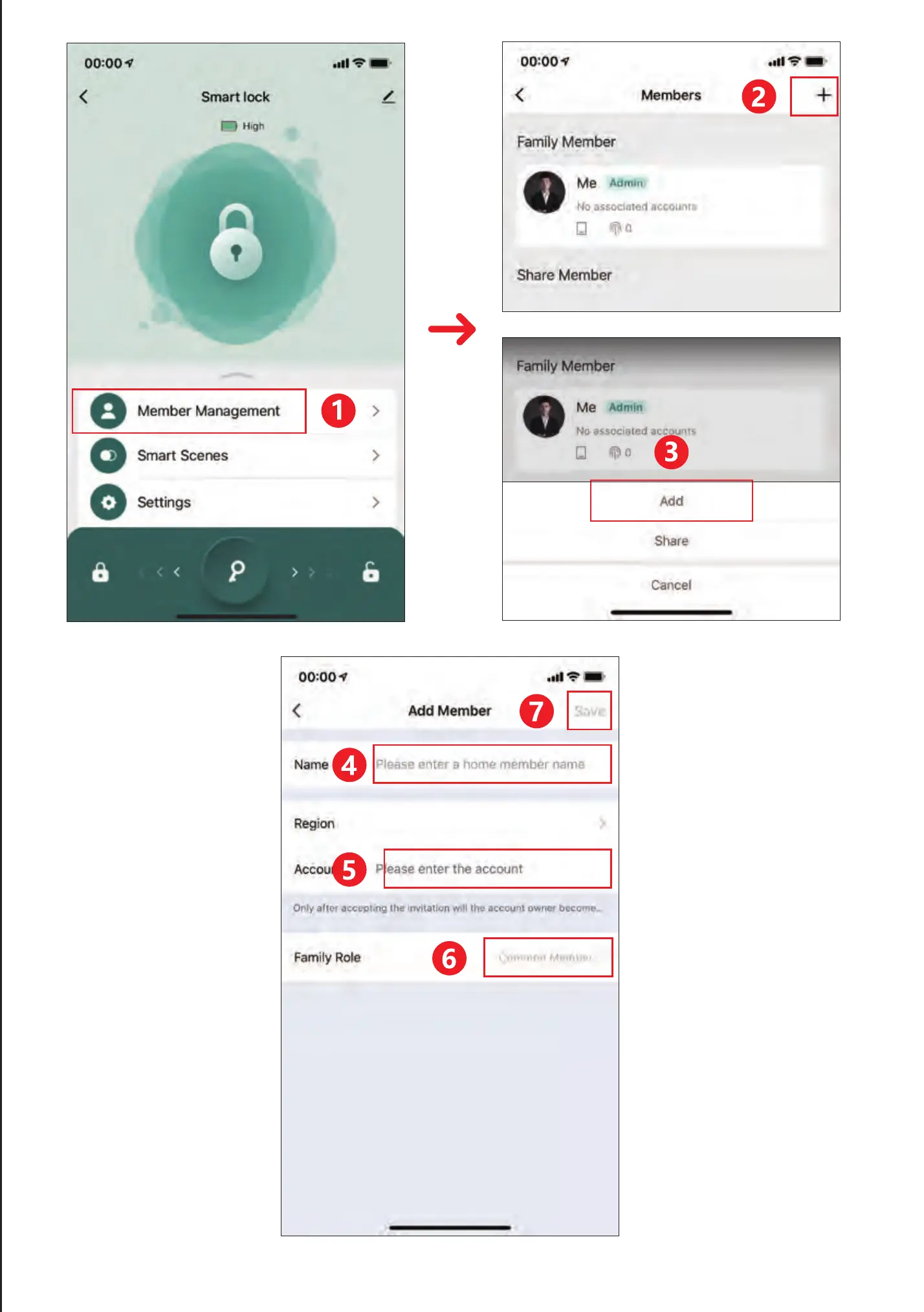
1. Homepage "Member Management" Entrance → Select "Family Member Account" with
corresponding permissions: The affiliate administrator will have administrators
permissions, and ordinary members are just ordinary user permissions;
2. Click "Password Add" to enter 6-10-digit passwords;
V. Member Management - Adding Administrators
1. The lower side of the homepage contains, "opening records and equipment alerts",
"temporary password", "member management", "intelligent application", "setting", the
display door lock name and current power condition on the upper side of the homepage.
2. In the center of the homepage, the connection status of the Bluetooth will be displayed.
If it is connected, you can unlock the right → slide "and turn on the door lock directly.
Slide "Guan Lock" to the left. (Please make sure that the mobile phone Bluetooth has
been opened, and the mobile phone and the door lock are recommended within 5-10
meters within a reasonable distance.) If the Bluetooth is not connected, it shows
"cannot connect to Bluetooth" and cannot open the Bluetooth door lock directly
through the APP. Essence
IV. Administrator password management
15
16
17
18


 To Next Page
 Loading...