1. Click your "Family Management" at the bottom right corner of the App, select "Family",
you can delete the added family members or change the permission to use the app;
VIII. Door Opening Records and Device Alarms
VI. Member Management - Adding Ordinary Members
VII. Deletion of Family Members
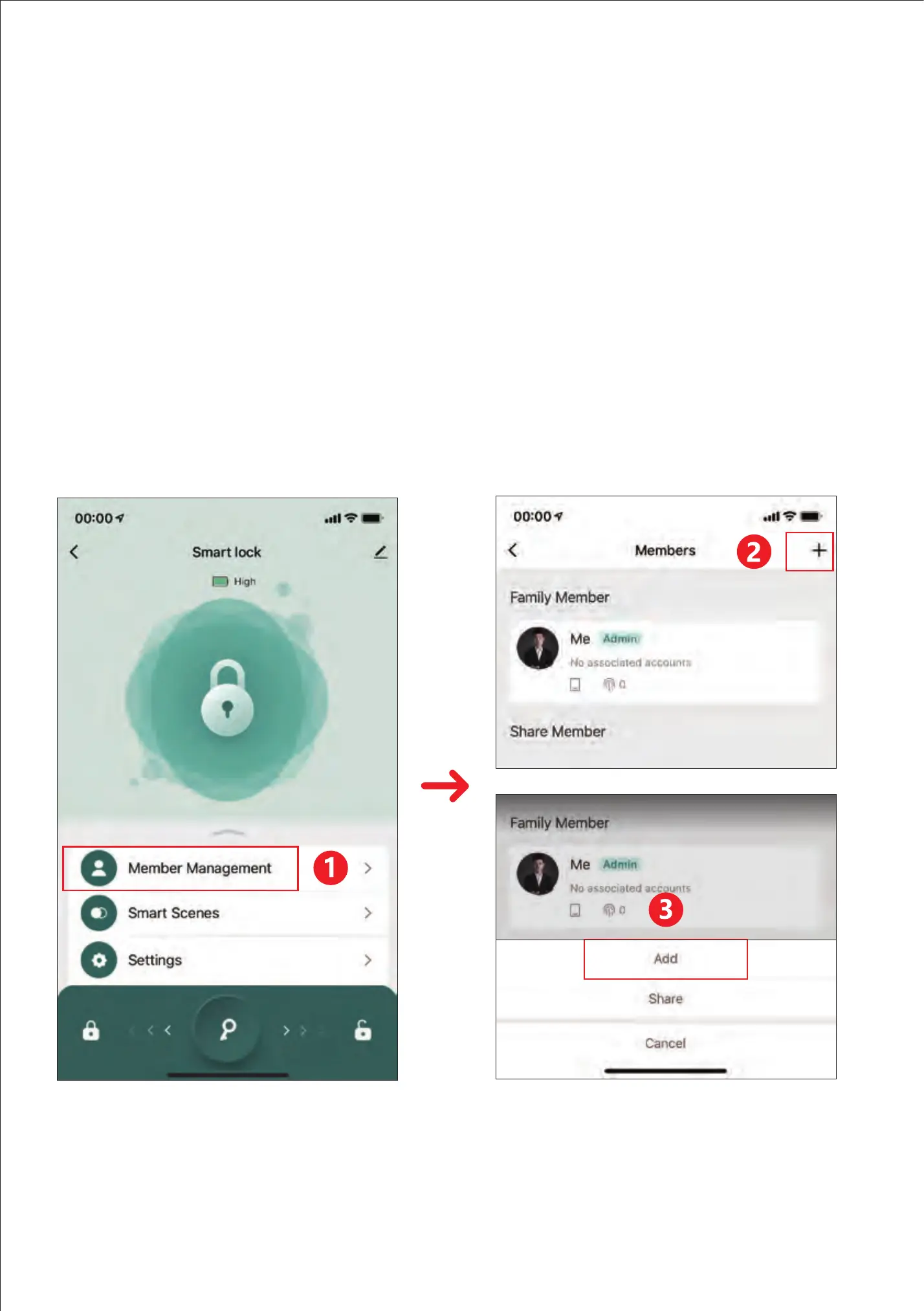
1. "Member Management" entrance click "+" in the upper right corner, select "Add
Member", enter the member name and graffiti account, select the permissions and
click to save it to add the administrator user; (add the administrator account number
must have already already already been already Register the smart account of
graffiti, otherwise it will not be added)
2. After the additional account opens the mobile phone graffiti APP, the invitation
information will be received.
3. All key information added to this account entrance will default to the authority of
the administrator;
1. "Member Management" entrance click "+" in the upper right corner, select "Add
Member", enter the member name, no need to enter the account, click to save, you
can add ordinary member users.
2. All key information added to this account entrance will be defined as ordinary
user permissions;
1. Click the "Alarm" icon to view the door opening record and trial and error alarms and
other information;
Note: When the door lock is connected to the cell phone Bluetooth, the door opening
records and alarms will be displayed on the APP in real time, otherwise, the records
will be cached in the door lock local file, awaiting transmission when the door lock is
connected to the cell phone Bluetooth and opened in the next time.
19
20
21
22


 To Next Page
 Loading...