49
49
If the pass key entered wrongly then the instrument
cluster displays the following message.
On connecting with the smart phone successfully,
the instrument cluster displays the user name which
is fetched from the smart phone as shown.
Auto-pairing happens only if the application is locked
in the RAM in multitasking screen of the phone with
manufacturer’s customised OS (Ex. : MI, Vivo etc.).
In case of Android phones with Android OS version
above 8.0 for App to work seamlessly, any battery
optimisation setting to be removed in the TVS Connect
app and GPS shall be allowed to run in background in
high accuracy mode.
Even if your phone’s Bluetooth is already paired to
other gadgets like smart watch, health band or helmet,
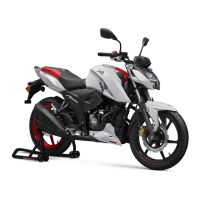
the auto-pairing works with your TVS Apache RTR 160
motorcycle’s connected instrument cluster.
Note
In Android and IOS smart phones, if the Bluetooth is
‘ON’, and if the app is already paired with the cluster,
when the user opens the app with the ignition turned
‘ON’, the app connects automatically with the cluster
once the user takes his phone to near by the vehicle (if
the auto connect setting of your smart phone is turned
‘ON’). This feature can be disabled if required. Auto
connect will only work with the last paired mobile phone.
If the application unfortunately stops due to unfrossen
circumstances. Close and reopen the application and do
the manual pairing for the first time, then auto-pairing
will happen subsequently.
For first time pairing, logout from the app, login again
with your login credential and press ‘Connect’ icon.
Note




 To Next Page