Q THE LIGHTS WILL NOT LIGHT UP
• Check that the power supply is connected and that the controller is correctly
connected to the device
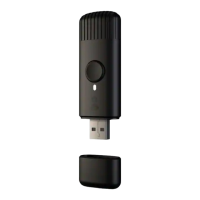
• Check that the green light on the controller is ON
• Press the controller button once
• If this won’t work, unplug the power supply, wait 30 seconds and connect it
again
Q THE LIGHTS TURNED ON BUT ARE LOCKED
• Press the controller button once
• If this won’t work, unplug the power supply, wait 30 seconds and connect it
again
Q THE LIGHTS TURNED ON, BUT MY SMARTPHONE CANNOT FIND THE
TWINKLY_XXXXXX NETWORK
• Unplug the power supply, wait 30 seconds and connect it again
• If this won’t work, try to Reset (see Reset procedure, page 15-16)
• If this won’t work, try moving the tree to another room and/or deactivating
other Wi-Fi devices nearby
Q THE Wi-Fi CONNECTION IS OK, BUT THE LIGHTS DON’T RESPOND TO
COMMANDS
• Within the Twinkly app, open “Devices” and tap the “circling arrows” symbol (see
Rescan procedure, page 17)
• If this won’t work, exit the Twinkly app and launch it again
• If this won’t work, delete the Twinkly app from your smartphone, then download
the latest version from App Store or Google Play
• If this won’t work, try to Reset (see the Reset procedure, page 15-16)
EN
Q LES LUMIÈRES NE S’ALLUMENT PAS
• Vérifi ez que l’alimentation est connectée et que le contrôleur est correctement
connecté à l’appareil
• Vérifi ez que le voyant vert du contrôleur est allumé
• Appuyez une fois sur le bouton du contrôleur
• Si cela ne fonctionne pas, débranchez l’alimentation, attendez 30 secondes et
rebranchez-le
Q LES LUMIÈRES S’ALLUMENT MAIS SONT VERROUILLÉES
• Appuyez une fois sur le bouton du contrôleur
• Si cela ne fonctionne pas, débranchez la prise, attendez 30 secondes et
reconnectez
Q LES LUMIÈRES S’ALLUMENT MAIS MON SMARTPHONE NE TROUVE PAS LE
RÉSEAU TWINKLY_XXXXXX
• Débranchez l’alimentation, attendez 30 secondes et rebranchez-le
• Si cela ne fonctionne pas, essayez de réinitialiser (voir la procédure de
réinitialisation, page 15-16)
• Si cela ne fonctionne pas, essayez de déplacer l’arbre dans une autre pièce et
/ ou de désactiver d’autres appareils Wi-Fi à proximité
Q LA CONNEXION Wi-Fi EST OK, MAIS L’ARBORESCENCE NE RÉPOND PAS
AUX COMMANDES
• Dans l’application Twinkly, ouvrez “Devices” et appuyez sur le symbole “fl èches
d’encerclement” (voir Procédure de rescan, page 17)
• Si cela ne fonctionne pas, quittez l’application Twinkly et relancez-la
• Si cela ne fonctionne pas, supprimez l’application Twinkly de votre
smartphone, puis téléchargez la dernière version sur App Store ou Google
Play
• Si cela ne fonctionne pas, essayez de réinitialiser (voir la procédure de
réinitialisation, page 15-16)
FR



 To Next Page