5
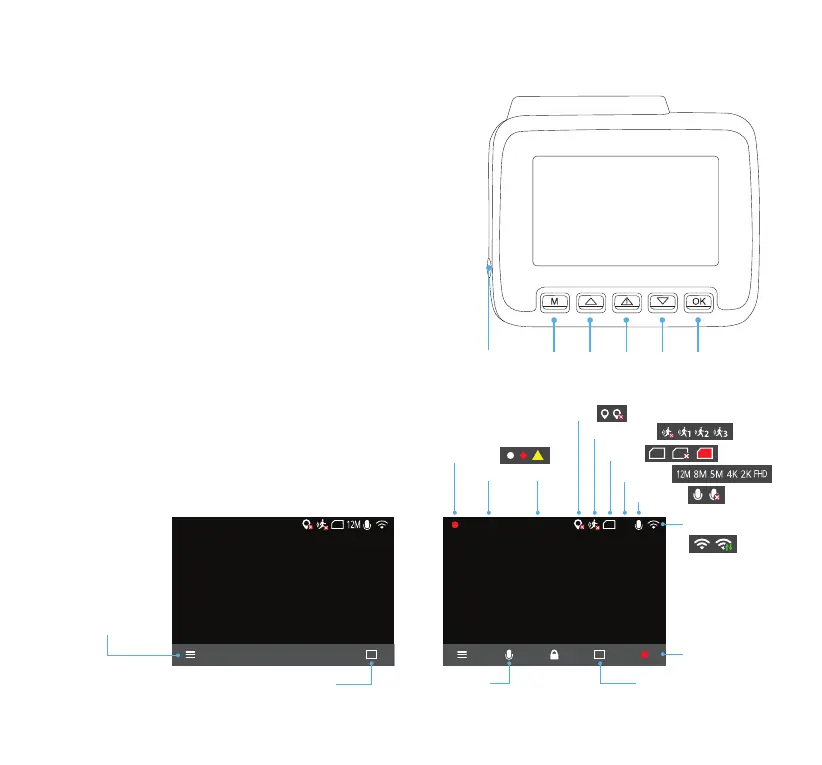
1. Power Button
Press and hold to turn On/O the Dash Cam. Press once to
activate screen save.
2. Menu Button
Press to open the menu or go back to the previous screen.
3. Up Button
Press to navigate up within menus.
4. File Protection / Lock Button
Press and hold while recording to save a 30 second clip
and permanently store in the event folder.
5. Down Button
Press to navigate down within menus.
6. OK / Record Button
Press to conrm selection when in menus.
Press to start / stop recording in Video Mode.
6. BUTTON CONFIGURATION
Apply conguration and settings to the Dash
Cam using the 5 function buttons. Refer to the
screen display below for the buttons and their
corresponding functions.
Note: Press any of the 5 function buttons once to
bring out the menu bar at the bottom.
SD
2019.01.29 17:44:20
Camera Mode
Press once to go to
menu page.
Press once to take a photo.
4K
SD
2019.01.29 17:44:20
Video Mode
Recording
Press to start/stop
recording.
Press to take a photo
in Video Mode.
Date Time
SD SDSD
Mic On/O
Resolution
SD Card
Motion Sensor
WiFi On/Connected
Press to turn On/O
the microphone.
GPS
!
2
1
3 4 5 6



 To Next Page