17
Wifi Setting
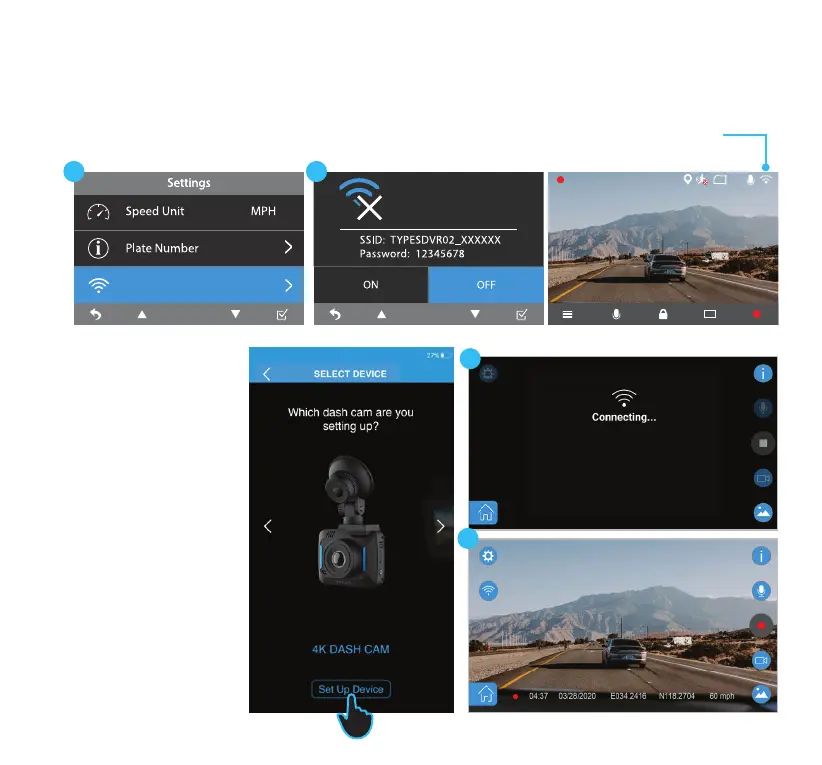
Enable and connect below Wi
network on your smart device
3. Open the TYPE
S Drive APP and
select the Dash Cam
category. Select 4K
Dash Cam from the
list of Dash Cams.
Press Set Up Device.
4. The APP will search
for Dash Cam's SSID
"TYPESDVR02_
XXXXXX" and
connects to Dash
Cam automatically.
5. You should see the
live view of Dash Cam
on the main interface
if the connection is
successful.
1. Open the 4K Dash Cam's main menu.
2. Go to WiFi Setting and turn it on.
Note: Default WiFi is set as On.
Android device
16. APP SETUP
Auto sync with the Dash Cam
WiFi icon will appear if WiFi
is turned on.
1 2
3
5
4
4K
SD
2019.01.29 17:44:20



 To Next Page