15
2. Frequency Pairing between Mobile Phone and Drone WiFi:
100%
EMERGENCY
Click on the icon Home Page
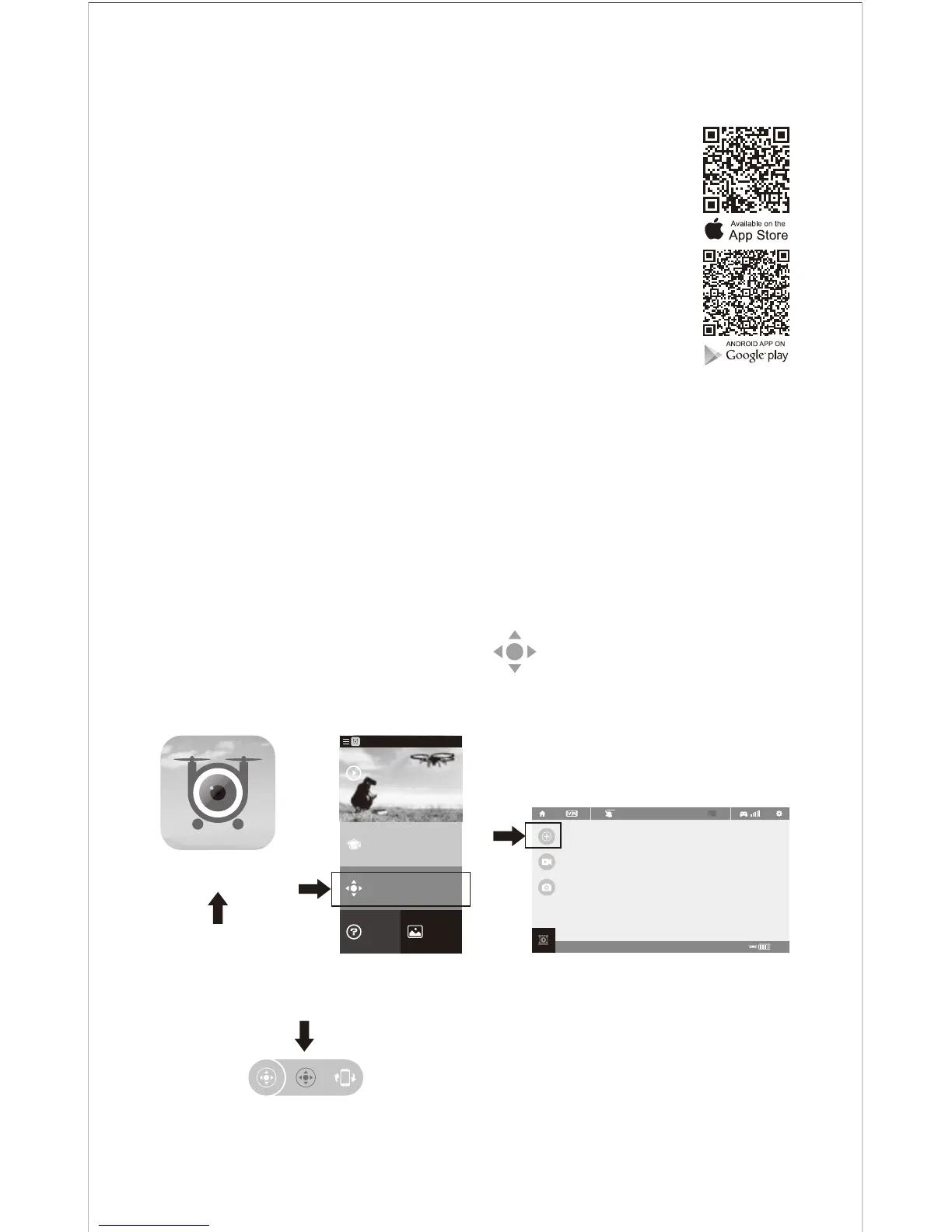
3. Click on the icon Flyingsee and click on to enter remote control interface
to experience real time transmission.
2. Enter “Settings” of the mobile phone, turn on WiFi (WLAN) and choose
udirc-***, return to desktop after successful connection.
1. Install the battery to the mounted box and power on the drone. Put the drone
on the at surface in horizontal position.
Real time Transmission Interface
4. Click on to enter Virtual Control Interface. At this time the
drone LED lights change from ash to solid bright, which indicates
successful frequency pairing and the drone is ready to be controlled via APP.
Flyingsee
Learn the operation
of drone
Remote control interface
Media
Help
Explore UDIRC Drone
HOME
1. Download and Install the APP: Flyingsee
The APP is suitable for mobile phone with iOS and Android system,
please download from the mobile phone software store:
1. For mobile phone with iOS system, please search Flyingsee
in APP Store.
2. For mobile phone with Android system, please search Flyingsee
in Google Play.
3. Scan the QR code on the right or the QR code in the box to
download Flyingsee.
10. To know your APP

 To Next Page
 Loading...