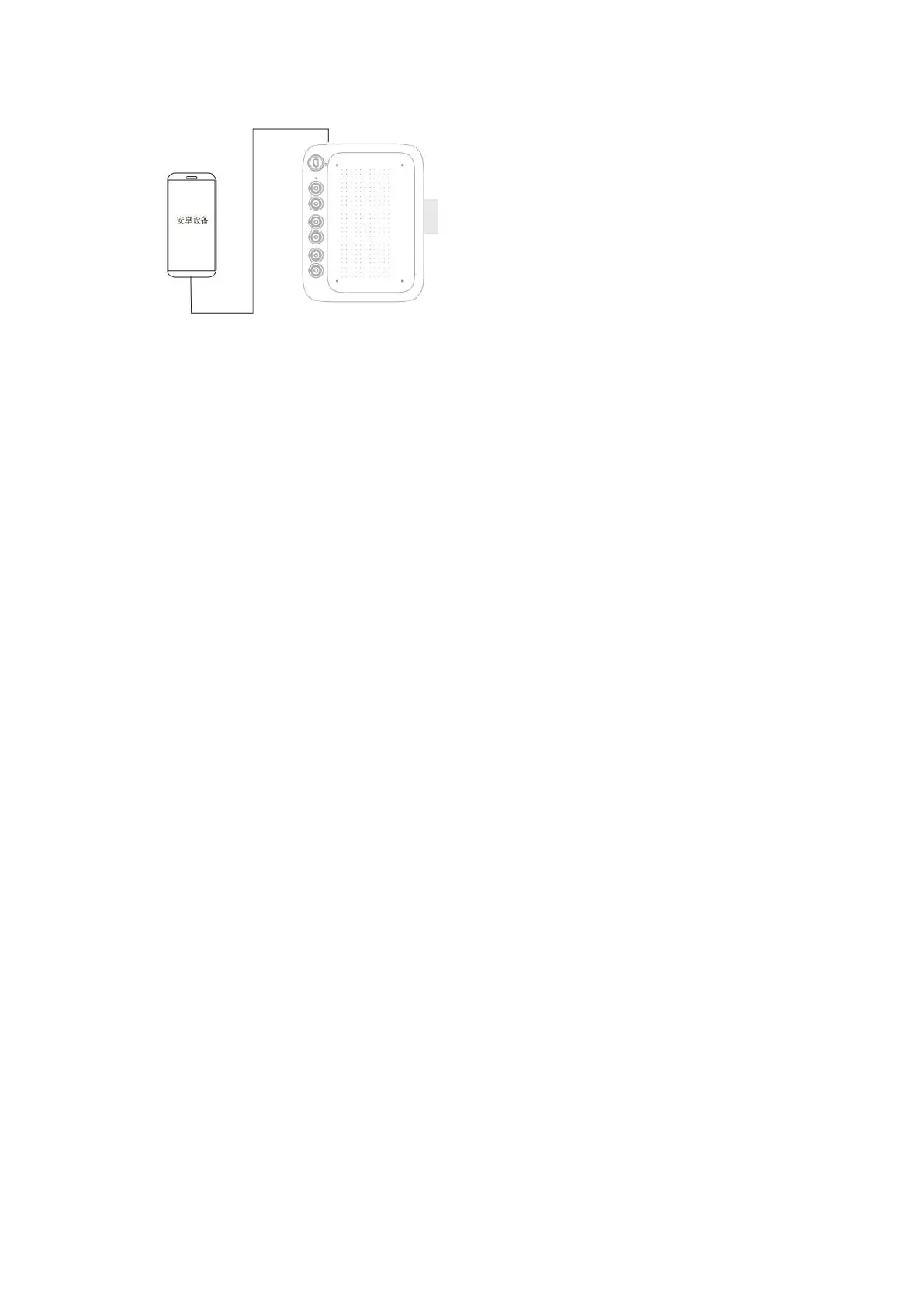
Take out the USB cable on the back of the drawing tablet, connect one end to the
drawing tablet (the USB-C port is on the top of the drawing tablet), and connect
another end to the phone/tablet. The phone/tablet and the drawing tablet should
be placed vertically.
Step 4: Mode switching
Swipe the mode switch button up and down to switch to a mode suitable for your
phone/tablet.
Step 5: Open the painting software on phone/tablet and start painting!
Attention:
1) If the phone/tablet uses a Micro USB interface, it is necessary to first insert
the Micro USB OTG adapter into the phone/tablet before connecting it;
2) Only supports Android 6.0 and above systems, and harmony OS 1.0 and above systems.
If the version is too low, please upgrade your phone/tablet system first;
3) Please drawing when your phone/tablet with sufficient battery (>20%).
4)If your usage habit is to draw with your left hand, you can switch between left
and right hand modes by long pressing the K1 shortcut key for 5 seconds.
1.4 How to use it on computer
Step 1: Connect the drawing tablet to the computer using a USB cable.


 To Next Page