4
Open „System Preferences“>> Click „Displays“ >> Select „Arrangement“ >> Check the
„Mirror Displays“ to set the display to Mirror mode.
Open „System Preferences“>> Click „Displays“ >> Select „Arrangement“ >> Uncheck the
„Mirror Displays“ to set the display to Extend mode.
Notes
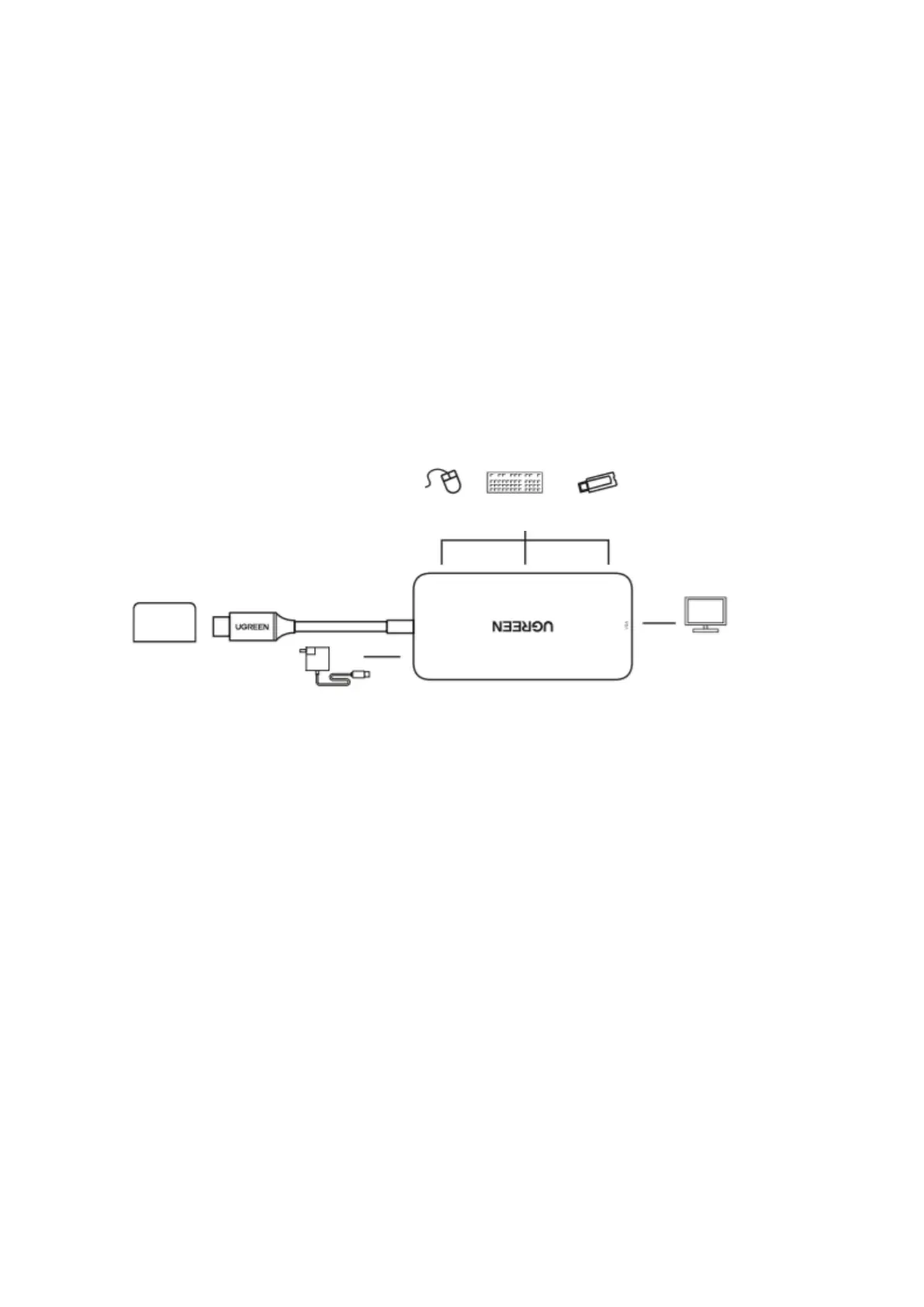
1. Use your MacBook original power adapter to charge this unit and your MacBook
through the USB-C PD power port.
2. USB-C power port can be only used for power supply.
50210
Open „System Preferences“>> Click „Displays“ >> Select „Arrangement“ >> Check the
„Mirror Displays“ to set the display to Mirror mode.
Open „System Preferences“>> Click „Displays“ >> Select „Arrangement“ >> Uncheck the
„Mirror Displays“ to set the display to Extend mode.
Notes
1. Use your MacBook original power adapter to charge this unit and your MacBook
through the USB-C PD power port.
2. USB-C power port can be only used for power supply.
3. Audio is not supported over the VGA port.


 To Next Page