This document describes the UGREEN Bluetooth 5.3 Adapter, Model: CM591, P/N: 90225.
Function Description
The UGREEN Bluetooth 5.3 Adapter is a device designed to add Bluetooth 5.3 connectivity to a computer, enabling wireless communication with various Bluetooth-enabled devices such as headphones, speakers, keyboards, mice, game controllers, and phones. It supports simultaneous connection of up to 5 Bluetooth devices, plus two Bluetooth audio output devices (like headphones/speakers).
Important Technical Specifications
- Model: CM591
- Bluetooth Version: 5.3
- Frequency Range: 2400MHz-2483.5MHz
- Max. RF Output Power: 4dBm (conducted)
- Bluetooth Profiles: A2DP, HSP, AVRCP, HID, PAN, GAVDP, DID, IOPT
- Operating Distance: Up to 20m/66ft Max (no blocking)
- Compatible Systems: Windows 8.1/10/11
- Interface: USB 2.0
- Indicator: 1 × LED indicator
Usage Features
Package Contents:
The package includes:
- 1 × Bluetooth 5.3 Adapter
- 1 × User Manual
Product Overview:
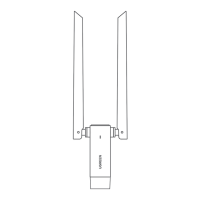
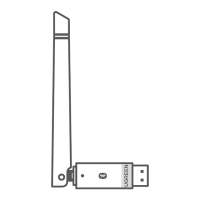
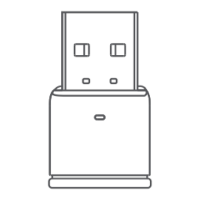
The adapter features a USB 2.0 connector and an LED indicator.
Before Use - Disabling Internal Bluetooth:
Before plugging in the adapter, it is crucial to disable any existing internal Bluetooth on your computer to prevent conflicts.
- Access Device Manager:
- Press the "Windows" + "X" keys to open the context menu.
- Select "Device Manager" from the list.
- Alternatively, right-click "This PC" > "Manage" > "Device Manager".
- Locate Bluetooth Device:
- In Device Manager, expand "Bluetooth".
- Check for a "Bluetooth" icon. If present, double-click it.
- Disable Internal Bluetooth:
- Right-click on "Intel(R) Wireless Bluetooth" (or similar internal Bluetooth device).
- Select "Disable device".
- Confirm the action by clicking "Yes" when prompted to disable the internal Bluetooth.
Use and Connect:
- Plug in the Adapter:
- Insert the Bluetooth adapter into a USB port on your computer.
- Note: This adapter only supports Windows 8.1/10/11 and does not require manual driver installation.
- Add a Bluetooth Device:
- Right-click the Bluetooth icon in the taskbar (or go to "Start" > "Settings" > "Devices").
- Choose "Add a Bluetooth Device" or "Add Bluetooth or other device".
- Select "Bluetooth" from the options.
- Pairing:
- Select "Add Bluetooth or other devices" to scan for available devices.
- Ensure the Bluetooth of the device you want to pair is turned on.
- Select your Bluetooth device from the list and follow the on-screen instructions to complete pairing.
Troubleshooting:
- Bluetooth icon not appearing:
- Ensure no other Bluetooth devices are installed or enabled on the computer. If there are, disable all existing Bluetooth devices in "Device Manager" and then insert the adapter again.
- Sometimes the Bluetooth icon might be hidden. Check "Start" > "Settings" > "Devices" > "More Bluetooth Options" > "Options" > "Show the Bluetooth icon in the notification area".
- Cannot find Bluetooth device:
- Make sure your device supports Bluetooth.
- Ensure your Bluetooth device is in pairing mode.
- Keep your Bluetooth device around/near the adapter (within 20m).
- Unplug and replug the adapter.
- Connecting more than one device:
- The adapter can connect to 5 Bluetooth devices simultaneously, such as keyboards, mice, game controllers, and phones.
- Additionally, it supports two Bluetooth audio output devices (like headphones/speakers) simultaneously.
Maintenance Features
Notes:
- Do not throw or drop the product or subject it to strong physical shock.
- Do not dismantle or fix the product by yourself. Please contact UGREEN after-sales service if necessary.
- When not in use for a long time, please carefully store the product to avoid dust and humidity.
- Please keep out of reach of children and pets.

 Need help?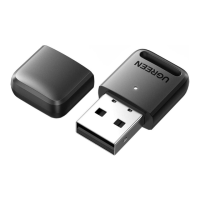

 To Next Page
 General