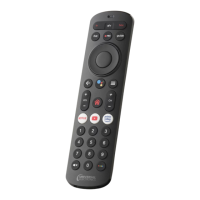
This document describes the Cervino Voice Remote, a universal remote control designed to operate an Android TV box and also control basic functions of a television.
Function Description:
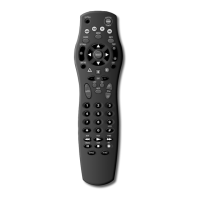
The Cervino Voice Remote serves as a primary control device for an Android TV box, offering comprehensive navigation and media playback capabilities. Beyond the Android TV box, it can be configured to control the Power, Volume, Mute, and Input functions of a television. A key feature is its voice control capability, enabled by the integrated Google Assistant (MIC/Google button).
- Power Control: Dedicated buttons for TV Power and STB (Set-Top Box) Power.
- Recording: A "Record" button for initiating recordings.
- Media Playback: Standard controls including Play/Pause, Rewind, and Fast Forward.
- Navigation: Directional pad (Up, Down, Left, Right) for menu navigation, complemented by an "OK" button for selection.
- Channel/Volume Control: Dedicated buttons for Volume Up/Down and Channel Up/Down.
- Input Switching: A button to switch the TV input.
- Numeric Keypad: Digits 0-9 for direct channel entry or other numeric inputs.
- Special Function Buttons:
- Guide: Accesses the TV guide.
- Home: Returns to the home screen.
- Back: Navigates back in menus.
- Mute: Mutes the TV audio.
- Streaming Service Shortcuts: Dedicated buttons for Amazon Prime Video, Netflix, and YouTube.
- Power Source: Requires 2 AAA batteries.
Usage Features:
- Universal Control: Capable of controlling both an Android TV box and a television.
- Voice Control: Integrated Google Assistant for voice commands, accessible via the MIC/Google button.
- SimpleSet Setup: A quick setup method for popular TV brands to control basic TV functions (Power, Volume, Mute, Input). This involves:
- Ensuring the TV is on.
- Identifying the TV brand from a provided list and its corresponding digit.
- Pressing and holding "OK" + "STB Power" until the feedback LED blinks twice.
- Pressing the "TV POWER" key (feedback LED stays lit).
- Pointing the remote at the TV and pressing and holding the number key for the TV brand until the TV turns OFF.
- Pressing the "POWER" key on the remote to turn the TV back ON.
- Testing the remote's functionality for TV Power, Volume, Mute, and Input. If issues persist, the process can be repeated.
- Pairing Sequence (for full features including voice control):
- Out-of-the-box experience: Follow on-screen instructions during the setup process.
- Manual Pairing:
- Press and hold "Home" + "Back" until the LED flashes twice.
- The LED will then flash continuously until the pairing sequence is complete.
- Note: During manual pairing, ensure the remote is close to and in line of sight with the STB.
- Intuitive Layout: The button layout is designed for ease of use, with clearly labeled functions and common media controls grouped together.
- Feedback LED: An LED indicator provides visual feedback during setup and pairing processes.
Maintenance Features:
- Battery Replacement: The remote uses 2 AAA batteries. The battery compartment is accessed by removing the battery cover. Users are instructed to match the positive (+) and negative (-) marks when inserting new batteries.
- User Manual: The device comes with a user manual that provides instructions for battery installation, key functions, and setup procedures.
The Cervino Voice Remote is designed to streamline the user experience by consolidating control of multiple entertainment devices into a single, voice-enabled remote. Its SimpleSet feature simplifies TV integration, while the dedicated streaming buttons offer quick access to popular services.

 Need help?
 General






 To Next Page