39
M
X
9
5
0
A
U
R
O
R
A
C
O
L
O
R
L
C
D
C
O
N
T
R
O
L
S
COMP L ETE
CONTROL
™
Downloading to MX-950
You download to the remote control by:
1 Make sure the remote control has charged batteries.
2 Connect the cable between the PC and the remote control.
3 Verify that the file you have open in MX-950 Editor is the one you want to download to the remote
control.
4 Click on the Download to Remote Control shortcut button on the toolbar or choose Download from
the Communications Menu. Do not move the mouse or touch the keyboard during the download.
TIP - Make sure that the cable plug is solidly connected at both ends.
Using the Setup Menu
1 Press and Hold both the WATCH and the ENTER button for five seconds.
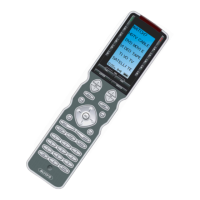
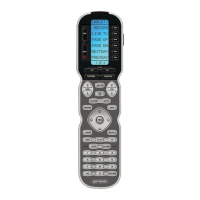
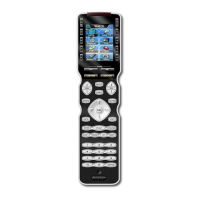
2 Once the Setup menu appears, you can browse between it’s two pages via the PAGE buttons. It will
automatically time out, or you can press the WATCH or the LISTEN button to exit.
TIME - Set the clock here, however if you want to change whether it is displayed or not, go to
INDICATOR on page 2 of the Setup Menu.
BACKLIGHT - Configure the amount of time that the MX-950 will stay lit after it is picked up.
DISPLAY - You can adjust the brightness and contrast of the display. Keep the setting of color set
to S/W, thus all your changes of device backlighting color will be displayed.
SOUND - You can adjust the Volume of the MX-950 speaker
PICKUP - You can disable the Pick Up Sensor
INDICATOR - You can disable the display of the Clock, the IR and the Battery Indicator here.
Finishing the Program





 To Next Page