7?A<
E
+'?7&'0)&)$$-
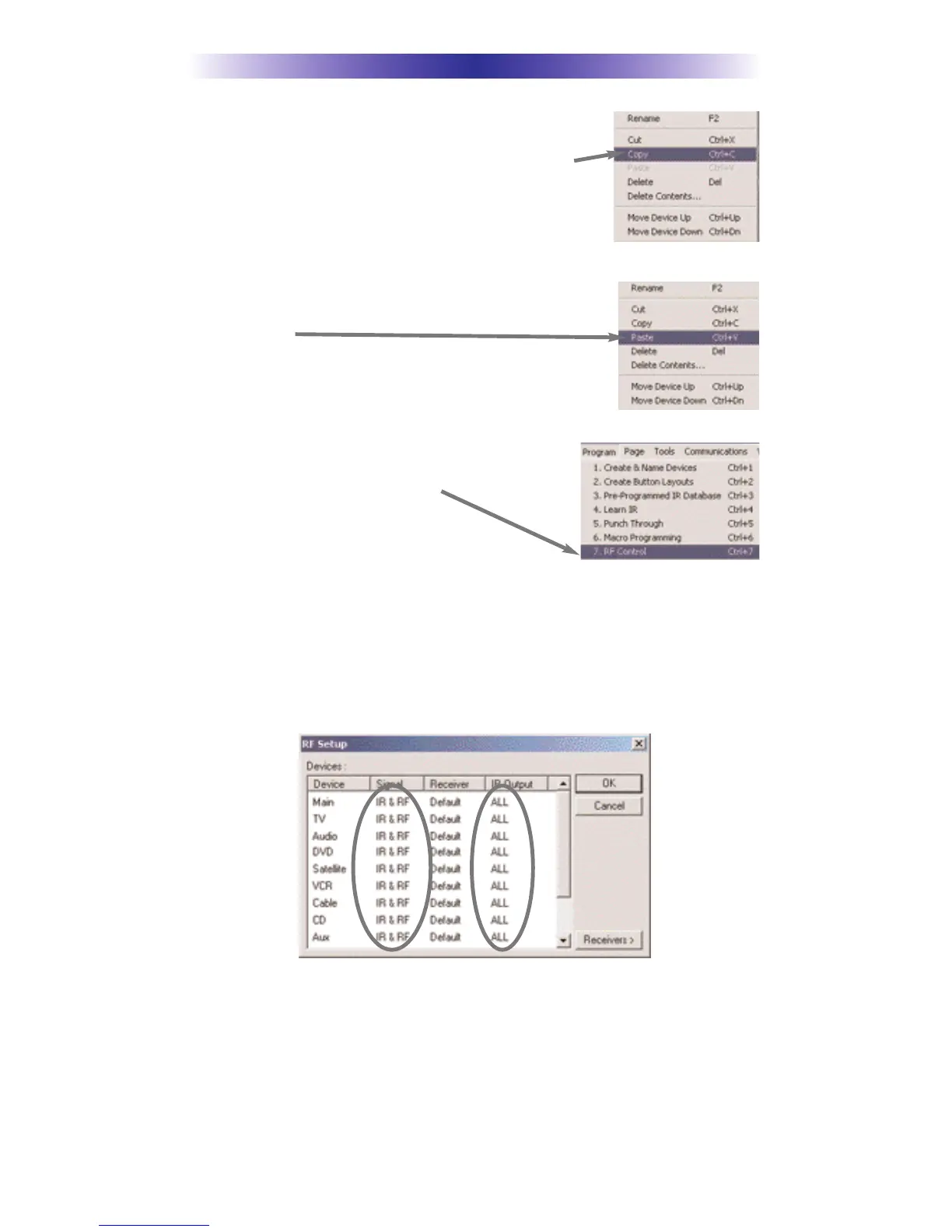
In tree view, right click on the device you programmed.
From the context menu that appears, select COPY.
+'@7*+)&)$$-
In tree view, right click on the first device that is NOT
PROGRAMMED. From the context menu that appears,
select PASTE.
Repeat this PASTE on all of the other identical device. Save
your work.
+'A7'%+F+,' %&.
The RF Setup window opens after selecting RF
Control from the Program Menu.
The RF Setup window is composed of a “spread sheet” of options for EACH of
your devices. By looking at the Signal column, you can see that the factory
default programming sets all of the devices to send both IR and RF commands.
If you look at the column for Flashers, you can see that the default sends IR
commands for all devices to ALL of the flashers. Both options must be changed
for identical components. Additionally, if you are not using it, you may wish to
disable the Front Blaster (see page 7 for directions).
+'B7!,*++ %#&)&+%+ #- *
The RF Setup window enables you to adjust the Signal output for each device
individually, by clicking on the intersection of a row and a column and then
selecting from the three options shown in the pull down list box .


 To Next Page