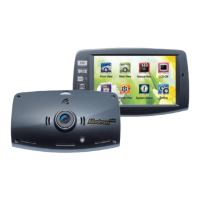
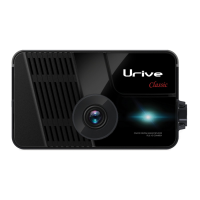
Urive Zest ... 31 ... User's Guide
10. Upgrade -Auto upgrade
[ How to upgrade automatically ]
1.
#
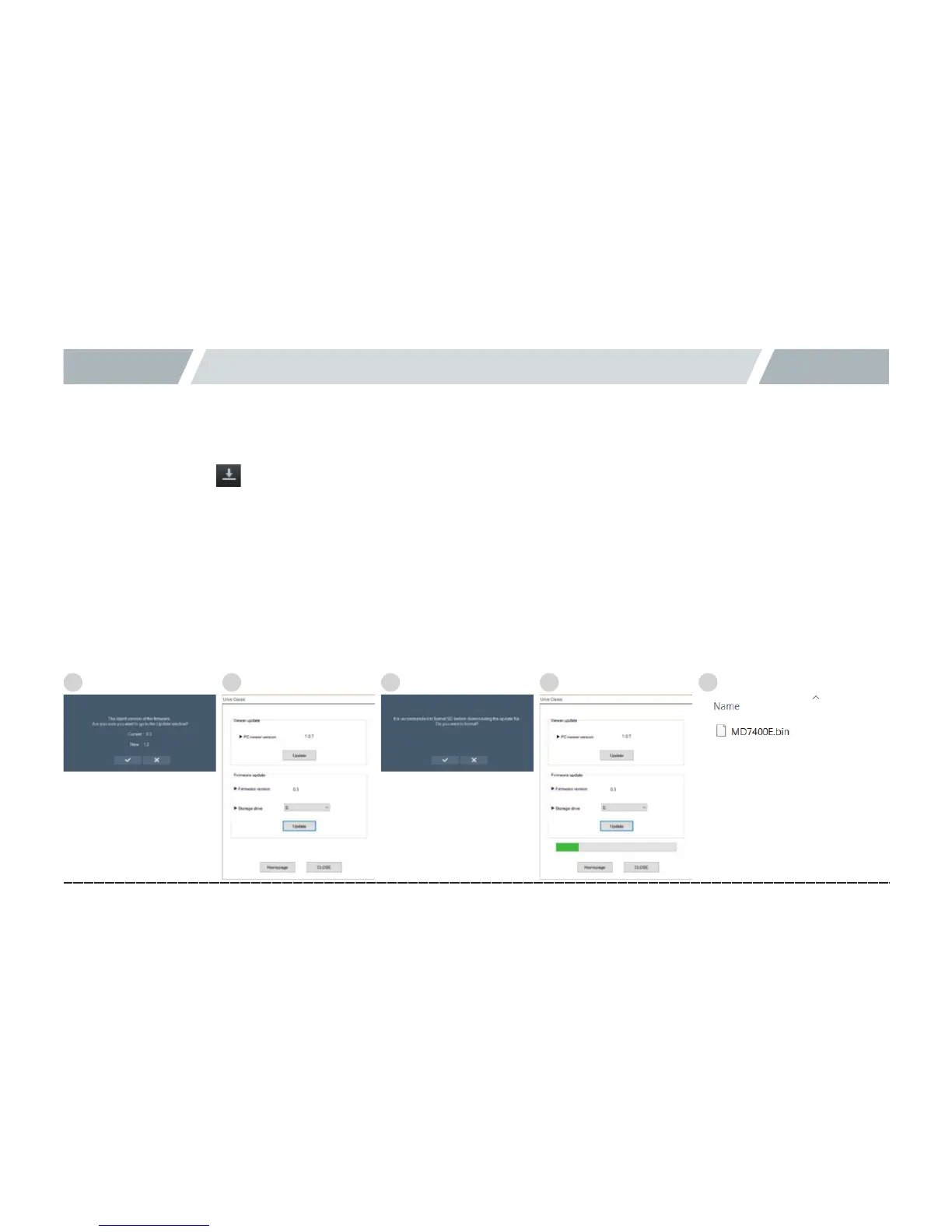
With the PC Viewer, you can automatically install the upgrade file in the memory card. Insert a micro SD card into a
PC, and then press button at the upper left of main screen of Viewer. (If a micro SD card having firmware version
information is inserted, a prompt of new firmware is shown as in ①).
2.
#
Make sure you select correct drive letter of micro SD card; press the Update button; and format the micro SD card
according to the instruction. (For the format process, refer to “11. PC Viewer - Format SD.”)
3.
#
When the update is finished, a prompt pops up as in ④ and the update file (MD9300P.bin) is copied to the micro SD card.
4.
#
After turn the device off, insert the micro SD card to the body.
5.
#
After turn the device on, it is automatically upgrade with voice information(Starting the update) and then it will reboot by
itself.
6.
#
In the SD card, some set folders are created after rebooting.
1 2 3 4 5



 To Next Page