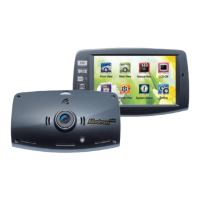
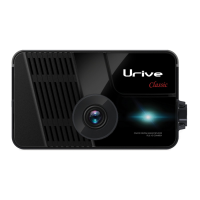
Urive Zest ... 51 ... User's Guide
16. Service information—Diagnosis before requesting a service
State Action
The clock of the black box
is not correct.
If a GPS is not installed, you can set the clock in
Settings - System setting - Clock menu.
The power is not turned
on.
Check the power on/off switch.
Make sure it is connected to a constant power supply source.
(Black: GND/ Red: B+/ Yellow: ACC power)
Screen saver (clock or
speed) is not working.
In Settings - Display setting,
you can check the state of the screen saver.
GPS signal is not received. Check the connection between the black box and the GPS terminal.
Voice information cannot
be heard.
Select Settings - Voice setting
in order to check the state of voice information.
Voice is not recorded.
Select Settings - Voice setting
in order to check the state of voice recording.
A file is not saved in
parking mode.
1)If “Parking mode error” message is displayed, check whether the SD space of parking mode is
allocated by 0%.
2)Make sure it is connected to a constant power supply source.
3)Check the SD card using your PC.
Micro SD card 64 GB
cannot be formatted with
the dedicated viewer.
1)To format a micro SD card 64 GB in exFAT format with Windows XP, you need to install a patch.
2) File: WindowsXP-KB955704-x86-KOR.exe
3) Download it from Urive’s home page - Customer support - Download center - Urive Zest and install it.
4) Close all Windows Explorer windows when formatting it with the dedicated viewer.



 To Next Page