Working with EasyMic Microphones
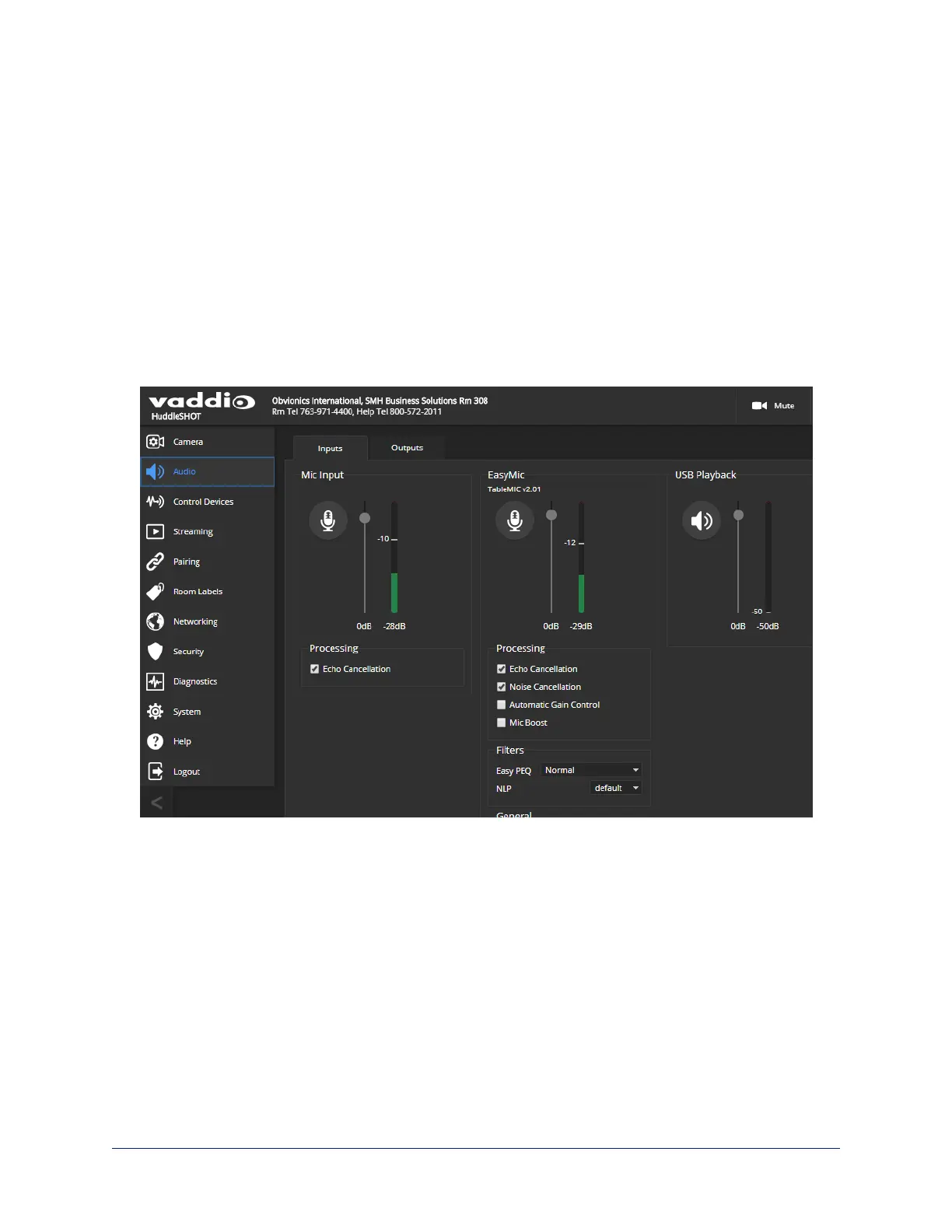
When a microphone of the EasyMic family is connected to a compatible Vaddio device, you can manage
it from that device's web interface. The managing device provides controls for muting/unmuting and for
adjusting the microphone's performance, as shown in the screen shots below. In some cases the device
may need to be updated to the latest firmware to work properly with the microphone.
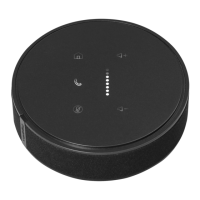
The TableMIC provides integrated controls for basic conferencing functions:
n Mute button – Mute the microphones in your conference room.
n Volume + and Volume – buttons – Adjust the speaker volume in your conference room.
n Volume level indicator – Display the current volume setting.
n Call button – Connect to a Skype for Business conference or leave the conference.
n Home button – Execute the associated OneTouch macro on the device to which the microphone is
connected.
Example: Managing a CeilingMIC or TableMIC from a HuddleSHOT camera
TableMIC microphones are updated via the equipment to which they are connected. The procedure
varies, depending on the host product.
When you update the microphone firmware, you may also need to update the firmware of the other
equipment in the room.
Complete Manual for TableMIC and EasyIP TableMIC D Conference Room Microphones
7


 To Next Page