P4 P5
Vangoa Music Facebook : @Vangoaoffical Bring you the passion to music Vangoa Music Facebook : @Vangoaoffical Bring you the passion to music
Operating Instructions
Tones and effects
1.
Power switch and volume control
Press the power switch [1] to turn on the keyboard and LCD display.
Select proper volume on the master volume [2]. There are 8 level of
volume available.
2.
How to play demo
(1) Press button [27] ( even sing) to loop play internal demos.
(2)Press button [26] (Jukebox) to start demand service, and press
button [24] (song select) to select one of the 40 internal demos
you want. It will stop playing after the song you selected
.
finished. Repeat the above movement to play next selected demo.
1.
Tone selection
There are 500 tones available with this keyboard
and the default tone is piano. Press button [22]
(Tone select) to start tone select function and select
desired tone with button [24]. The number of selected tone will shows
on the LCD display screen.
2.
Effect selection
(1)Press button [16] (Trill) or button [17] (Tenuto) to start corresponding
effect.
(2) Press button [15] (Dual Tone) to play synthesized tone compounded
by two basic tones. At this time, it will show the number of these two
basic tones on the LCD display and you can change these two basic
tones by pressing button [24]. Press again button [15] (Dual Tone) to
(5) Sustain pedal port
To connect the sustain pedal. Step on the pedal while playing, and
this will create a sustain effect. We suggest you connect the sustain
pedal before turning on this keyboard or restart the keyboard after you
connect the sustain pedal.
end dual tone function.
(3) Rise a minor second for each clicking "+" of the button [5]
(Transposition control). Fall a minor second for each clicking "+” of the
button [5] (Transposition control). It can rise/fall 6 minor second in total.
Press “+" and "-" at the same time to restore default.
Rhythm Playing
1.
Rhythm selecting
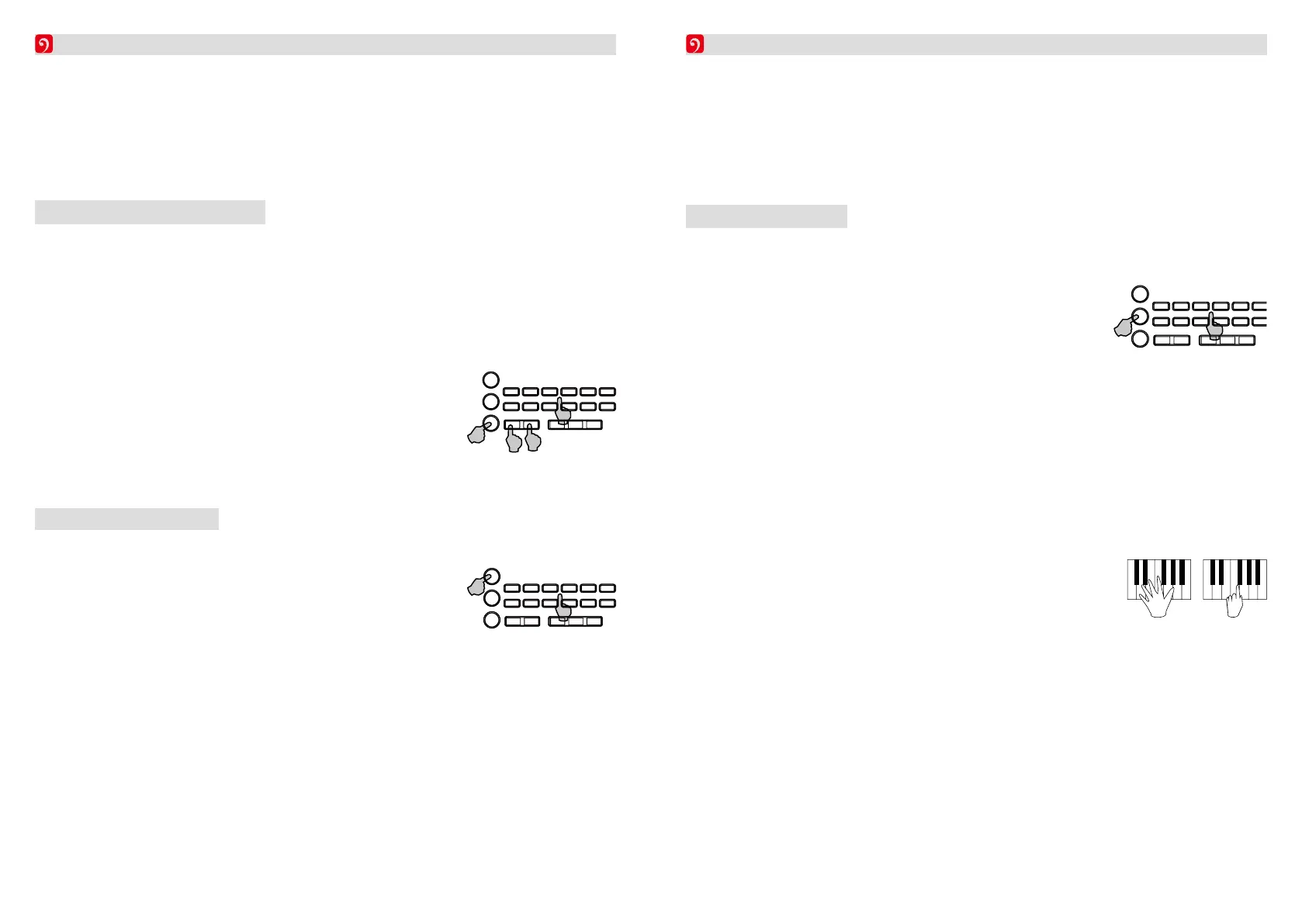
This keyboard has 300 rhythms available. Press
button [23] (Rhythm selection) to start selecting
function and press “+” or “-” of button [24] to
choice desired rhythm. The number of the the
rhythm selected will be on the LCD display.
2.
Start/stop
Press button 8 (Start/stop) to start or stop rhythm function.
3.
Rhythm tempo adjust
Press “+” or "-” of button [4] (Rhythm tempo) to increase or decrease
tempo. Press “+” and “-” at the same time to restore default.
4.
Auto bass chords
(1) Press button [11] (single finger)and button
[12] (Fingered) to start auto bass chords function
selected.
(2) Press the button [9] (Synchronization) to set up chord
progression. Press any one of the 19 keys on the left side of keyboard
to star prelude and it will turn into accompaniment once prelude
ends.
(3) Press the button [13] (Close Chord) to close the auto bass chord
function.(4) This keyboard have two kind of performance styles,
SINGLE FINGER and FINGDERED CHORD.
5.
Hyperresonant cut in
Press button [10] (Plug in) to cut in Hyperresonant when playing rhythm.
6.
Percussion performance


 To Next Page
 Loading...