Motion Detection
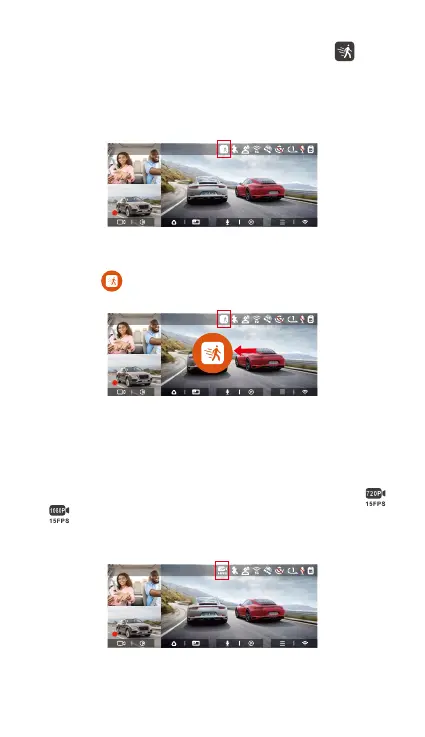
When the motion detection is turned on, the icon
will be displayed on the recording inteace, indicating
that the dash cam is currently in motion detection
mode. You can go to "Motion Detection Area" in the
menu settings to set the detection area.
- 25 -
Note:
If the dash cam constantly detects a collision during the
collision detection recording process, it will exit the
collision detection mode, enter normal recording, and
resta the 5-minute ent mechanism.
When the motion Detection is turned on, and no
movement is detected after 3 minutes of recording,
then an icon will appear in the center of the screen,
and the screen will turn o after 3 minutes.
F
MP/H
14:25:35 06-01-202300:00:37
35
2160P+1080P+1080P 30FPS
Note: Motion detection mode can only be engaged
when the camera is turned on. Once the camera is
turned o, the motion detection mode will not work.
Low Bitrate Recording
When Low Bitrate recording is enabled, the icons or
will be displayed in the upper right corner of the
screen, depending on whether you choose 1080P
15FPS or 720P 15FPS.
F
MP/H
14:25:35 06-01-202300:00:37
35
2160P+1080P+1080P 30FPS
F
MP/H
14:25:35 06-01-202300:00:37
35
2160P+1080P+1080P 30FPS


 To Next Page