Motion Detection
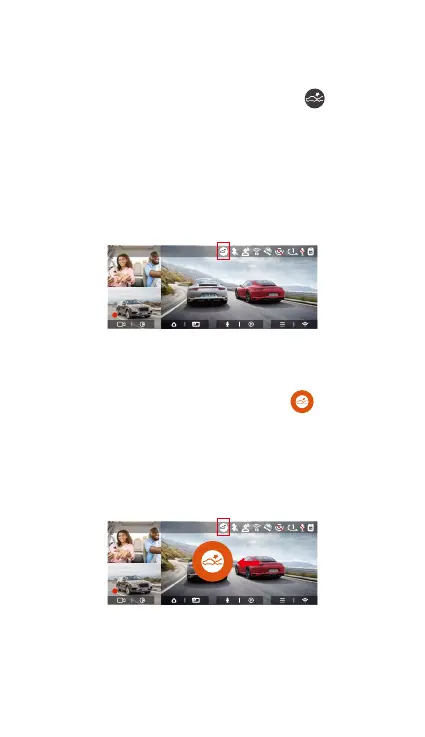
When the motion detection is turned on, the icon
will be displayed on the recording inteace, indicating
that the dash cam is currently in motion detection
mode. You can go to "Motion Detection Area" in the
menu settings to set the detection area.
- 24 -
Collision Detection
When collision detection is enabled, the icon will be
displayed on the recording inteace, indicating that the
dash cam is currently in collision detection mode. The
sensitivity of the collision detection has 1 to 5 levels of
sensitivity can be adjusted. The sensitivity of collision
detection can be adjusted from 1 to 5 levels of
sensitivity. You can adjust the sensitivity of collision
detection according to the car's environment and usage
habits.
When the Collision Detection is turned on, and no
movement or vibration is detected after 5 minutes of
recording (5-minute ent mechanism for sho), then
Collision Detection is activated with a icon in the
middle of the screen, and the camera automatically
turn o.
After the dash cam is turned o, if the G-sensor detects
that the car is vibrating or moving, the recorder will
automatically turn on and record for 1 minute, and then
turn o.
F
MP/H
14:25:35 06-01-202300:00:37
35
2160P+1080P+1080P 30FPS
Note:
If the dash cam constantly detects a collision during the
collision detection recording process, it will exit the
collision detection mode, enter normal recording, and
resta the 5-minute ent mechanism.
F
MP/H
14:25:35 06-01-202300:00:37
35
2160P+1080P+1080P 30FPS
mode from being overwritten in a loop, please check
and save the required les in time to prevent loss.


 To Next Page