3. Once charged, the camera will power on. Recording will
commence if a microSD card has been inserted, just press the
Confirm Button to stop recording.
4. Press the MENU button to enter setup, go to “GPS Setup”>“GPS
Setup” to activate the camera’s GPS function.
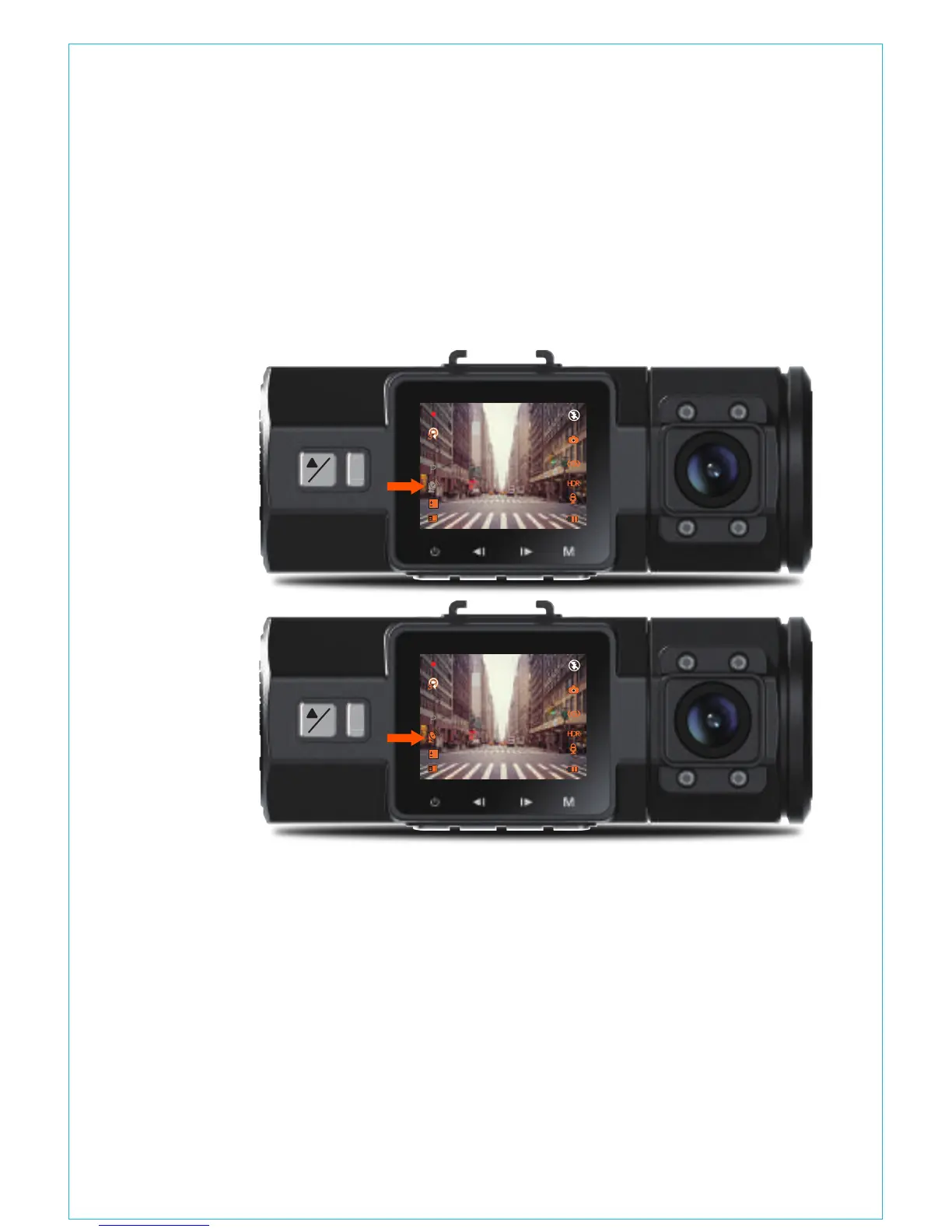
5. The GPS receiver will start to search for a GPS signal, this is
represented by a gray GPS icon on the screen. Once the GPS
signal has been received and locked, the icon will turn orange.
6. You can include GPS tracking and vehicle speed on the video
footage, go to “Record Setup”>“Stamp”>“GPS Location Stamp”
and “Speed Stamp” to set.
7.You can review recorded video using the VANTRUE GPS Viewer
(available for download on www.vantrue.net).
®
Press MENU and go to “Files”, press OK and UP/DOWN button to
navigate to >“Normal” or >“Event” or >“Photos” or >“All” file
folders to view and playback videos or photos on the camera
display. Use the UP/DOWN buttons to select the file and press
4.12 Viewing Video/Photos on the Camera
!
P
OK
0
01/01/2017
03:07:29
0:231080P+1080P
3
!
P
OK
0
01/01/2017
03:07:29
0:231080P+1080P
3
- 17 -



 To Next Page