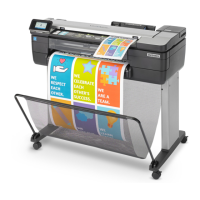
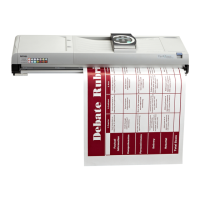
The VariQuest Perfecta STP Series Poster Design System is a multifunction printer designed for printing, scanning, and copying large, high-quality images. This series includes both the Perfecta 2400STP and Perfecta 3600STP models, with information provided being identical for both machines unless otherwise noted.
Function Description:
The device serves as a comprehensive poster design system, capable of producing large-format prints, scanning documents, and making copies. Its primary function is to facilitate the creation of high-quality visual aids, posters, and other large-format materials. The system is designed to be user-friendly, with a front panel that provides complete control over the printer's operations.
Important Technical Specifications:
While specific technical specifications like print resolution, speed, or maximum print size are not explicitly detailed in the provided document, the device is highlighted for its ability to produce "large, high-quality images." The system supports various paper types, including plain paper, bond and coated paper, technical paper, photo paper, film, and adhesive paper, indicating versatility in output. It also supports both roll paper and multi-sheet tray options, accommodating different printing needs. The printer is equipped with Wi-Fi Direct capabilities, allowing for direct device-to-device communication without requiring an external network. Network connectivity (wireless and wired) is also supported, enabling access to school networks and the internet with Google Drive integration. Mobile printing from iOS devices is supported, and Android devices can also print using the HP Print Service Plugin app.
Usage Features:
The VariQuest Perfecta STP Series offers several usage features to enhance user experience:
- Front Panel Control: The front panel acts as the central control hub, displaying dynamic information about current activity. A dashboard, accessible by swiping down from the top, shows Home screen icons. Fixed icons on the left and right provide quick access to common functions. The power icon illuminates when the printer is on.
- Intuitive Navigation: Icons on the front panel allow users to return to the home screen, go back to the previous screen, view current screen help, and check wireless network status.
- Home Screen Icons: These icons provide quick access to various settings and functions, including changing printer settings, ejecting scanned originals, viewing ink supply information, viewing printhead information, checking network status (wireless or wired), viewing Wi-Fi Direct information, and configuring ePrint.
- Dynamic Icons: These icons provide options for roll paper, multi-sheet tray, and single-sheet paper. A white checkmark indicates the active paper source.
- Paper Loading: The device supports loading paper rolls using a spindle with a blue hub. The process involves inserting the paper edge into the printer until resistance is felt, after which the printer automatically detects and feeds the paper. For multi-sheet trays, users can adjust input and output tray extensions for different paper lengths (e.g., A4 and A3).
- Connection Methods: The printer offers multiple connection options:
- Wi-Fi Direct (Method 1): Easy to install, no IT required, no additional cords, and the printer and Design Center are off the network. Ideal for direct device-to-device communication.
- Network Connection (Method 3): Medium difficulty to install, provides access to school network and internet with Google Drive. May require additional cords.
- Wi-Fi Direct between Perfecta and DC with DC Ethernet to wall for network connection (Method 2): Medium difficulty, requires an additional Ethernet cord, provides access to school network and internet with Google Drive, but the printer is off the network and not discoverable without a password.
- Direct Wired Connection (Method 4): Most difficult to install, requires an additional Ethernet cord, and the printer and Design Center are off the network.
- Mobile Printing: Users can print directly from iOS smartphones or tablets. The process involves connecting the printer and mobile device to the same local internet network or using the Direct Printing option without a wireless network.
- Scan to Print: This feature allows users to scan an original document and print it as a larger poster. The printer first scans the original into memory, then prints the scanned image. Users can select copy options (Lines, Image, Mixed), number of copies, paper output source (roll, multi-sheet tray, single sheet), and copy quality (Best, Normal, Draft). The system automatically resizes the print to fit the loaded paper size.
- Print/Scan to USB: Files can be printed from a USB thumb drive (JPEG, TIFF, and HP-GL/2 file types supported), and scanned images can be saved to a USB flash drive.
Maintenance Features:
The document outlines key maintenance procedures:
- Ink Cartridge Installation: Users are instructed to open the ink cartridge cover, wait for the carriage to stop, pull out the old cartridge, and insert the new one into the slot with the corresponding color letter. It is explicitly stated not to remove an ink cartridge while printing.
- Paper Loading and Unloading: Instructions are provided for loading paper rolls onto a spindle and using the multi-sheet tray. The system automatically detects paper once inserted. For multi-sheet tray use, if a roll or single sheet is already loaded, users must first unload it.
- Scanner Operation: For scanning, users push the sheet into the insertion slot until it contacts the rollers, and the scanner automatically grabs the sheet. If a sheet loads incorrectly, it can be pulled out manually, and jammed documents can be retrieved by pushing two buttons.
- Troubleshooting and Support: The document advises users to contact their authorized VariQuest dealer or the VariQuest Technical Support team for assistance. Email and phone contact information are provided. Additional information can be found in the User's Guide at resources.variquest.com.
The VariQuest Perfecta STP Series is designed to be a robust and versatile tool for educational and professional environments requiring large-format printing, scanning, and copying capabilities, with a strong emphasis on ease of use and connectivity options.


 To Next Page
 General