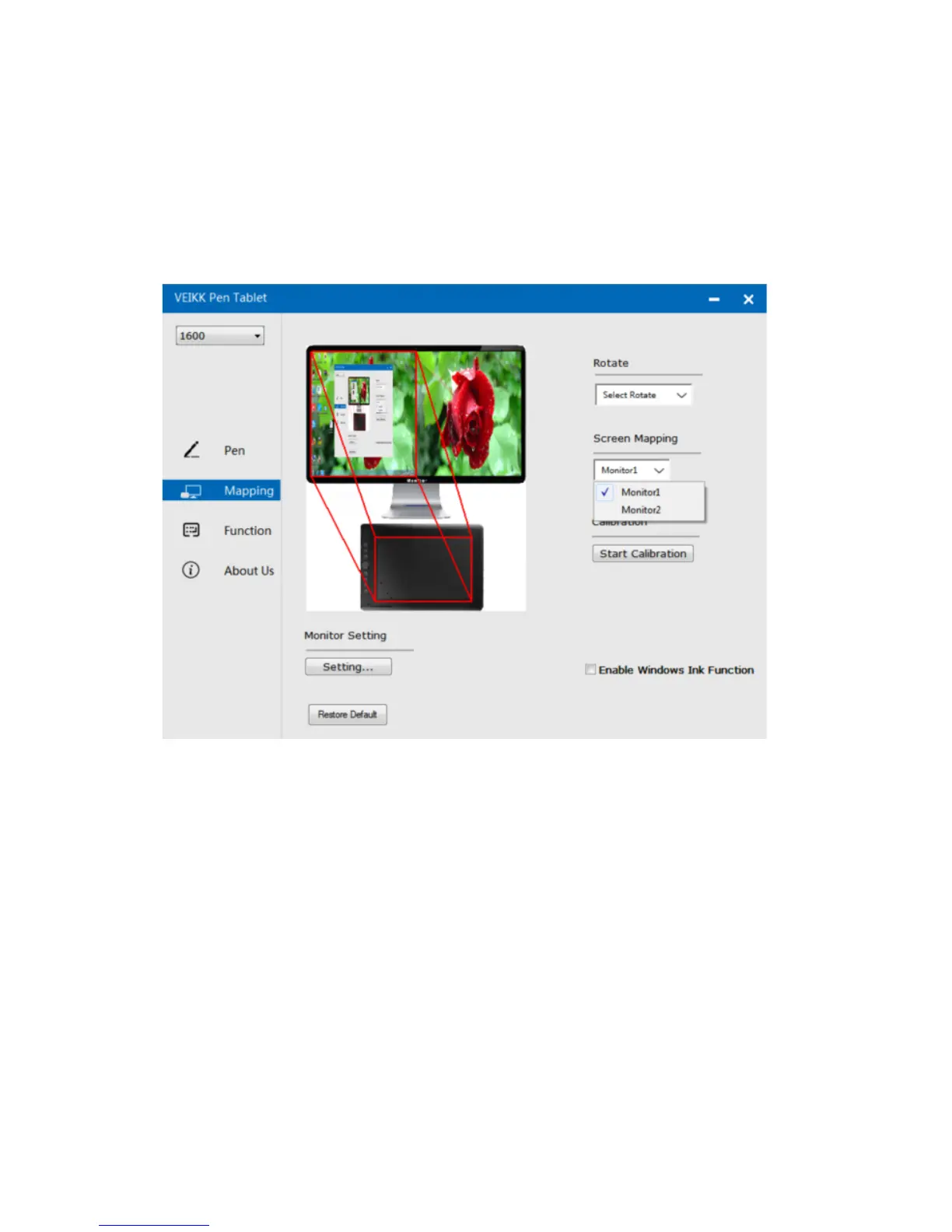
2.2.3 Screen Mapping
If working in Extended Display, choose which monitor you want your VK1560 pen display
to track with. Most likely, you will want it to track with the VK1560 display.To learn which
monitor is Monitor 1 and which is Monitor 2, Please go to Start > Settings > Display and click
Identify.
2.2.4 Calibration
Click Start Calibration to activate the calibration screen. Press crosses appearing on the
screen one by one with the P68 pen to calibrate the screen.
2.2.5 Enable Windows Ink Function
Microsoft Windows provides extensive support for pen input. Pen features are supported in
such as Microsoft Office、Adobe Photoshop CC、AI and so on.
10


 To Next Page