Note: Software keystrokes are based on English input methods. If not already, set
to English when using Hotkeys on your VK1560 pen display.
Note: Most creative software will not accept keystroke inputs when you P68 is still
in use or when your P68 is still within the detectable cursor range. To avoid invalid
keystroke actions, hold the pen away from the screen before pressing your Fast
Access button. (Hold P68 at least 1.5cm away from the surface of the screen.)
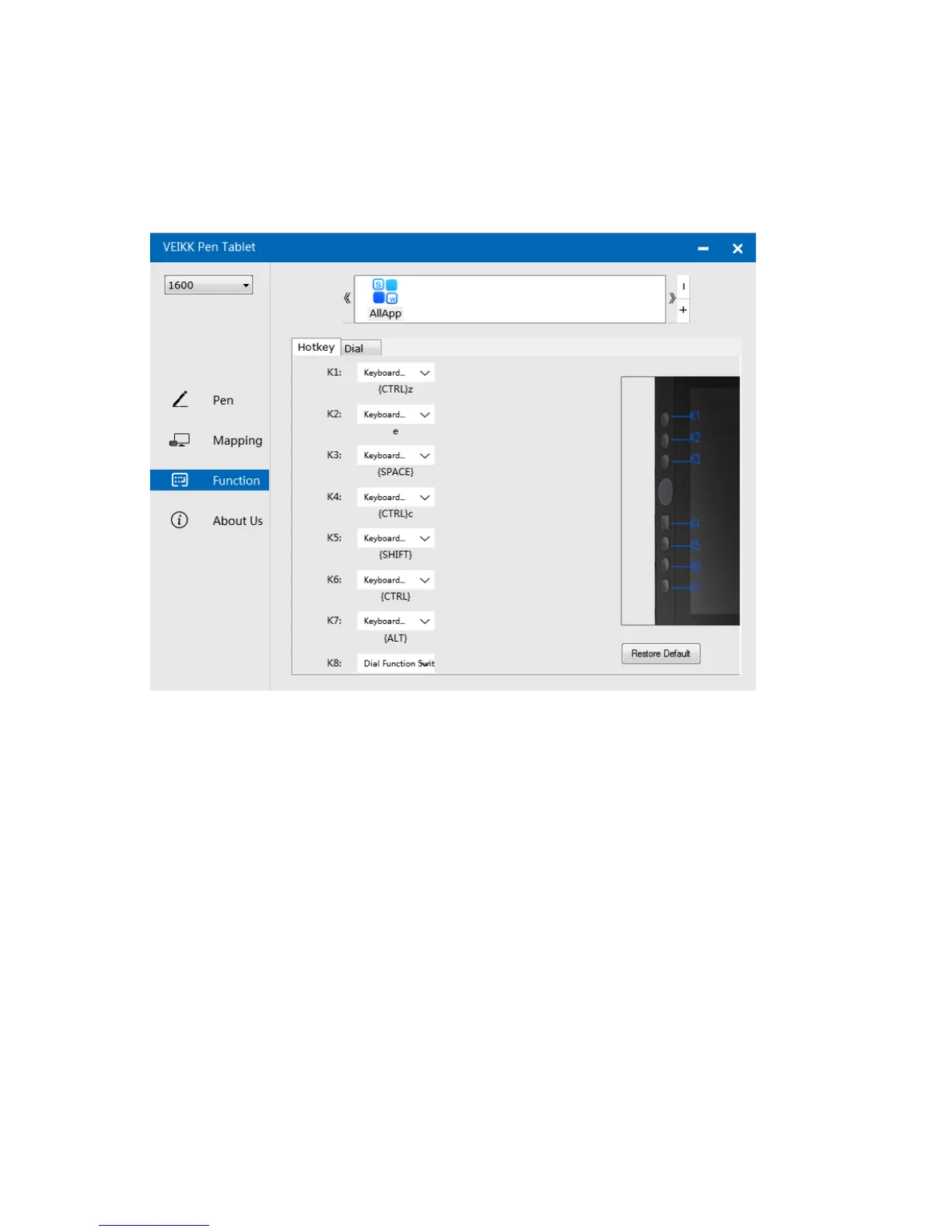
2.3.1 Hotkeys
Redefine Hotkey: Click on the title of the button. A dropdown menu will appear with a
list of tool options. Choose the one you want to use.Custom Define: At the bottom of
the dropdown menu, choose Custom. This will allow you to input a custom keyboard
shortcut.
2.3 Functions
Customize the Fast Access Buttons and Dial from Function Tab.
11


 To Next Page